

M5Stack
What is M5Stack?
Internal Firmware Upgrade Tutorial
This tutorial uses the Faces Gamepad3 as an example to explain how to upgrade the device's internal firmware, and describes the common issues encountered during the upgrade along with their solutions.
Note
To ensure a successful upgrade, do not perform the following operations during the upgrade:
- Power off or reset the device
- Disconnect the connections between devices
- Close the upgrade webpage
Procedure
- Upgrade the host controller. Depending on the product and the paired host controller, click the corresponding WebBurner firmware link in the table below to enter the M5Burner Web firmware flashing page, and flash the host controller firmware according to the on-screen instructions.
| SKU | Product | ESP32 | ESP32-S3 |
|---|---|---|---|
| A004-V3 | Faces Gamepad3 | WebBurner-v1.0 | WebBurner-v1.0 |
| U188 / U182 | Unit RollerCAN or Unit Roller485 | WebBurner-v1.1 | WebBurner-v1.1 |
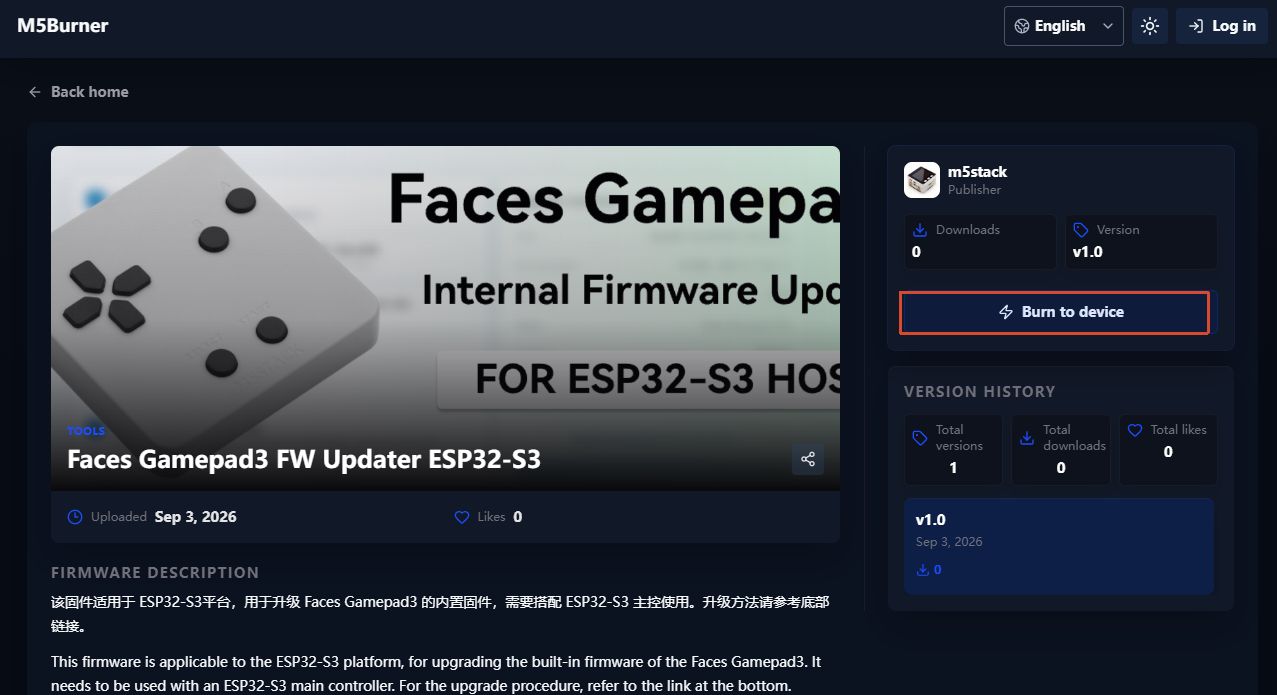
- After the host controller upgrade is complete, connect the host controller and the Faces Gamepad3 to the Faces Bottom3 respectively, and power on the host controller.
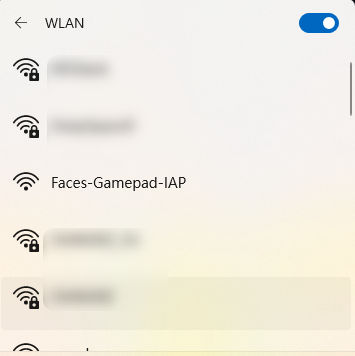
- Connect your phone or computer to the Wi-Fi
Faces-Gamepad-IAP.
- Open
http://192.168.4.1in a browser to enter the Faces Gamepad3 firmware upgrade page.
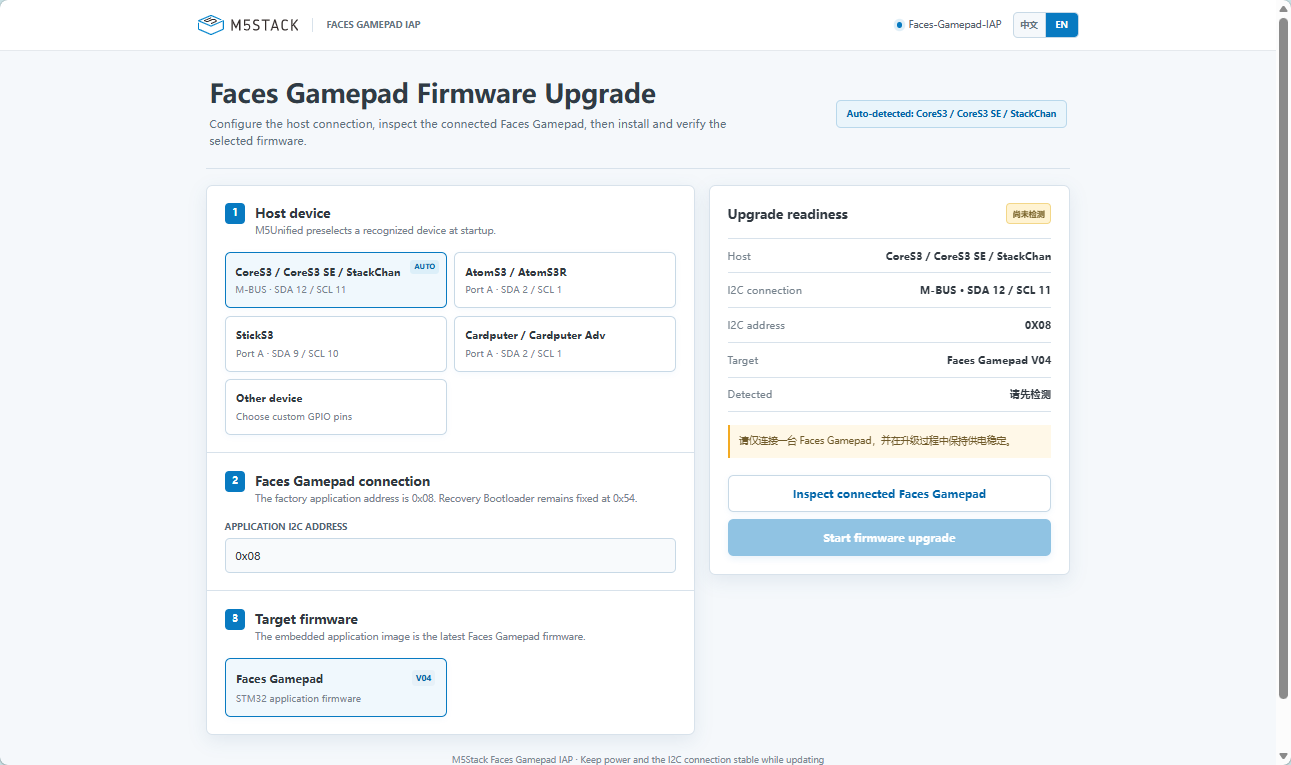
- On the upgrade page, confirm whether the automatically detected host model and connection pins are correct. If they are incorrect, correct them manually; if the host controller you are using is not listed, select the
Other deviceoption.
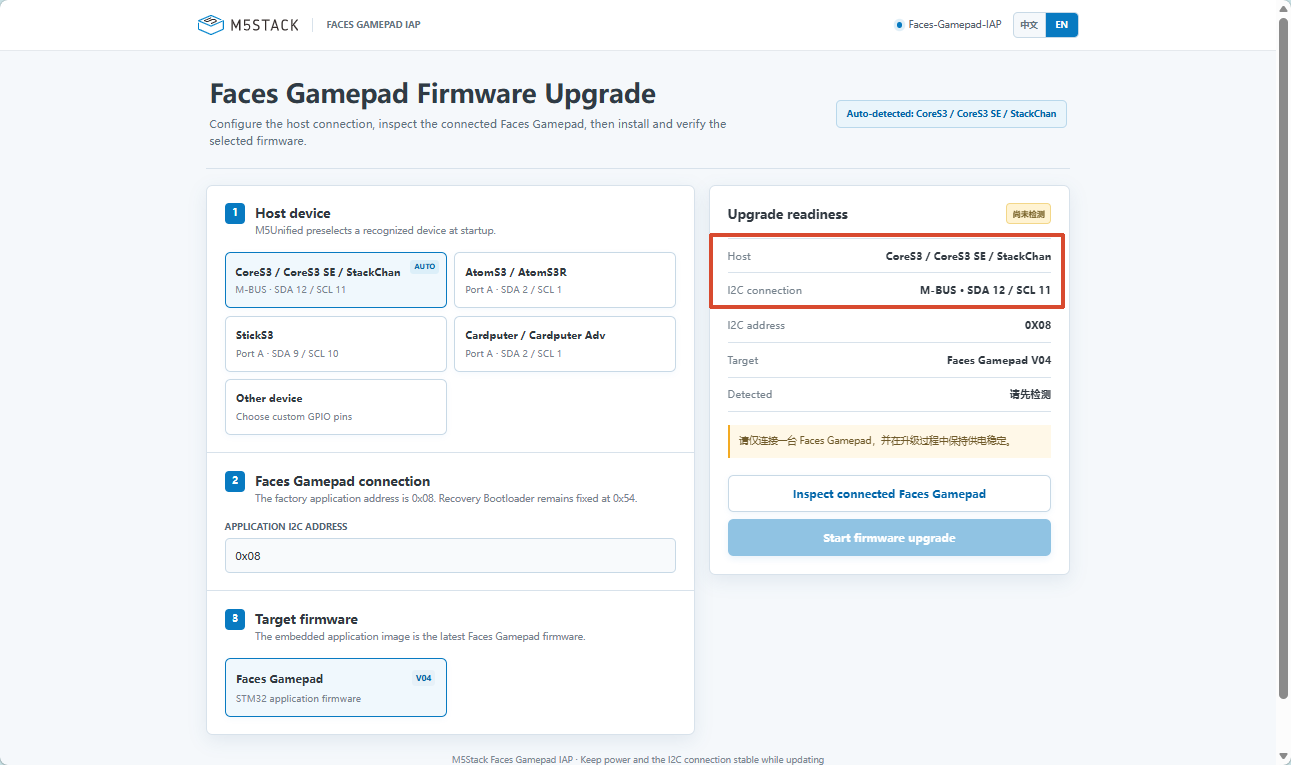
The common Core series connections are as follows (Core and Core2 use M-BUS; for other devices, connect according to the interfaces shown on the web page).
| Host | Interface | SDA | SCL |
|---|---|---|---|
| Core / Basic | M-BUS | G21 | G22 |
| Core2 / Tough | M-BUS | G21 | G22 |
| CoreS3 / CoreS3 SE / StackChan | M-BUS | G12 | G11 |
- Click
Inspect connected Faces Gamepad3to check the device connection status.
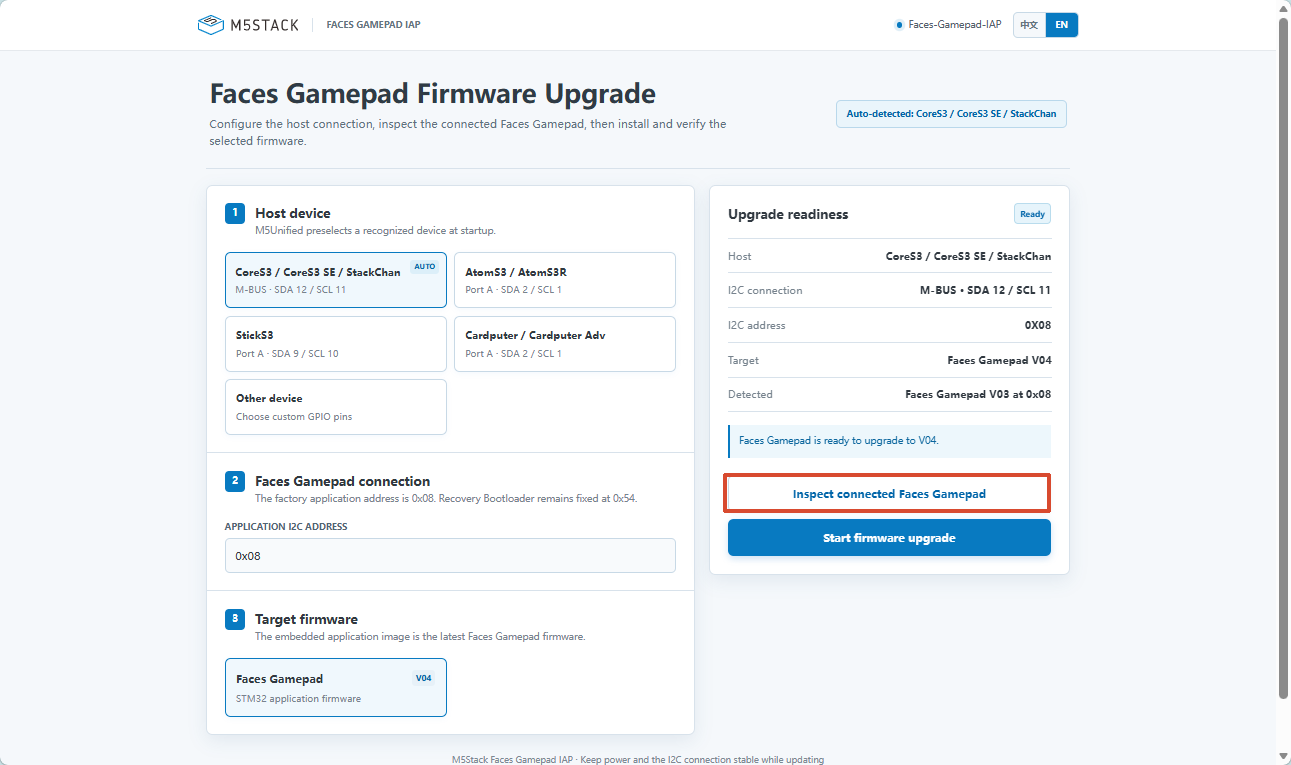
- After the check succeeds, click
Start firmware upgrade.
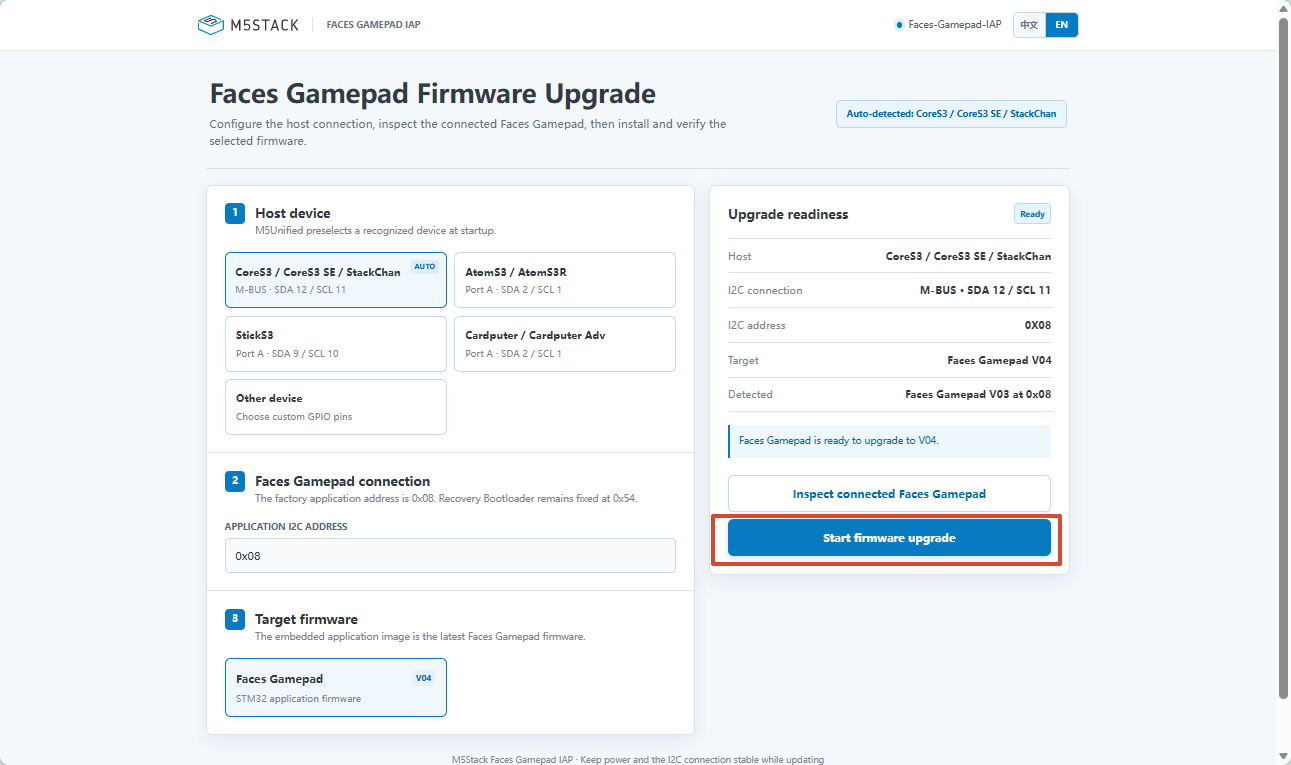
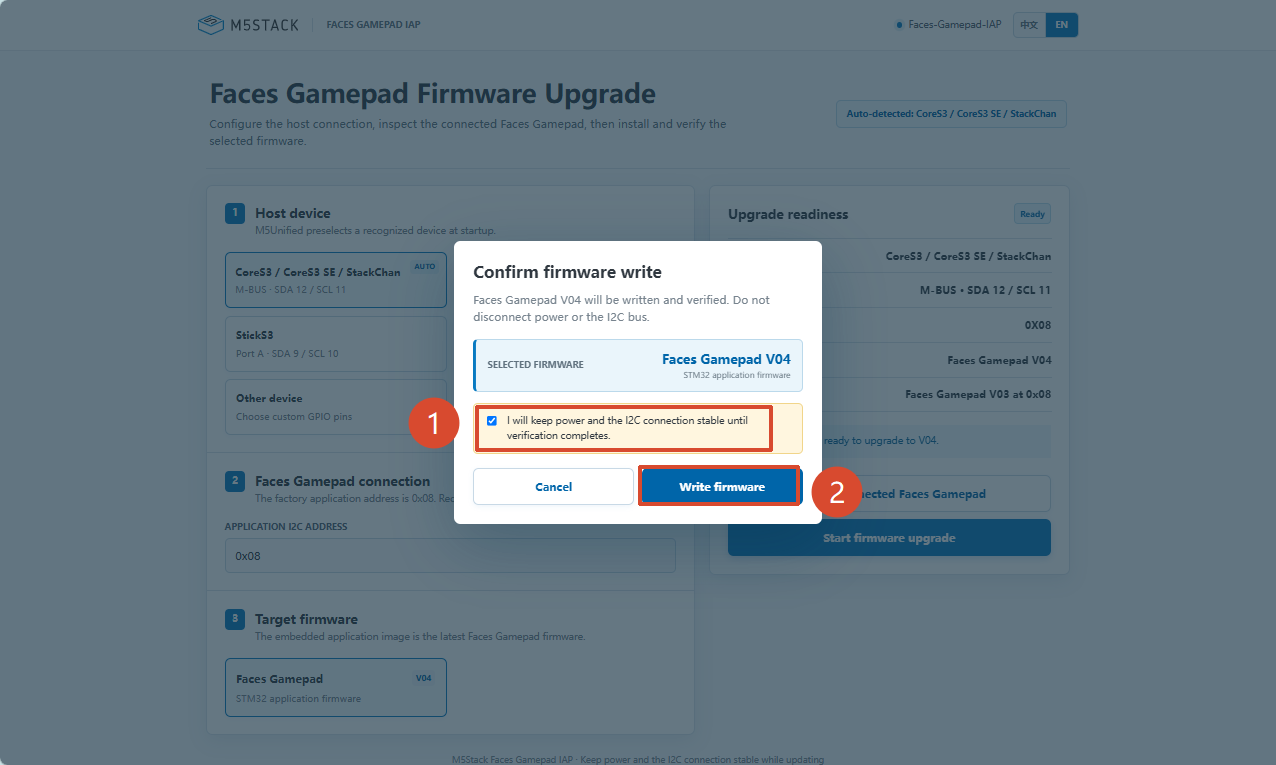
- In the confirmation window, check Ensure stable power and connection, then click
Write firmwareto confirm and start the upgrade.
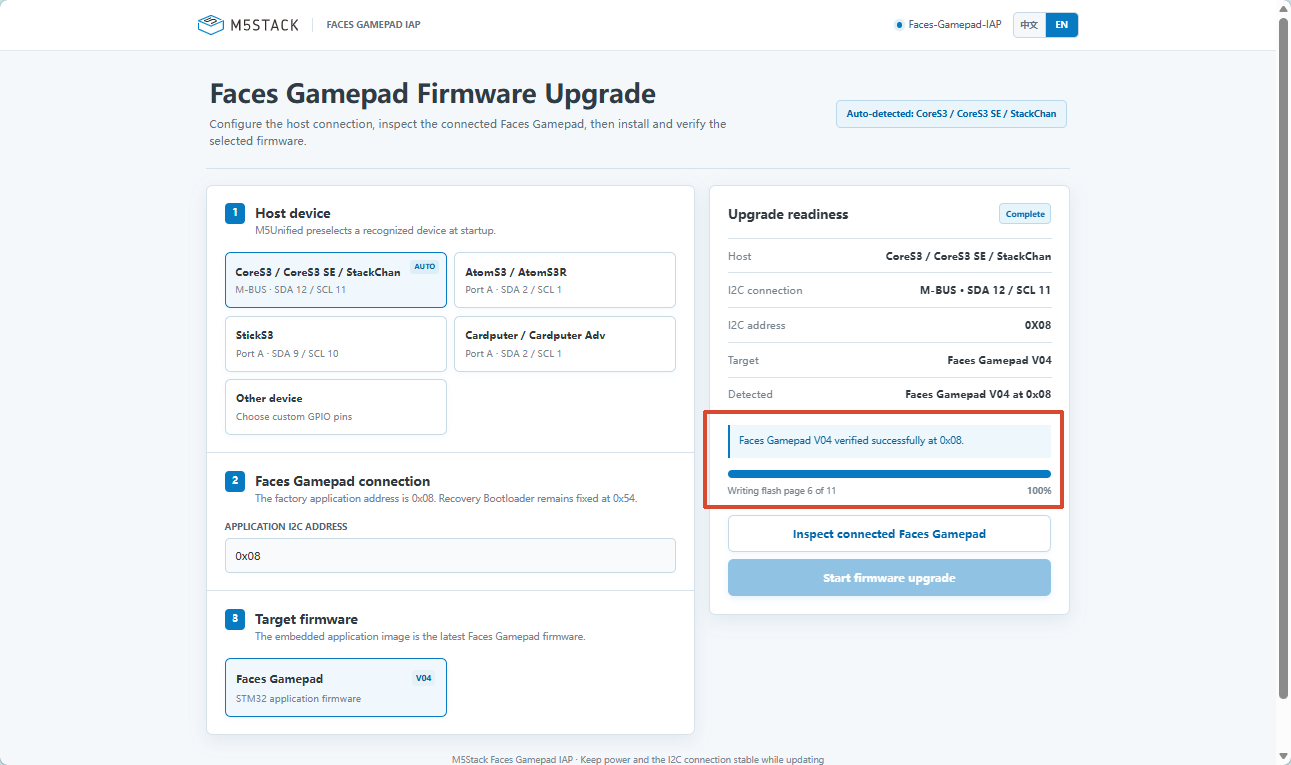
Wait until the page shows that the upgrade is complete and the version verification has passed.
FAQ
Power Loss or Connection Interruption During Upgrade
- Reconnect and power on the device.
- Reconnect to the
Faces-Gamepad-IAPWi-Fi. - Open
http://192.168.4.1. - Re-detect the device.
- If the page shows Recovery Mode or Bootloader, confirm directly and restart the upgrade.
During recovery, a full upgrade will be performed again from the beginning, so there is no need to manually select where the interruption occurred.
Wi-Fi Not Found
- Confirm that the device is powered on and has finished booting;
- Reset the host controller;
- Confirm that the phone or computer has not automatically switched back to another Wi-Fi.
Webpage Cannot Be Opened
- Confirm that you are connected to
Faces-Gamepad-IAP; - Manually visit
http://192.168.4.1; - Disconnect the VPN connection to prevent automatic VPN switching when the cellular network switches.
Faces Gamepad3 Not Detected
- Confirm that the Gamepad3 is powered;
- Confirm that the interface and connection direction are correct;
- Core/Core2 should use the M-BUS;
- Confirm that only one Faces Gamepad3 is connected;
- Replug the connection and detect again.
Upgrade Failed
- Keep the power to the host controller and the Gamepad stable;
- Check the cable and interface contacts;
- Power cycle the device, then re-detect and perform a full upgrade;
- If it enters Recovery Mode, follow the steps under "Power Loss or Connection Interruption During Upgrade".
Page Tools