

Home Assistant
Home Assistant
Controller & Devices
Cameras
Components
Lighting
Interfaces and Expansion
Applications
Media Playback
Dashboard
Tab5 Home Assistant HMI
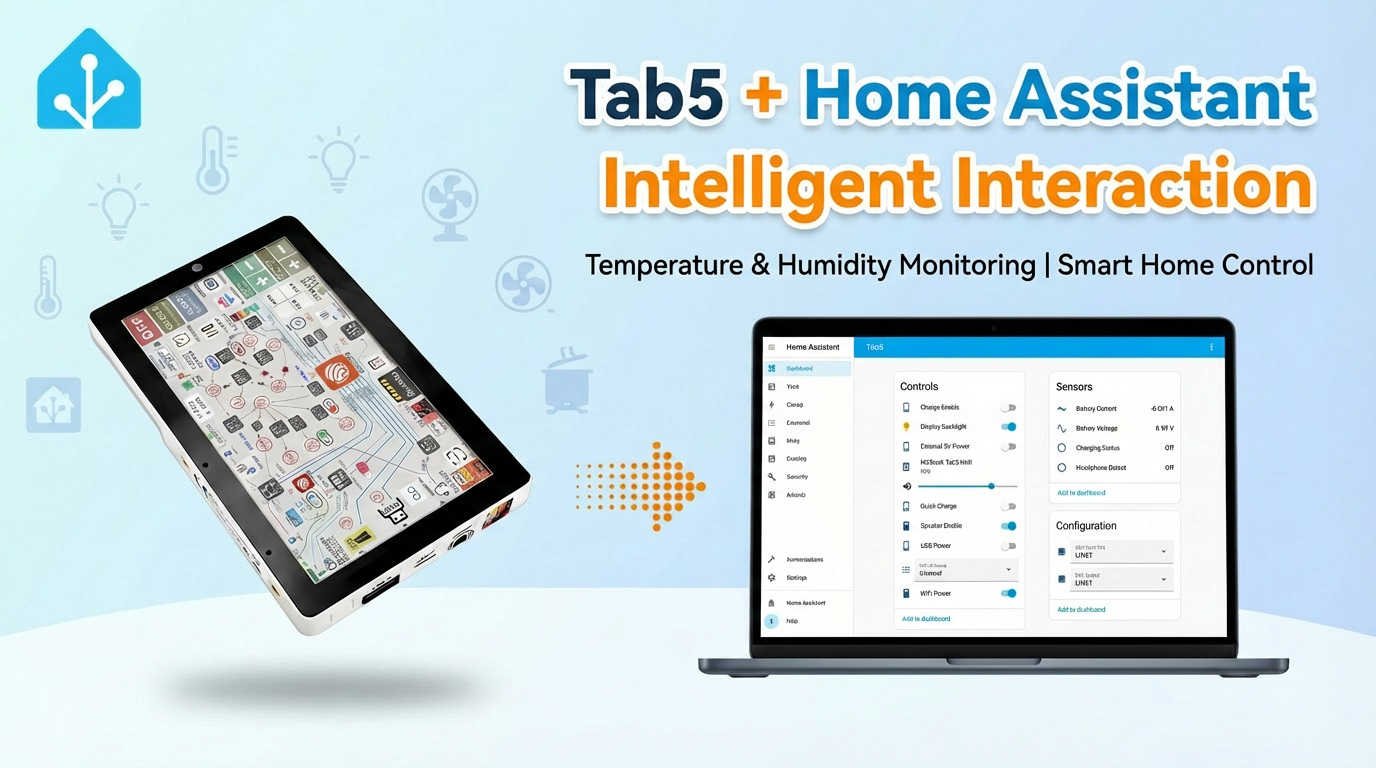
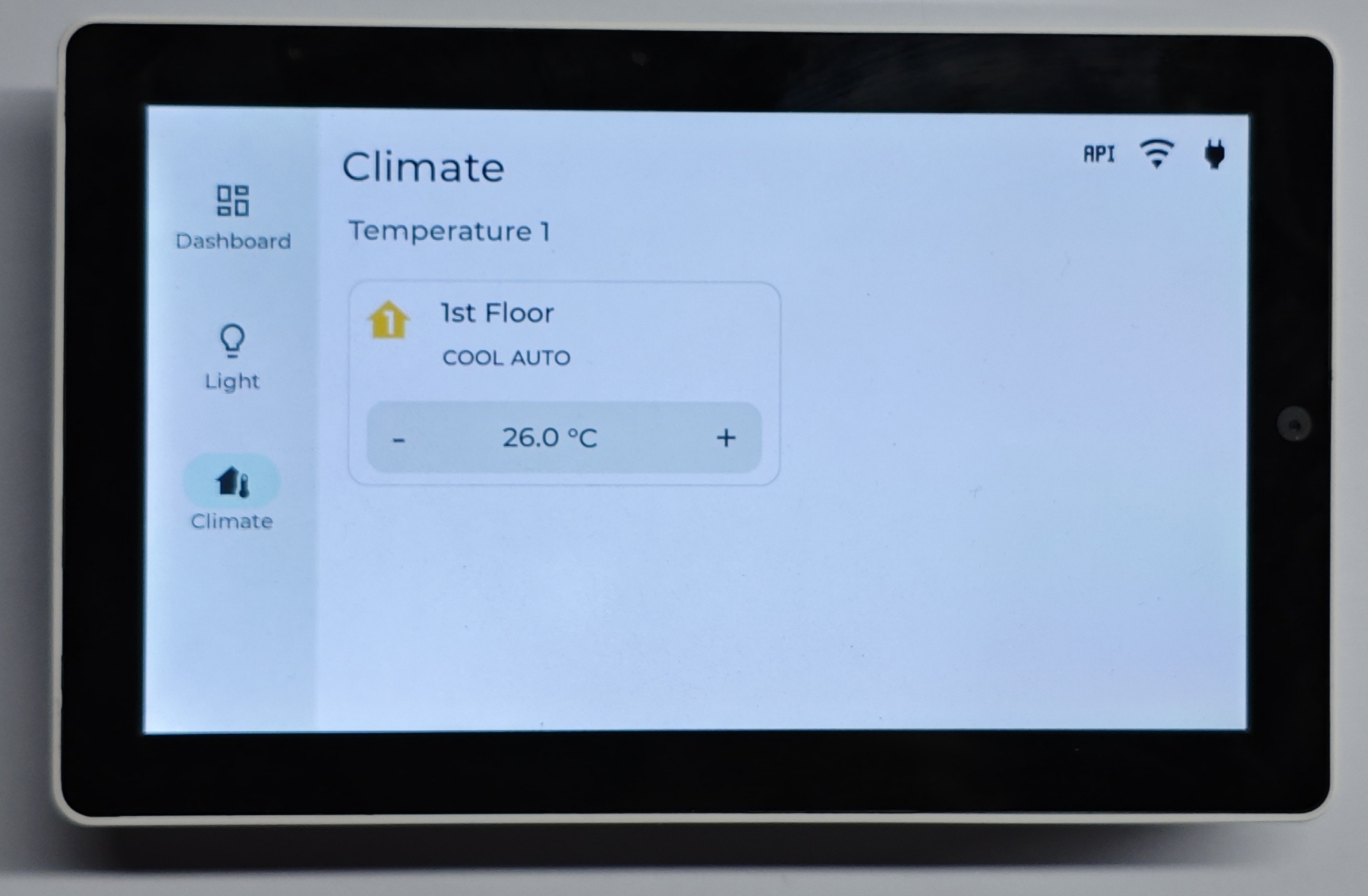
This example shows Tab5 configured as a Home Assistant touchscreen panel. Tab5 uses an LVGL interface to read Home Assistant entity states and control entities such as lights and climate devices.
1. Application
| Item | Information |
|---|---|
| Hardware | Tab5, Unit ENV-Pro, Unit NeoHEX |
| External entities | Climate entities already integrated in Home Assistant |
| Application features | Display environmental data by touch and control lights, climate devices, and other Home Assistant entities |
| ESPHome version | 2026.7.0 or later |
Compatibility
The example defaults to ST7121 hardware. For ST7123 hardware, use the
st7123 touchscreen platform and set the display model to M5STACK-TAB5-ST7123. For early ILI9881C + GT911 hardware, use the M5STACK-TAB5 display model and configure GT911 touch as described in the ESPHome device guide. Check the display label on the back. If it says ST7123 and touch works but the display is blank, try M5STACK-TAB5-ST7121. ESPHome Tab52. Complete Configuration
The Tab5 HMI configuration includes the main configuration, LVGL interface, and interaction scripts. Import the complete configuration with packages:
packages:
  remote_package_files:
    url: https://github.com/m5stack/esphome-yaml
    files: [common/tab5-ha-hmi.yaml]
    ref: main
refresh: 1dComplete YAML files and their dependencies:
- Complete Tab5 Home Assistant HMI Configuration
- Tab5 LVGL Interface Configuration
- Tab5 Interaction Script Configuration
Before using the configuration, enter the actual network credentials in the YAML wifi section. For device configuration, validation, and deployment, see ESPHome Quick Start.
3. Usage
Add the Device
- After the device connects to the network, click
Addin the Home Assistant discovery prompt to complete the ESPHome integration.
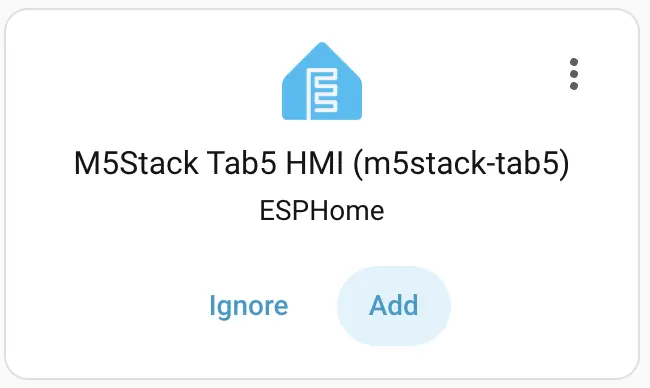
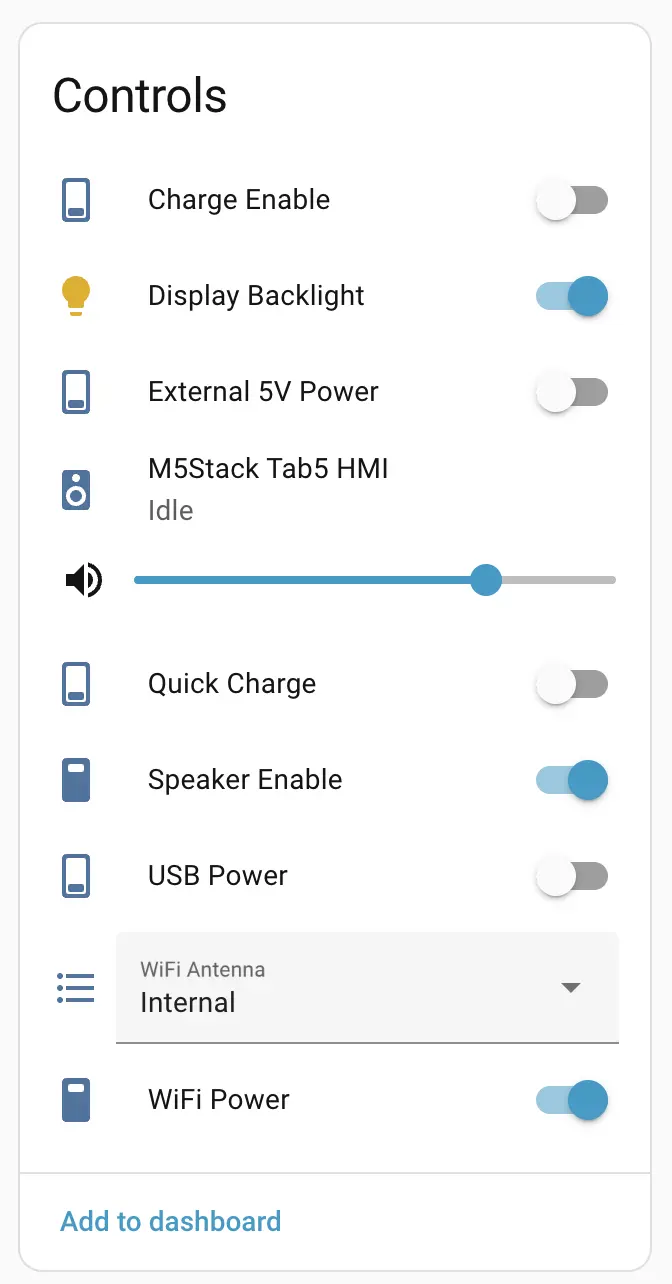
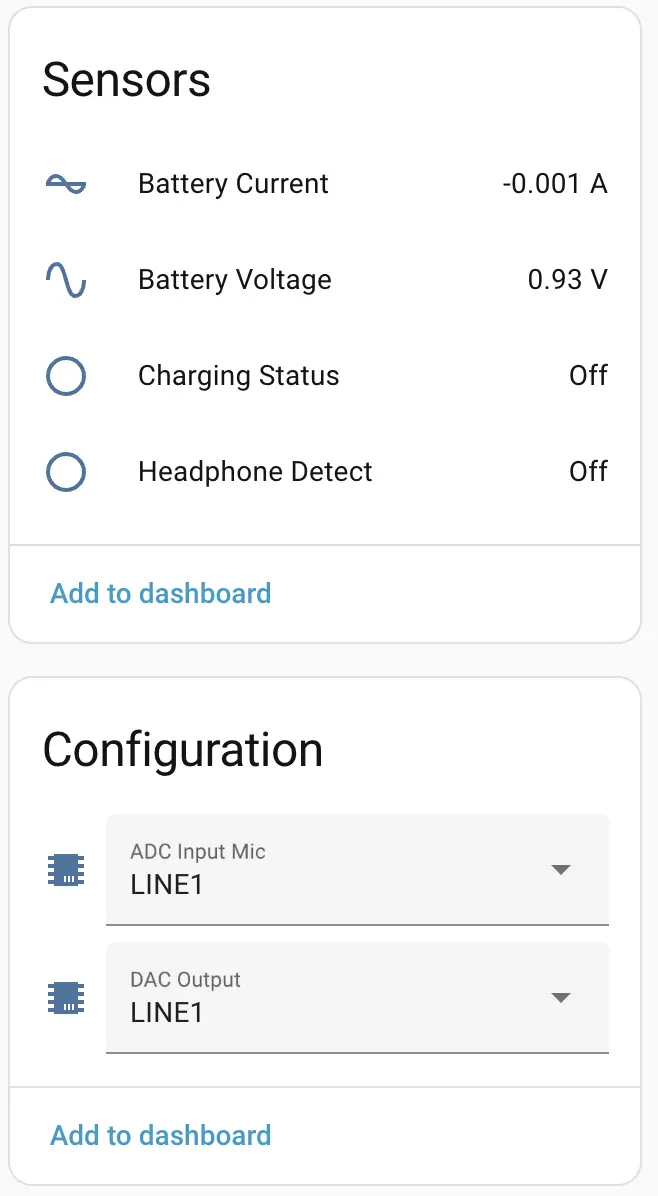
- After the device is added, view environmental data and Home Assistant entity states on Tab5.
Authorize Entity Actions
Tab5 must be authorized to perform Home Assistant actions before it can control entities such as lights and climate devices.
- Open
Settingsin Home Assistant and view the ESPHome integration notification.
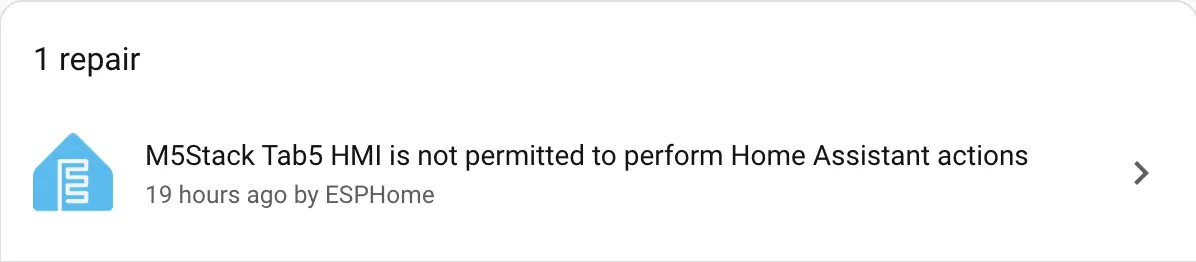
- Open the notification details.
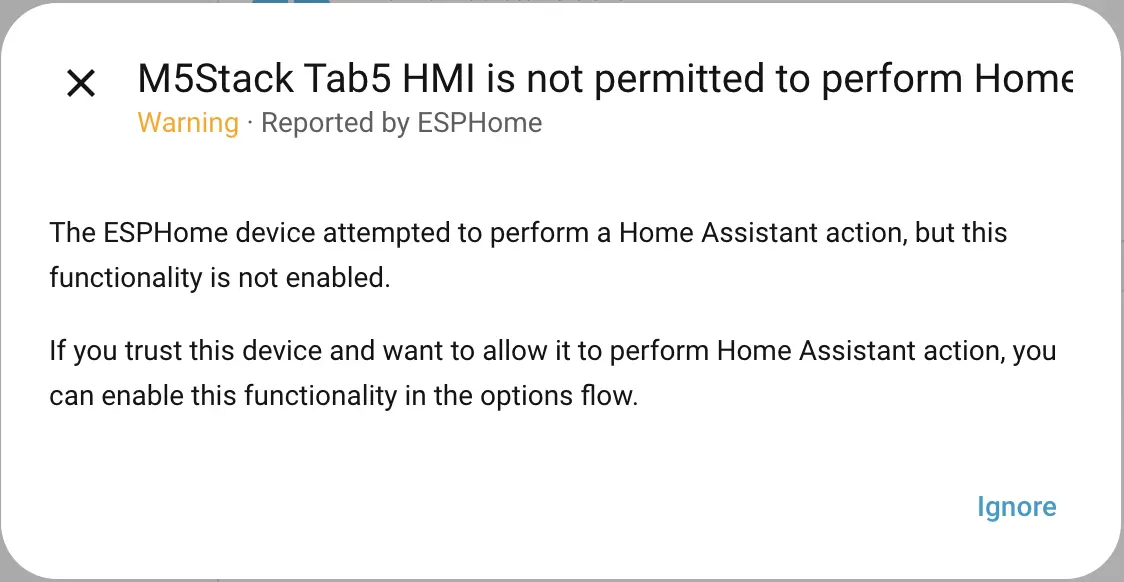
- Go to
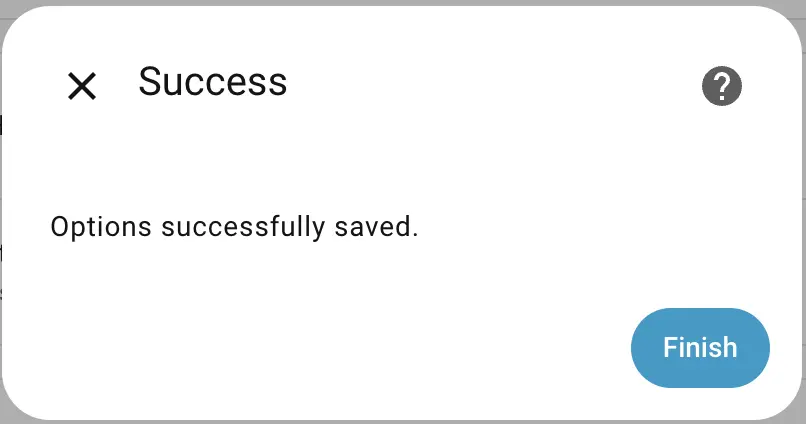
Settings->Devices & services->ESPHome, locate Tab5, open its settings, and enableAllow the device to perform Home Assistant actions.
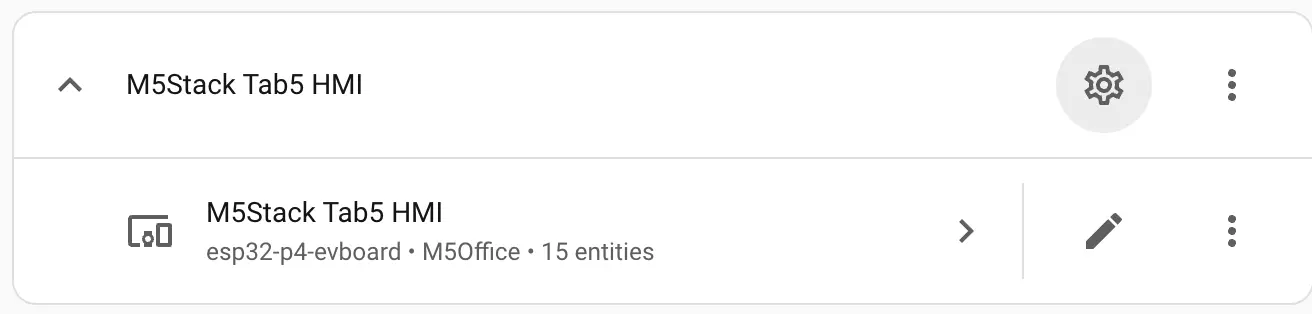
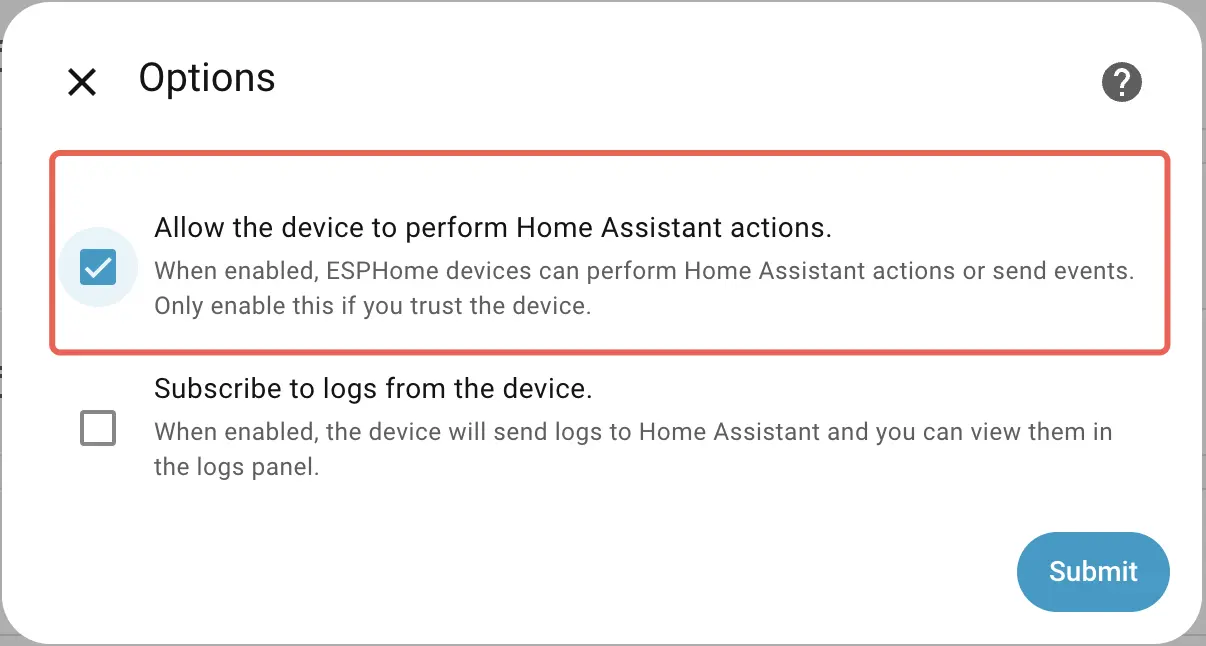
- Click
Submitto save the authorization.
Control Entities
- Open the
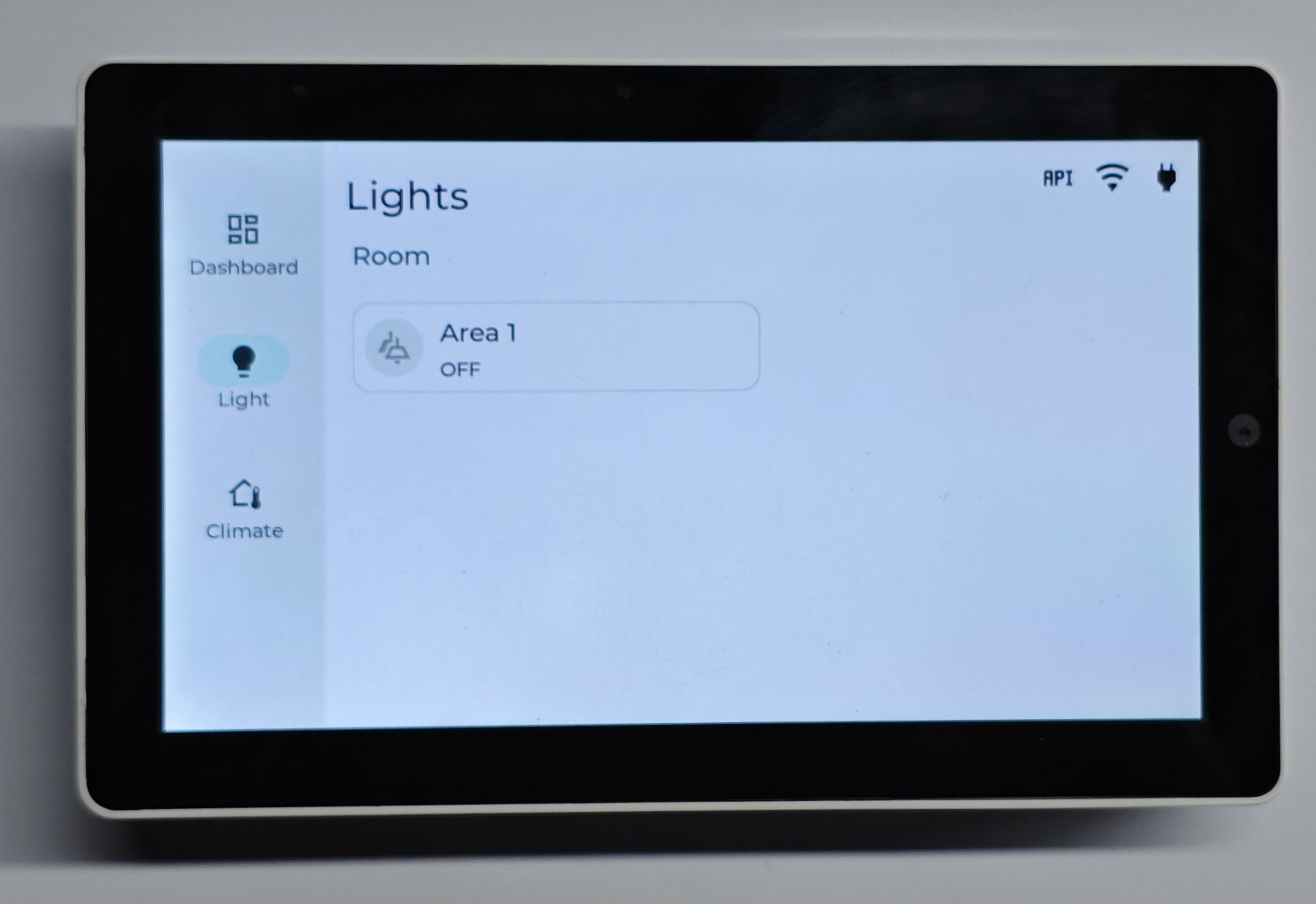
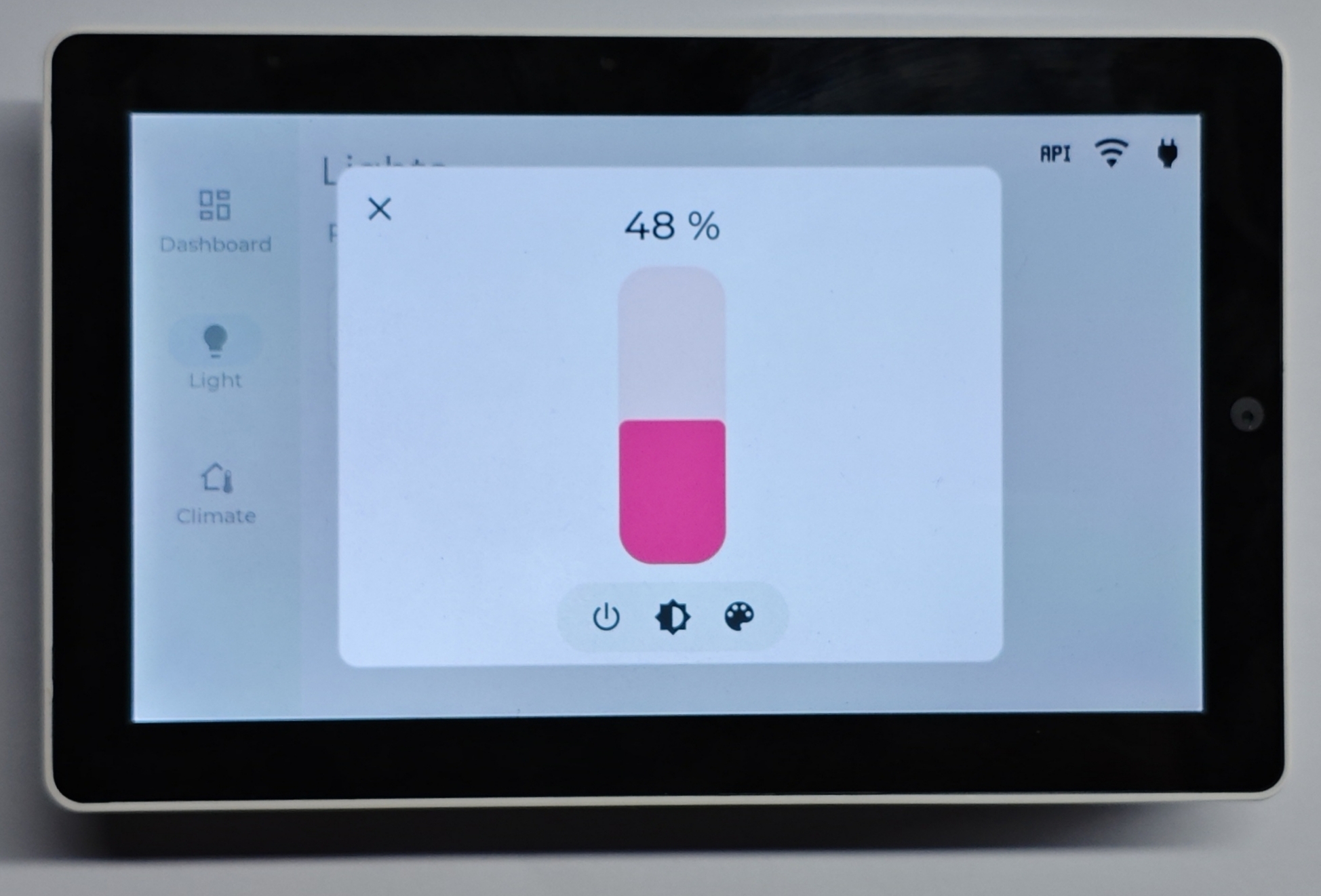
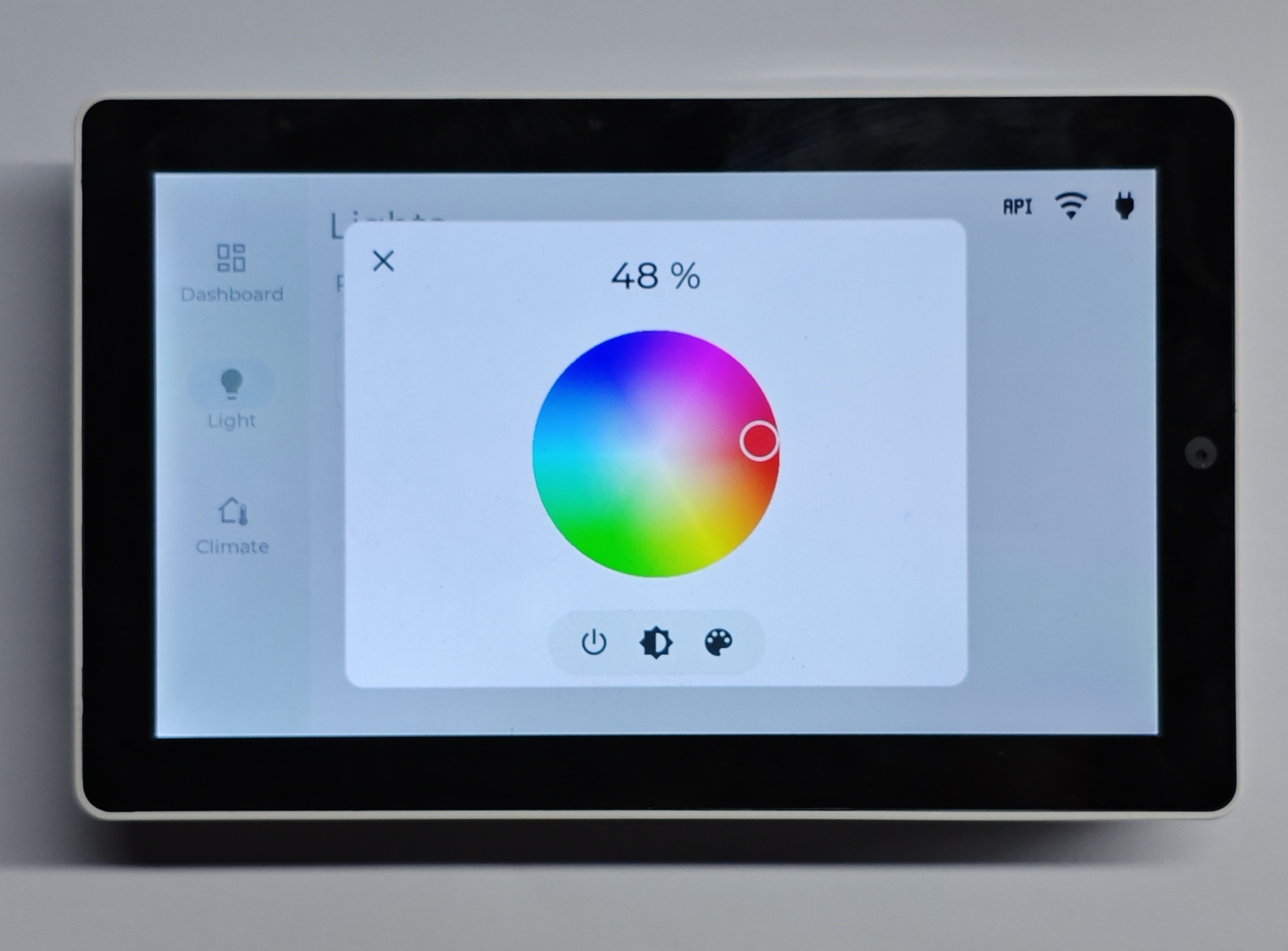
Lightpage from the sidebar to toggle lights, adjust brightness, and change RGB colors.
- Open the
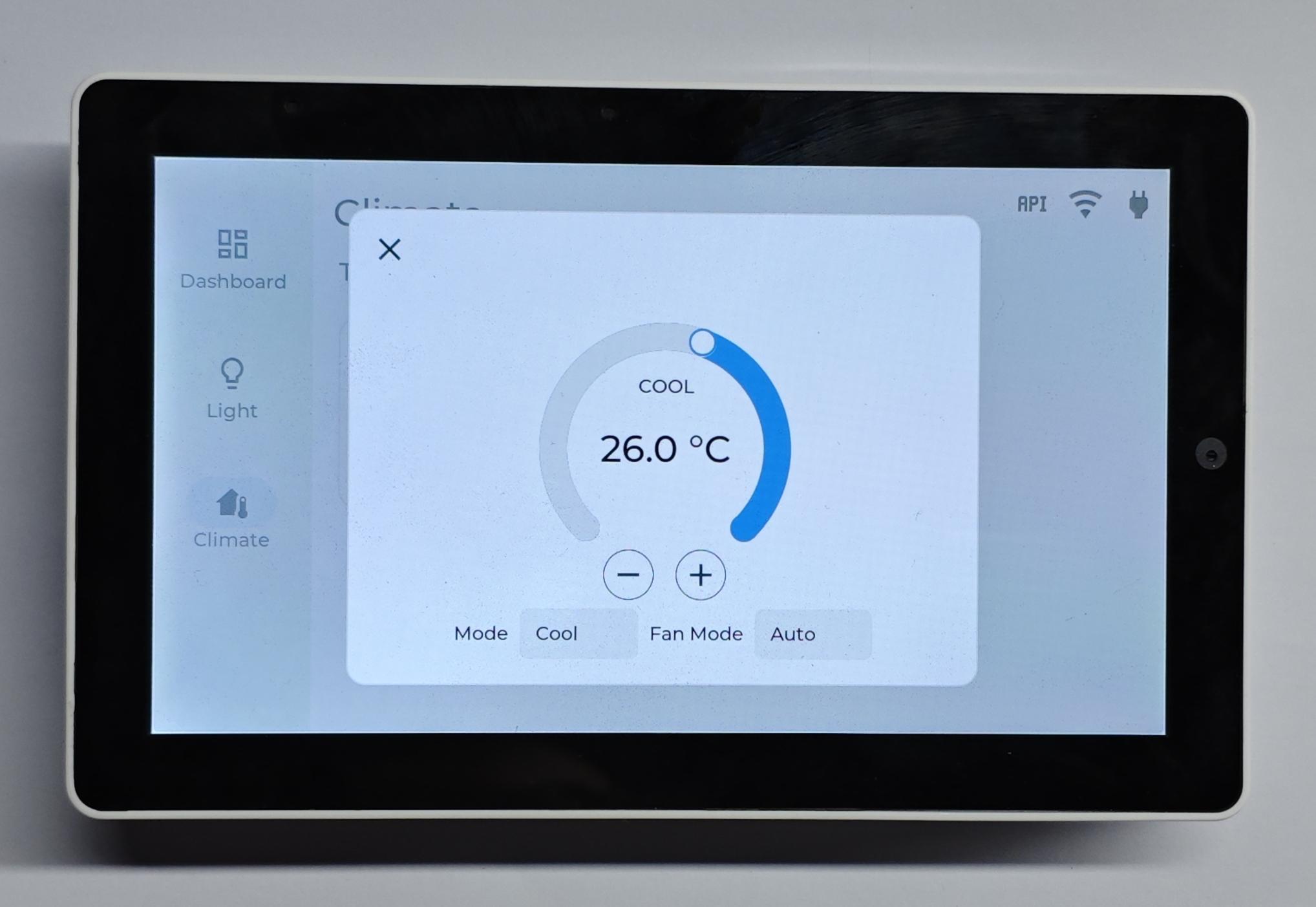
Climatepage from the sidebar to adjust the target temperature, operating mode, and fan speed.
4. Related Links
5. Related Video
Page Tools