

Home Assistant
Home Assistant
Controller & Devices
Cameras
Components
Lighting
Interfaces and Expansion
Applications
Media Playback
Dashboard
CM4Stack HA Image Flashing Guide
This guide explains how to flash a Home Assistant image to CM4Stack and set it up as a smart home control center.
1. Prepare the Hardware
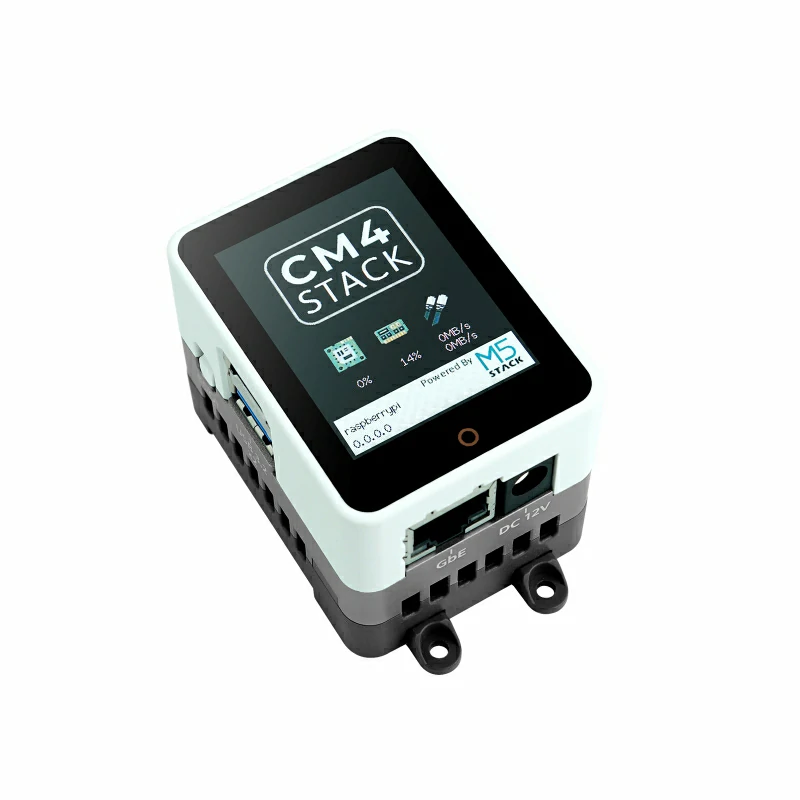
2. Download the Image
| Image Version | Download Link |
|---|---|
| 2024-03-06-CM4StackOS-haos_rpi4-64-12.1 | Download |
3. Flash the Image
Flashing on Windows
Download and install Raspberry Pi Imager.
Download and install rpiboot.
File Download
Your browser or operating system may warn that
rpiboot_setup.exe poses a security risk. Verify that the download comes from the official Raspberry Pi GitHub repository before continuing with the installation.- Press and hold the
BOOTbutton on the side of CM4Stack. Then connect the device to your computer with a USB cable and power it on.

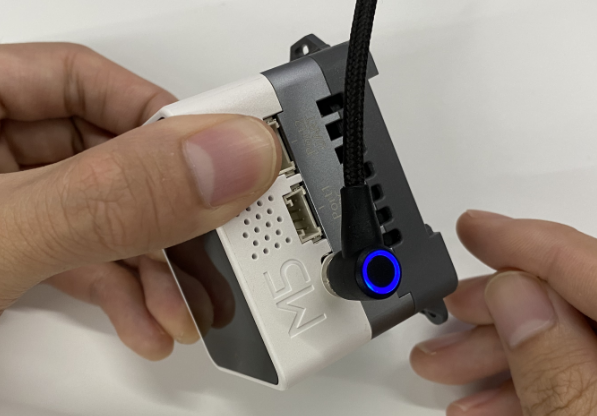
- Run the installed
rpiboot.exe. After the computer detects the CM4Stack eMMC, a new disk device will appear. If the device is not detected, check the USB cable and repeat the power-on procedure in the previous step.
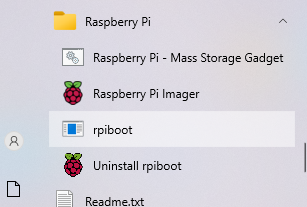
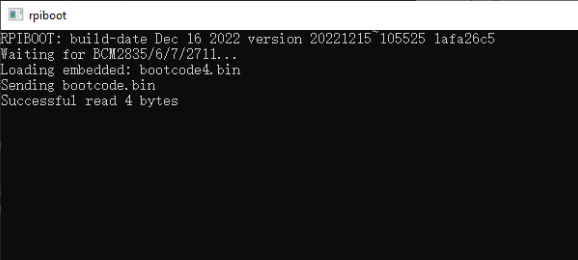
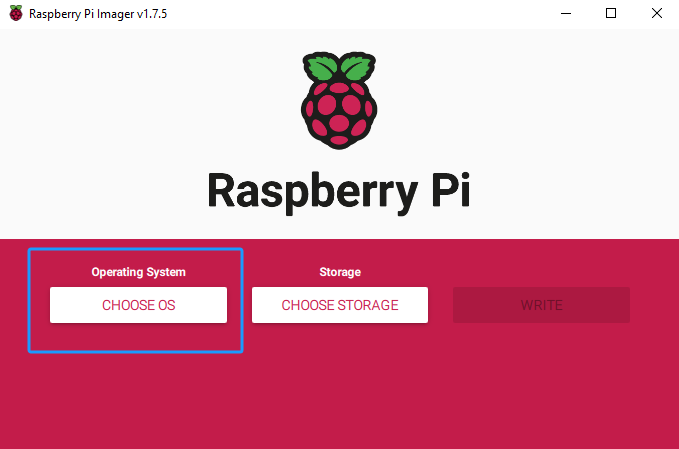
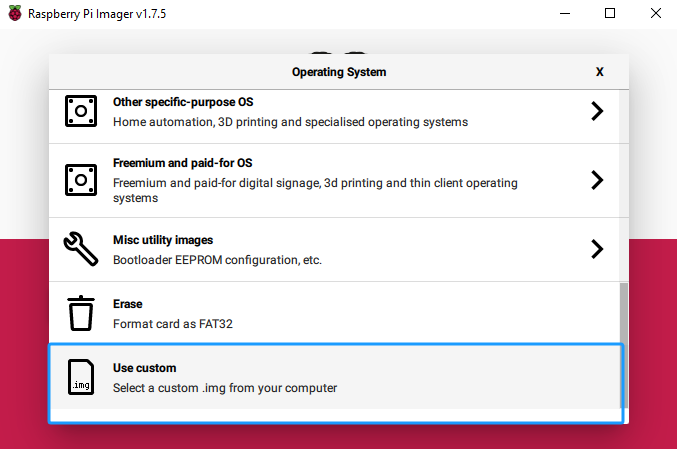
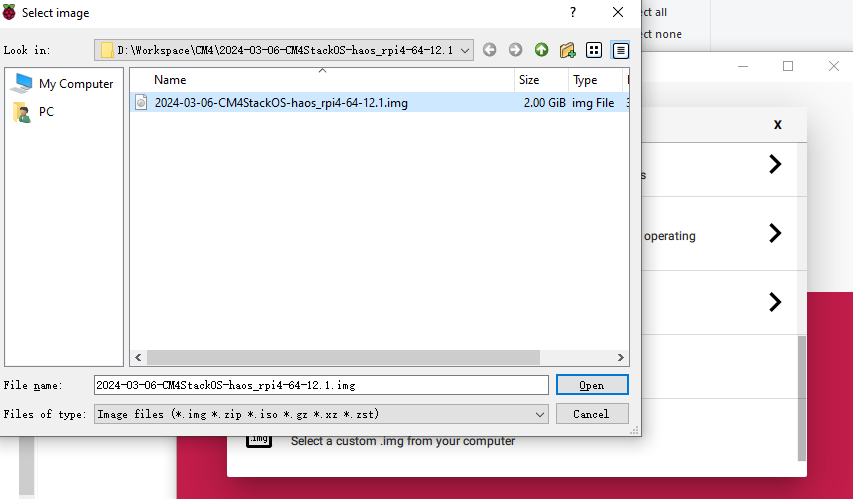
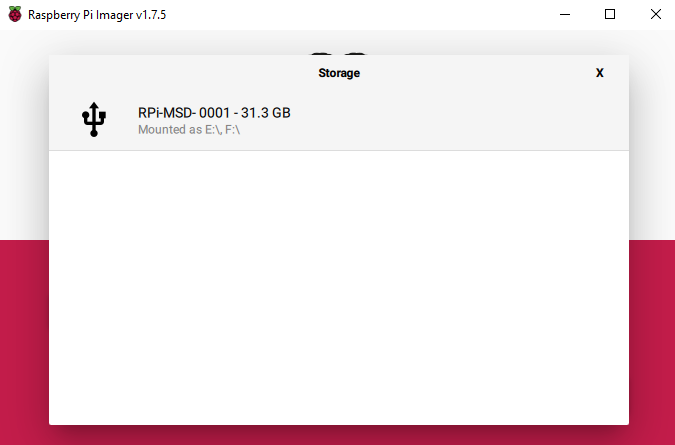
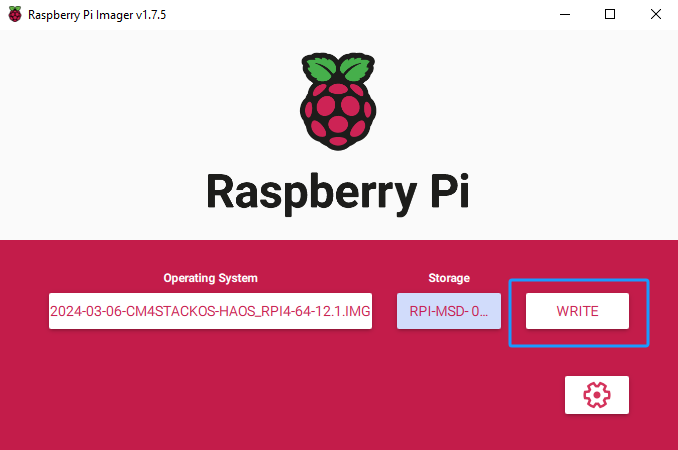
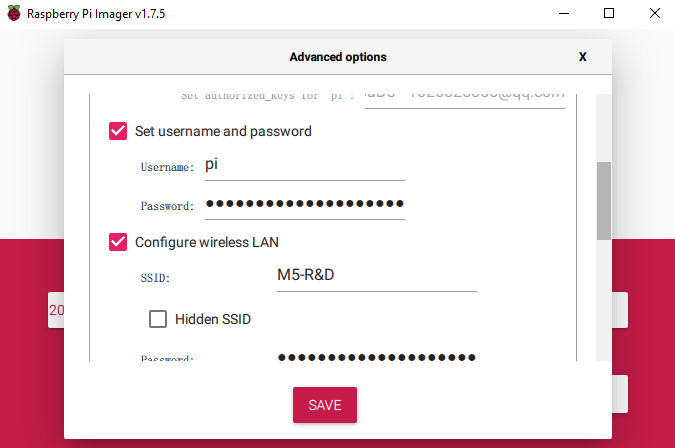
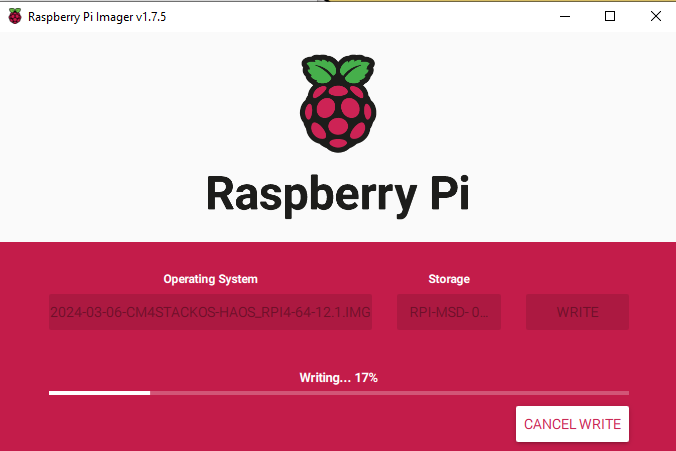
- Open Raspberry Pi Imager. Select Use Custom in the operating system list and choose the downloaded image file. Select the CM4Stack eMMC as the target disk, verify the settings, and click
NEXTto start flashing.
Flashing on Linux
- On Linux, obtain the source code for Raspberry Pi usbboot and compile
rpiboot:
sudo apt install git pkg-config make gcc libusb-1.0-0-dev

git clone --depth=1 https://github.com/raspberrypi/usbboot
cd usbboot
make- Press and hold the
BOOTbutton on the side of CM4Stack. Then connect the device to your computer with a USB cable, power it on, and runrpiboot:
sudo ./rpiboot- After the eMMC is detected as a disk, use Raspberry Pi Imager to flash the image as described for Windows. Alternatively, use
ddto write the extracted.imgfile. Confirm the target disk path before running the command. The following command is for reference only:
sudo dd if=./2024-03-06-CM4StackOS-haos_rpi4-64-12.1.img of=/dev/sda bs=1M status=progress oflag=dsync4. Start the System
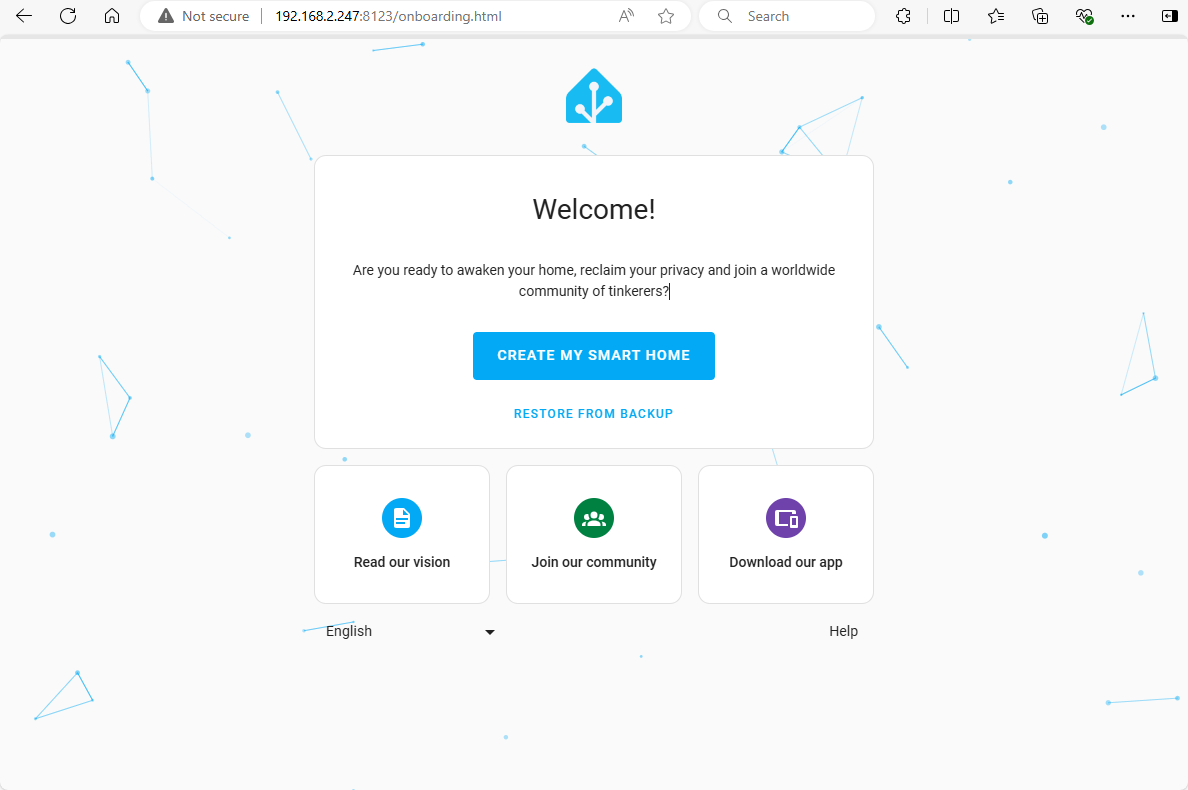
Connect CM4Stack to a power supply and Ethernet. After startup, the device screen displays its current IP address. Devices on the same local network can access Home Assistant at IP:8123.
During the first startup, Home Assistant OS must download resource files over the network. This may take several tens of minutes. If initialization does not complete after an extended period, try using a network configured with a proxy.
http://xxx.xxx.xxx.xxx:8123/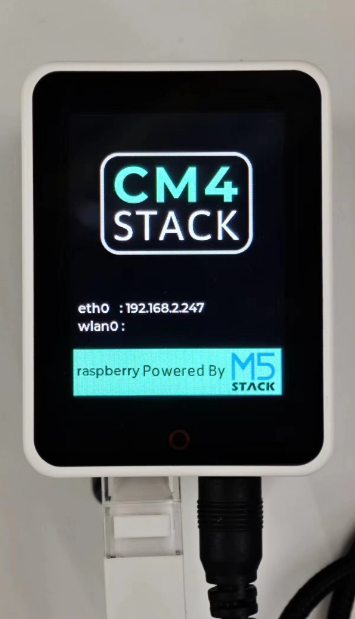
5. Related Videos
Page Tools