Product Guides
AI & Voice
AI Agents
AI Voice Assistants
Volcengine
Offline Speech Recognition
Unit ASR
Module ASR
Audio & Voice Input
Voice Pyramid
Cameras & Vision
Camera Features
M5Camera
PoECAM
Unit CamS3 / CamS3-5MP
Connectivity & IoT
Industrial Control & Measurement
Air Quality
PowerHub
StamPLC
VAMeter
T-Lite
Module13.2 PPS
Unit RollerCAN
Display & Interaction
Paper
PaperColor
StopWatch
Tab5 Keyboard
Chain DualKey
Robotics & Maker Projects
Atom Printer
Bala
Bala2
BalaC Plus
Faces Kit Gameboy
RoverC & JoyC
StampFly & Atom Joystick
Firmware & Device Maintenance
Firmware Upgrade
Hardware Configuration
Design & Selection References
Qoder Companion Robot Firmware Flashing and Usage Guide
Introduction
Qoder is a companion robot designed for StackChan. It supports Chinese voice conversation, remote tasks, task cards, rubber duck animations, and other features. This tutorial introduces how to flash the Qoder firmware, configure the network, and get started using it with StackChan.
Firmware Flashing
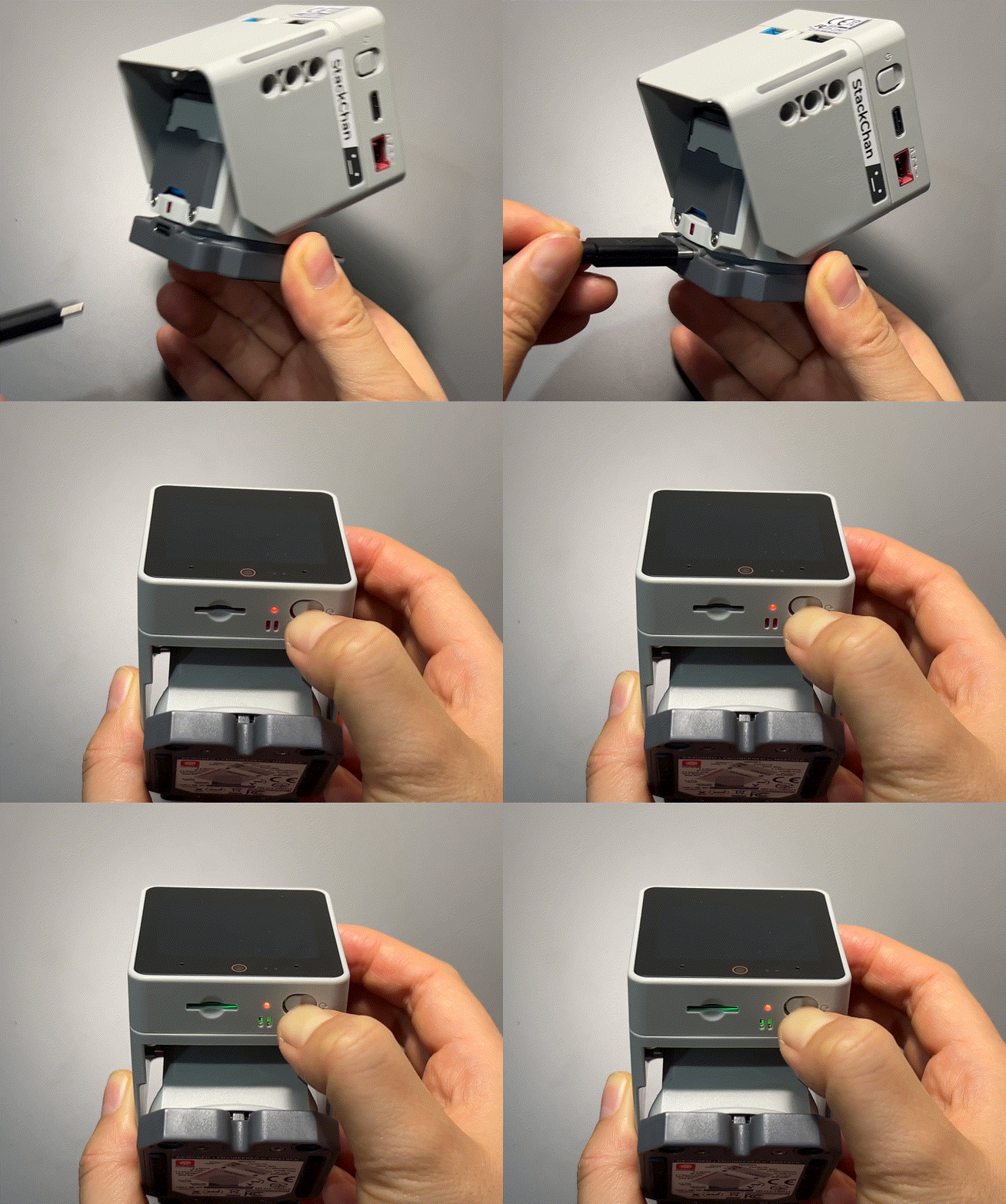
- Enter StackChan download mode. Use a USB Type-C cable to connect the computer and StackChan (both the USB-C port on the main unit and the USB-C port on the base support data transfer, but the base port is recommended to avoid accidents caused by motor rotation). Press and hold the RST reset button for 3 seconds (next to the microSD card slot at the bottom). When the indicator next to the button turns green, release the button. The green light then turns off, indicating that the device has entered download mode.
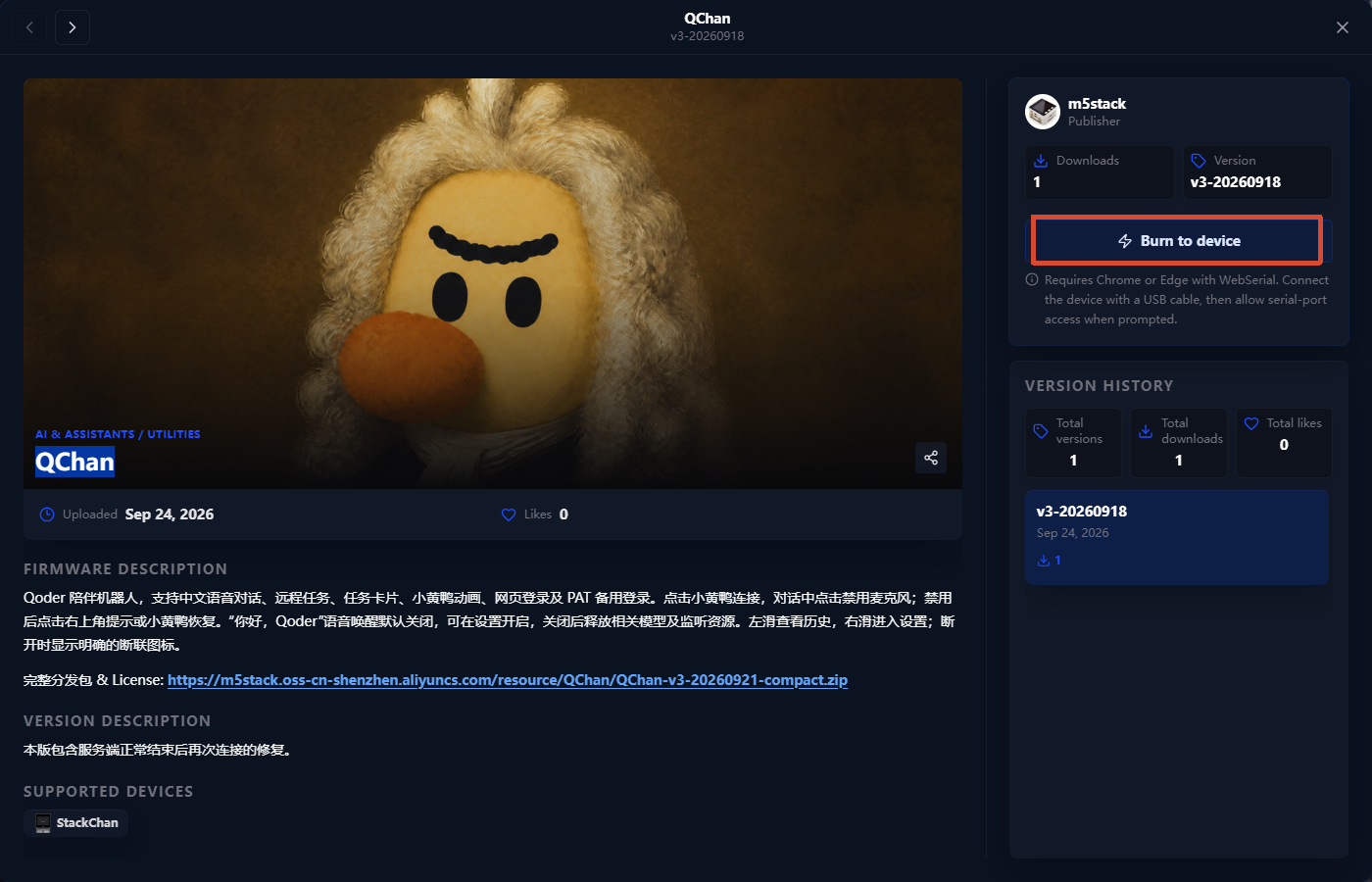
- Open the QChan Firmware Flashing Page in M5Burner and flash the firmware according to the on-screen instructions.
After the firmware is flashed, restart StackChan to enter the network configuration page.
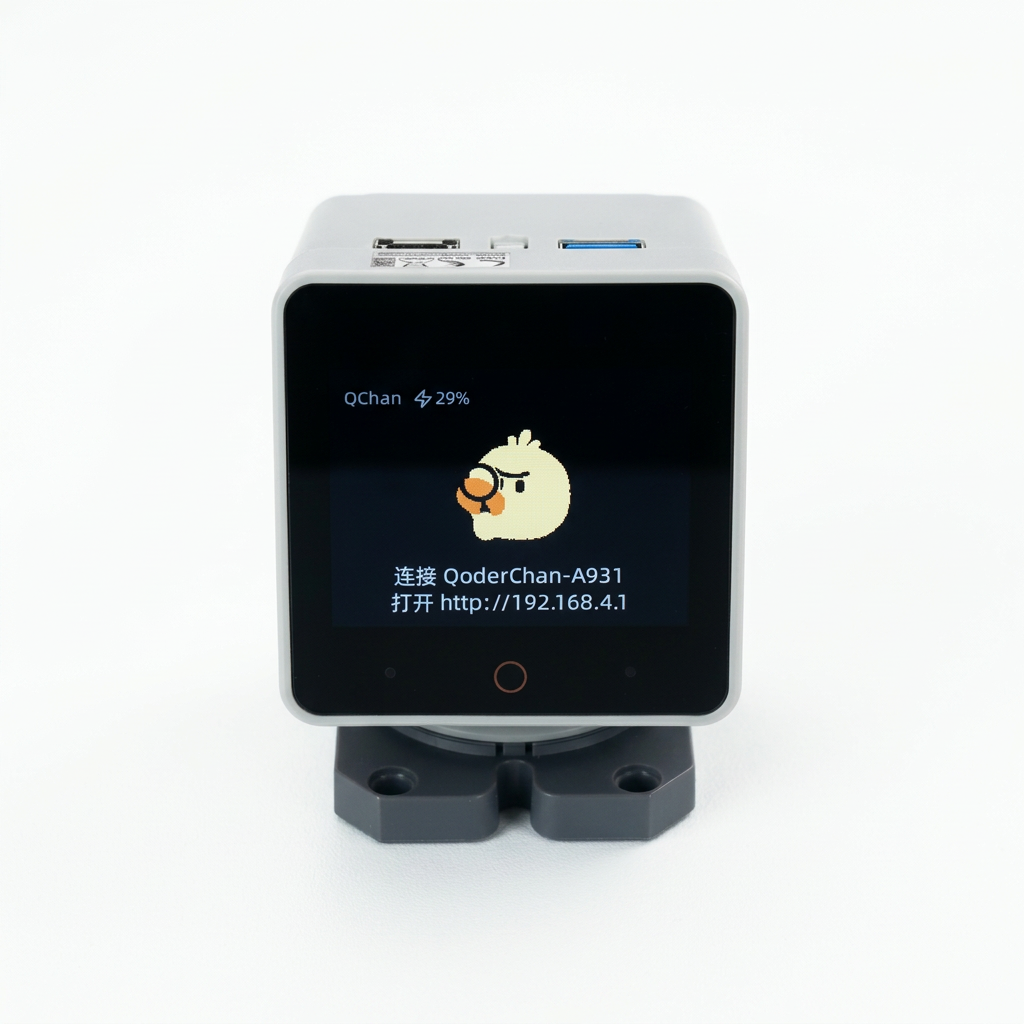
Network Configuration
- Connect your phone to the hotspot
QoderChan-xxxx.
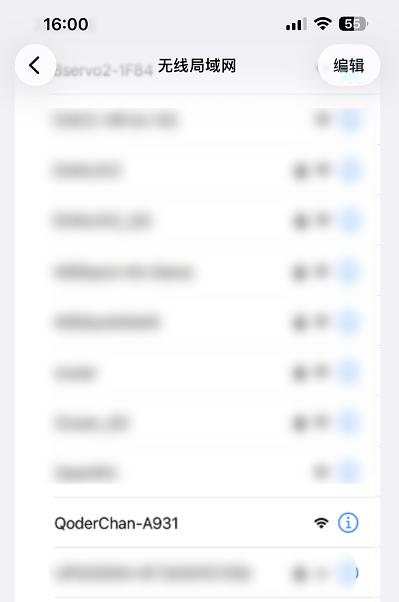
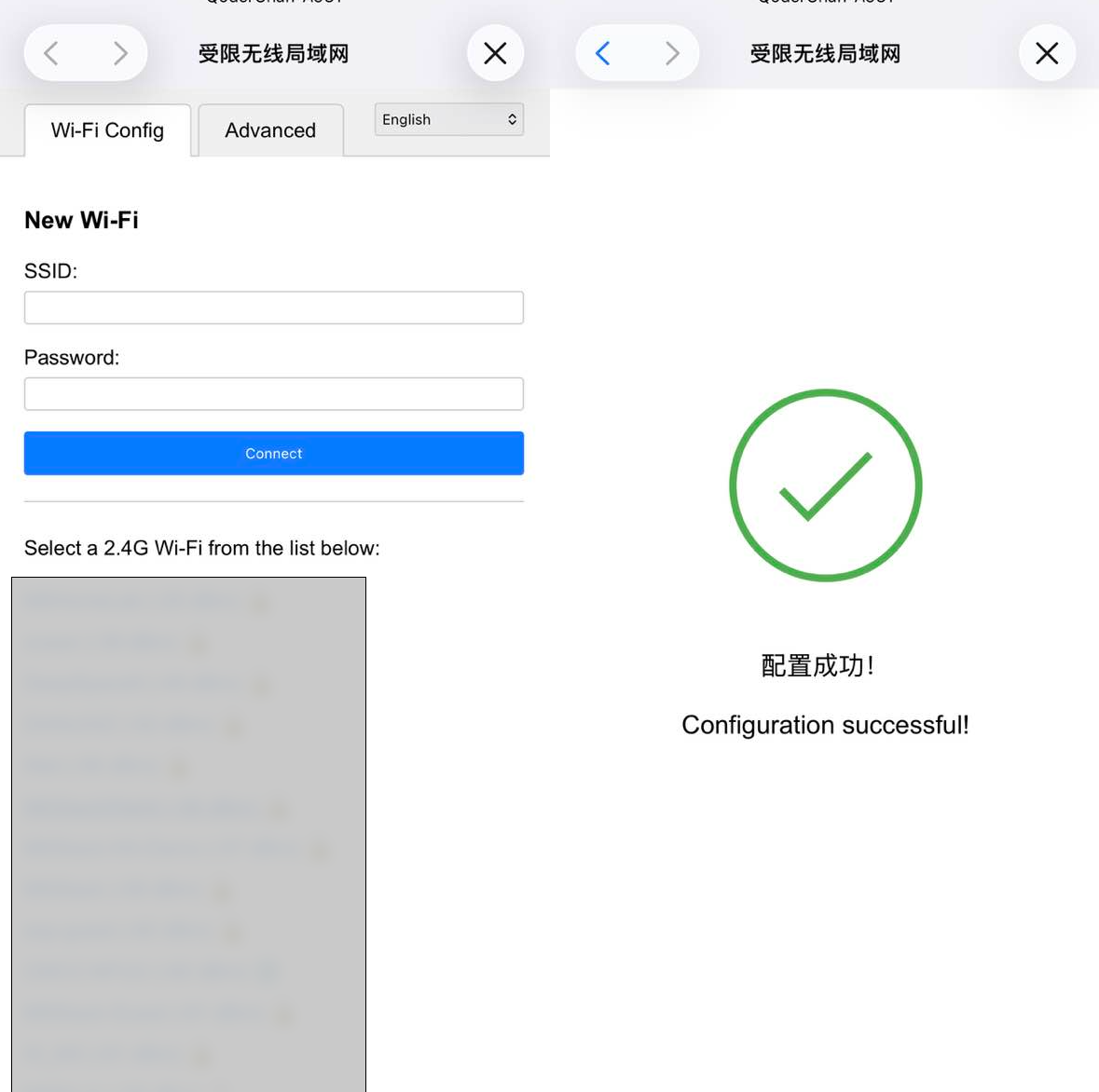
- After connecting to the hotspot, open
http://192.168.4.1in a browser. Enter an available Wi-Fi name and password, then clickConnectto complete the network configuration.
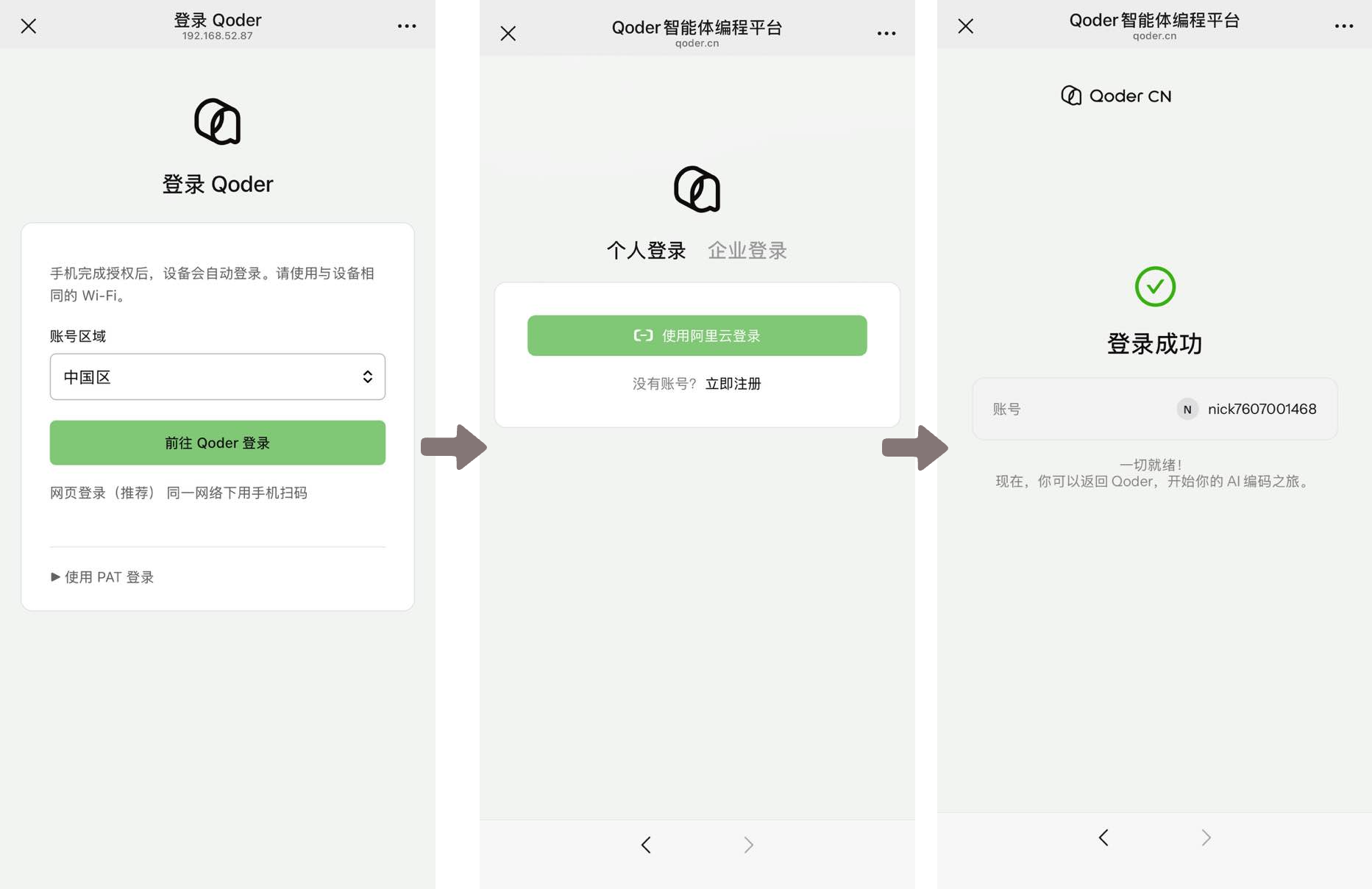
- Use your phone to scan the QR code displayed on the StackChan screen to log in (the phone and StackChan must be on the same network).
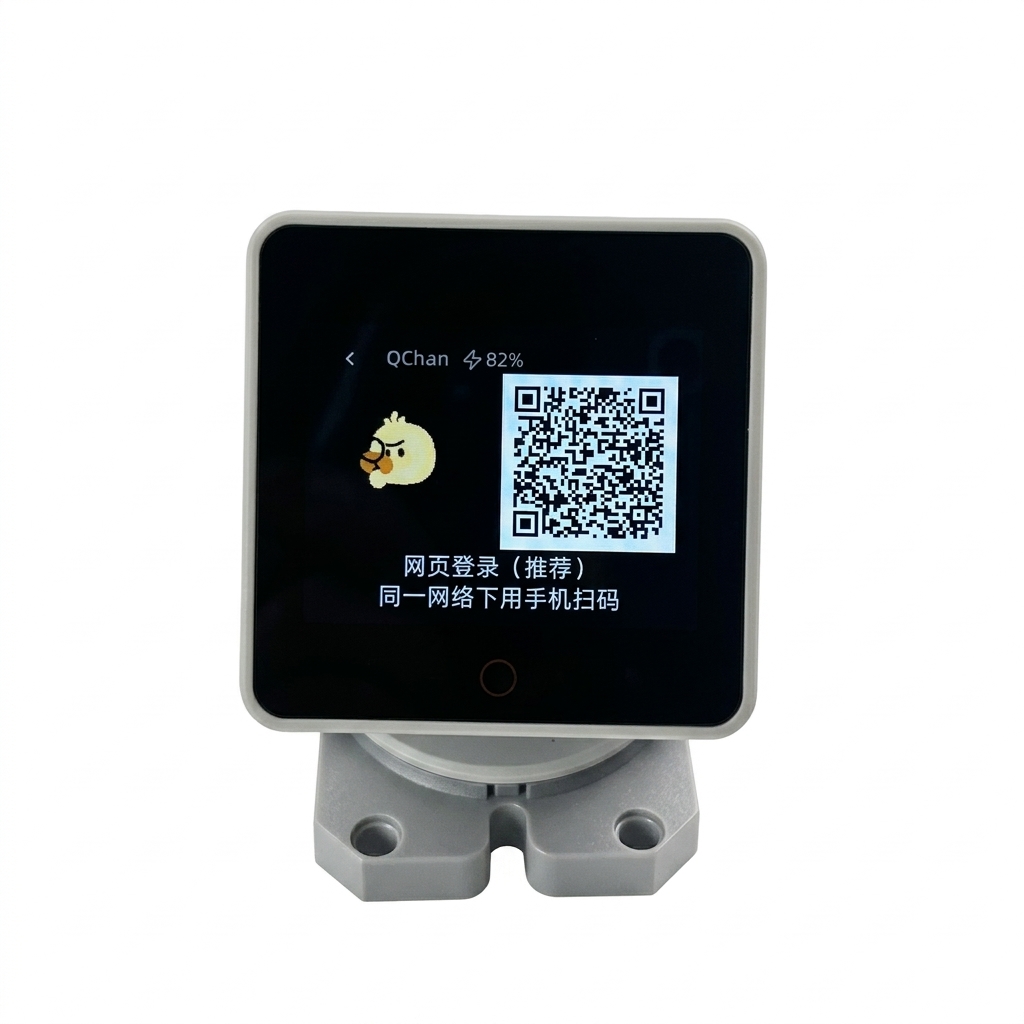
Bind Alibaba Cloud Account
On the phone screen, select China as the account region, then tap Go to Qoder Login. Follow the on-screen instructions to log in with your Alibaba Cloud account. After logging in successfully, you can start a conversation with QChan.
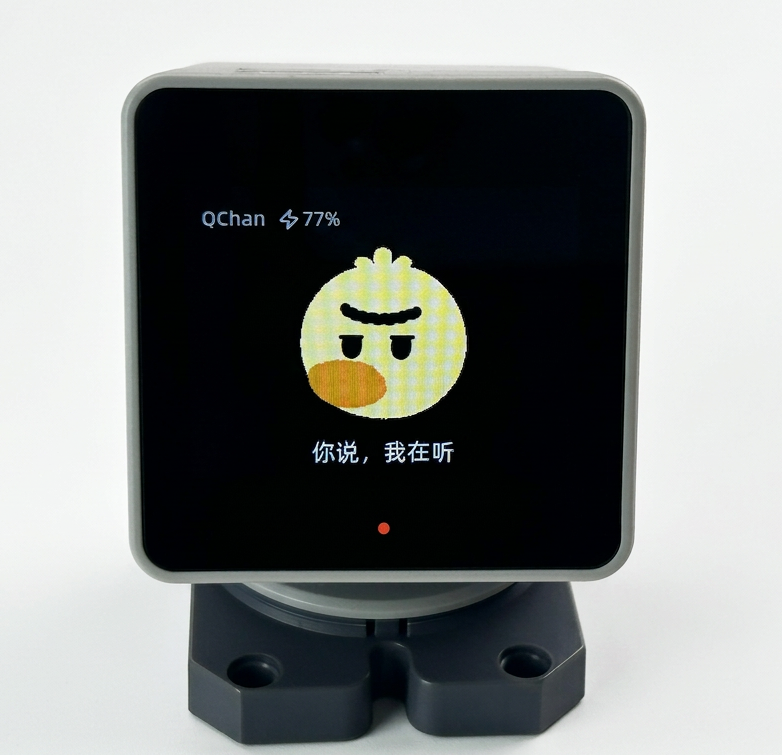
Usage
Daily Conversation
What's the weather like in Shenzhen today?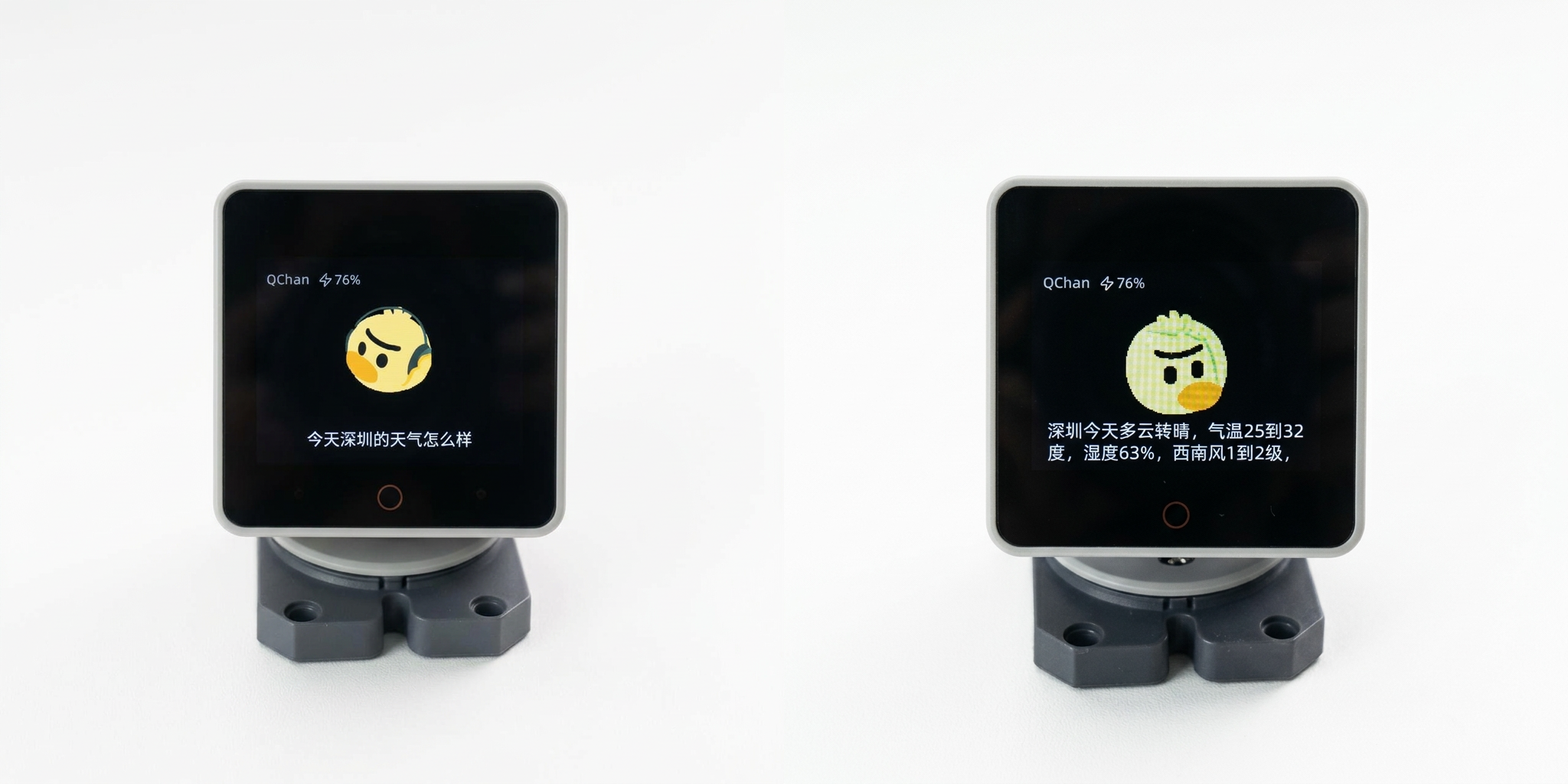
Visual Recognition
Use the camera to identify what this is.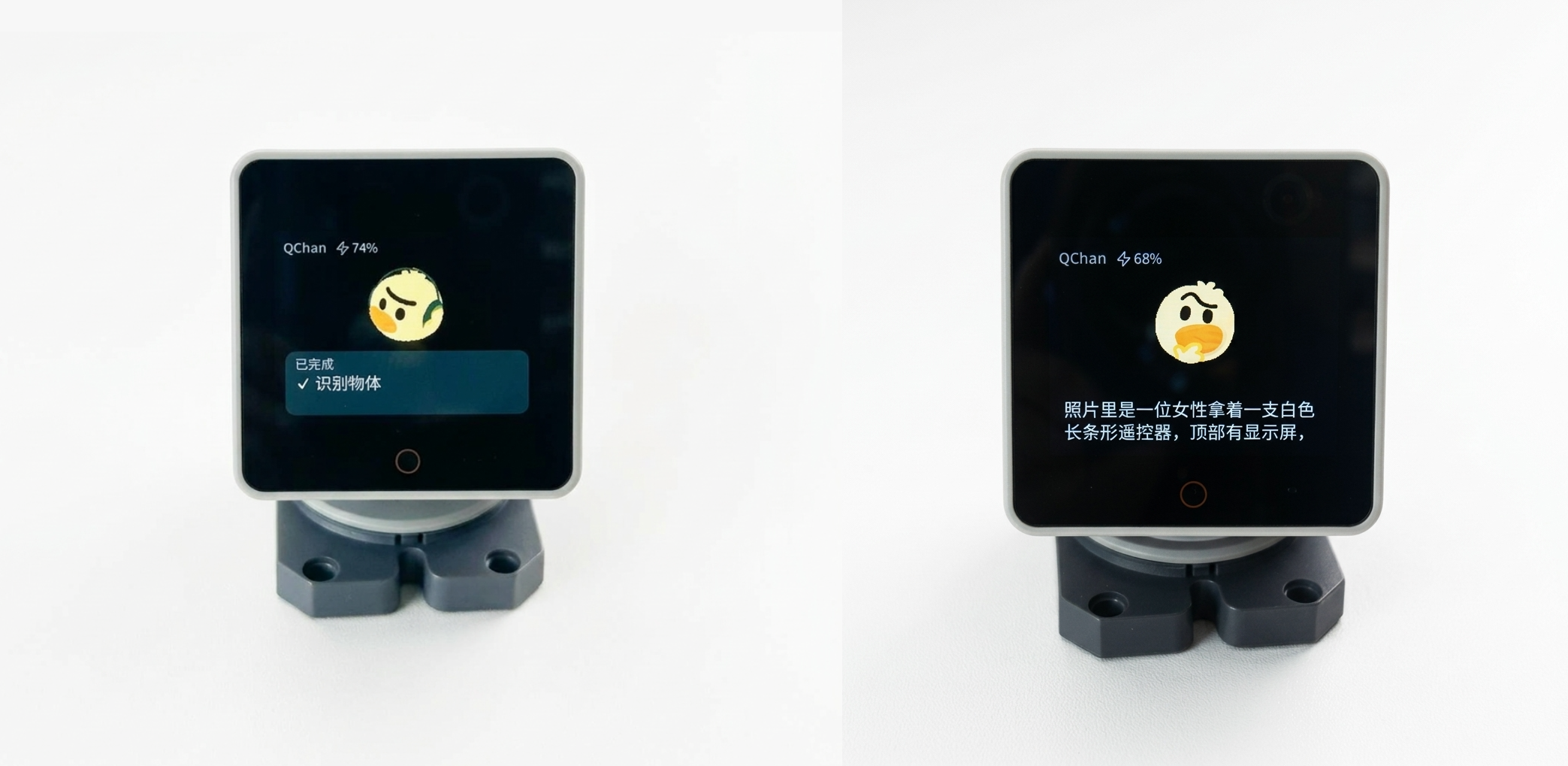
Qoder Smart Workbench
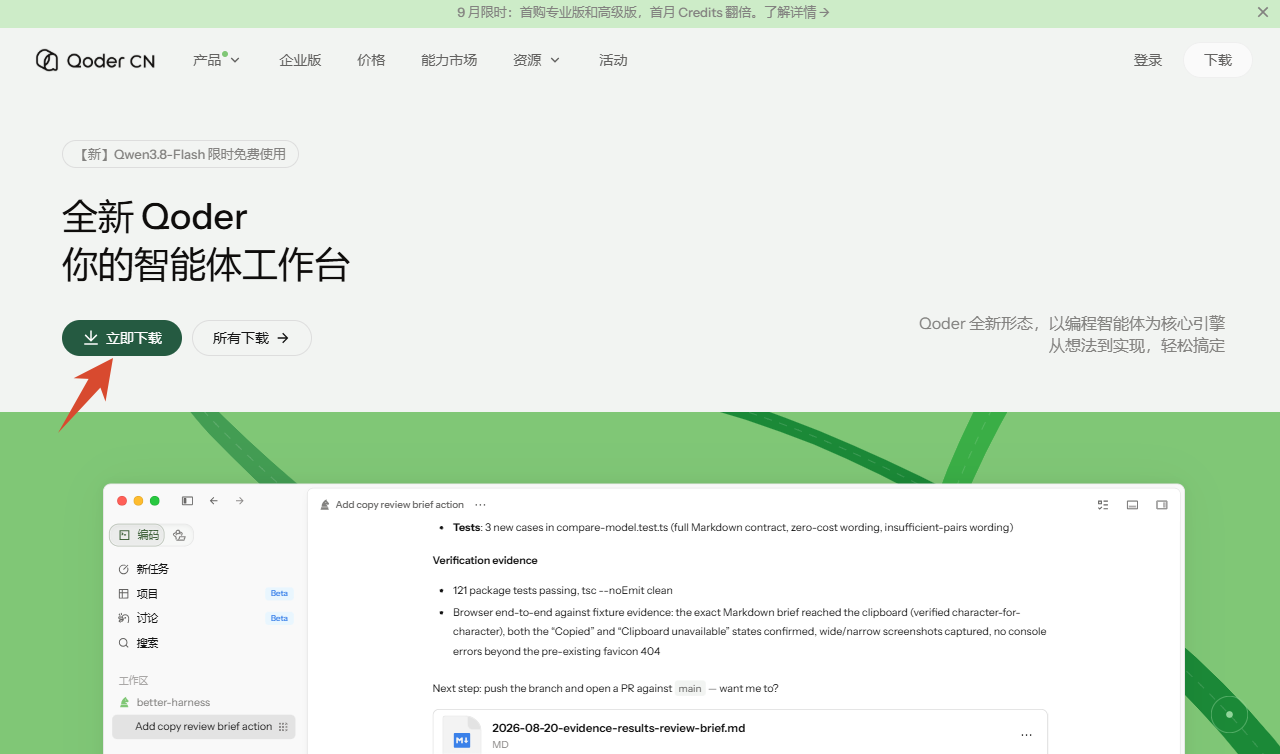
- Go to the Qoder Smart Workbench download page, click
Download Now, and download and install the Qoder desktop app.
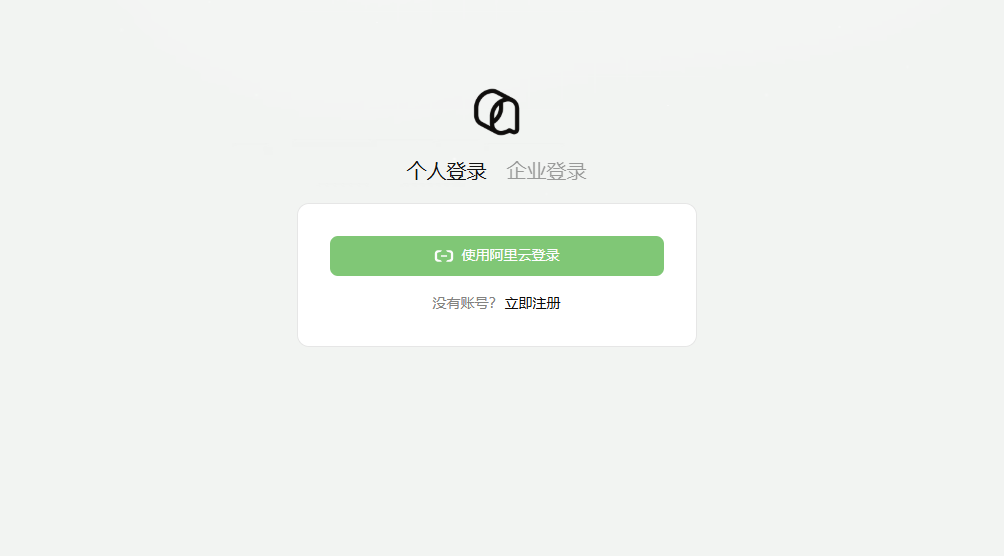
- After the installation is complete, open the Qoder desktop app and log in with your Alibaba Cloud account.
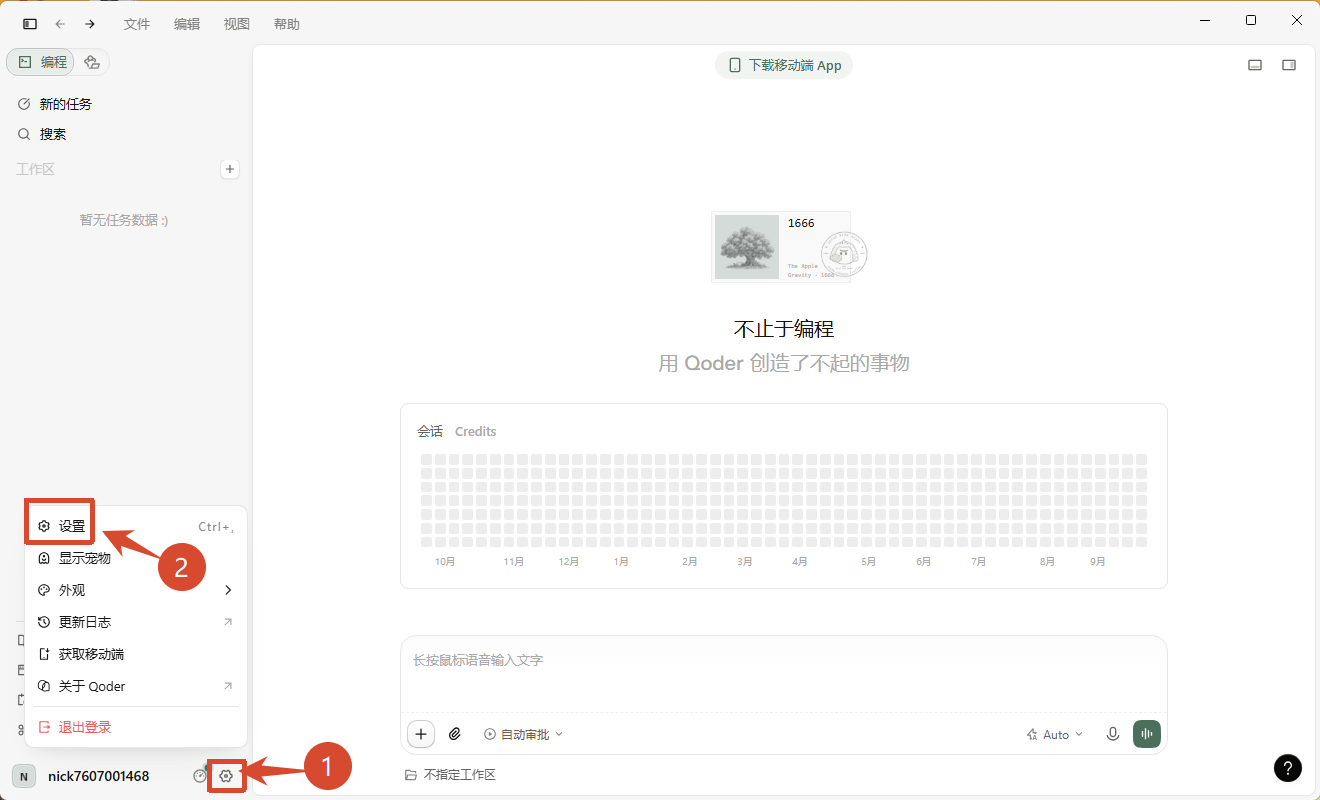
- After logging in, return to the Qoder app interface, click
Settings, and enable theAllow Qoder Mobile to control this deviceoption in theMobilemenu.
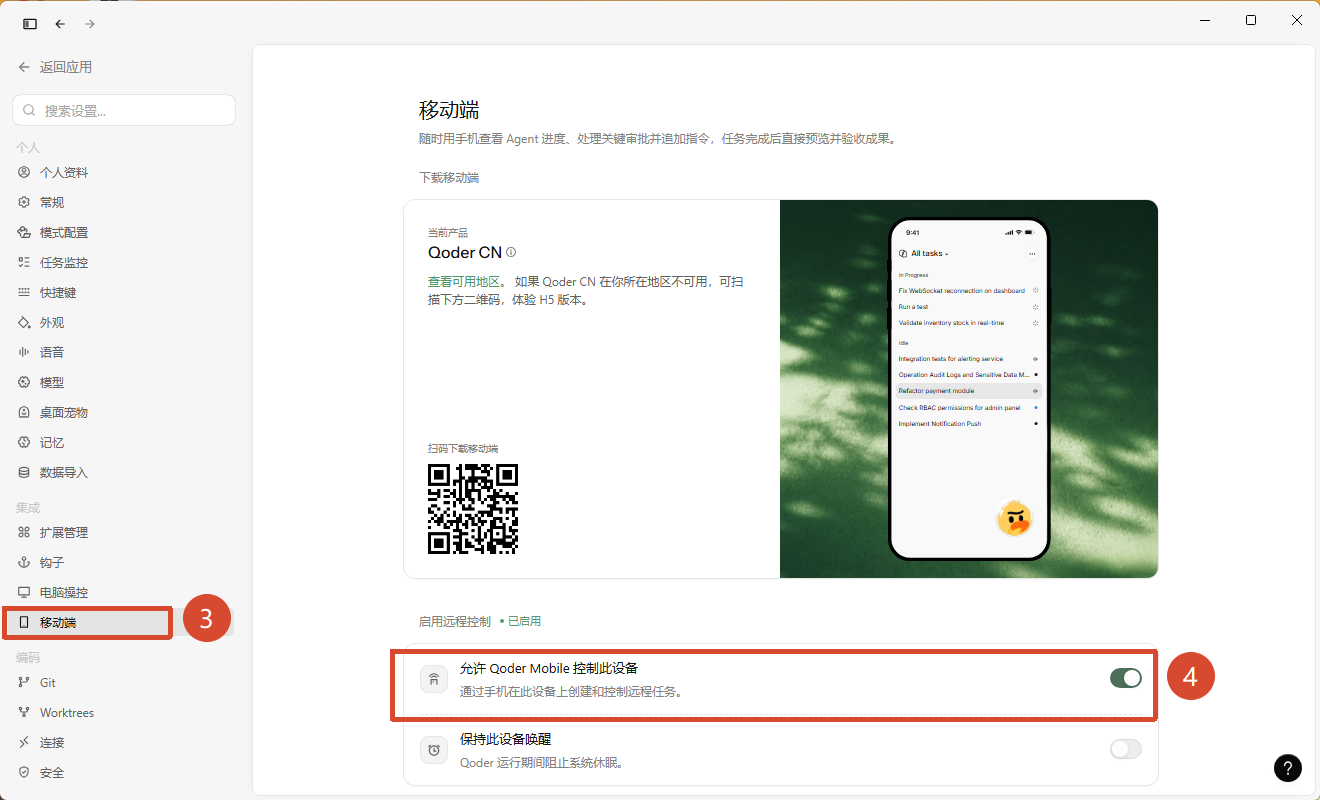
After the device is bound successfully, you can use the Qoder companion robot on StackChan to send work tasks to the Smart Workbench.
Example
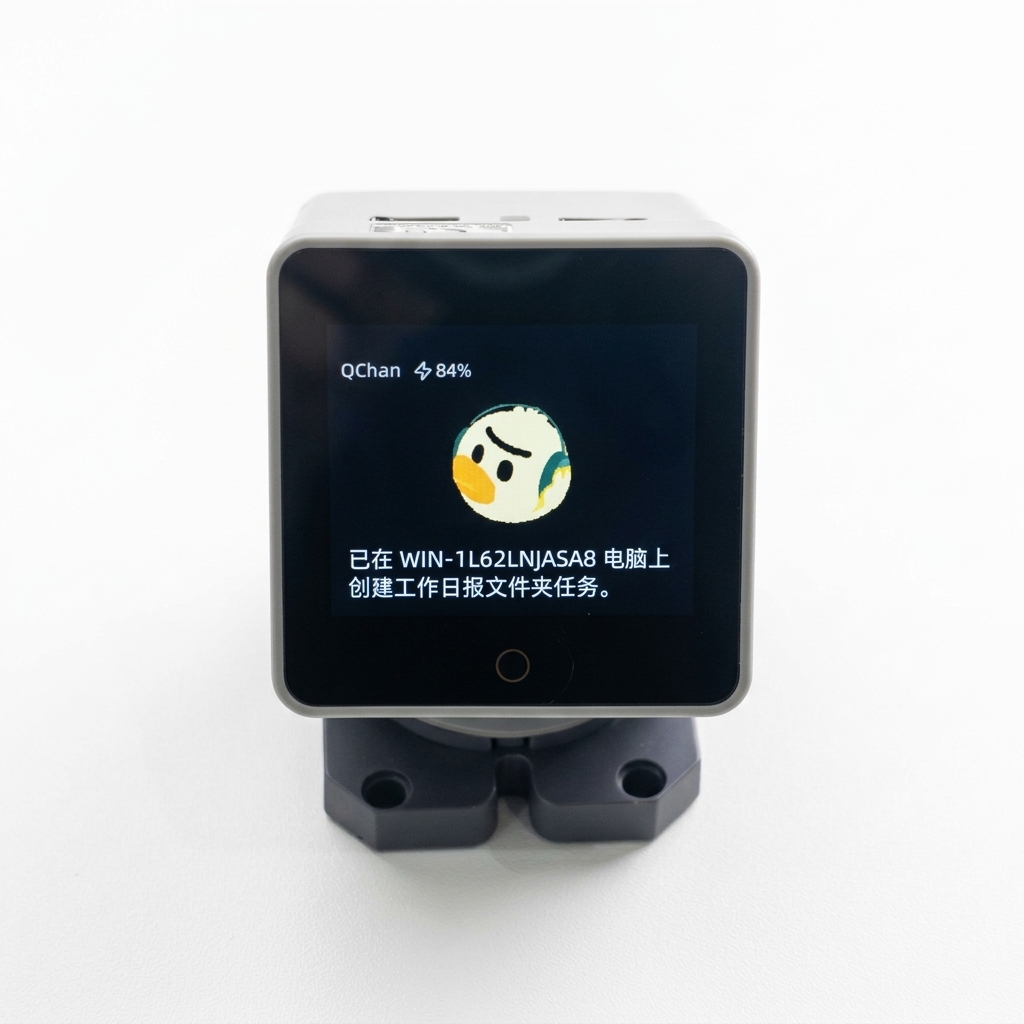
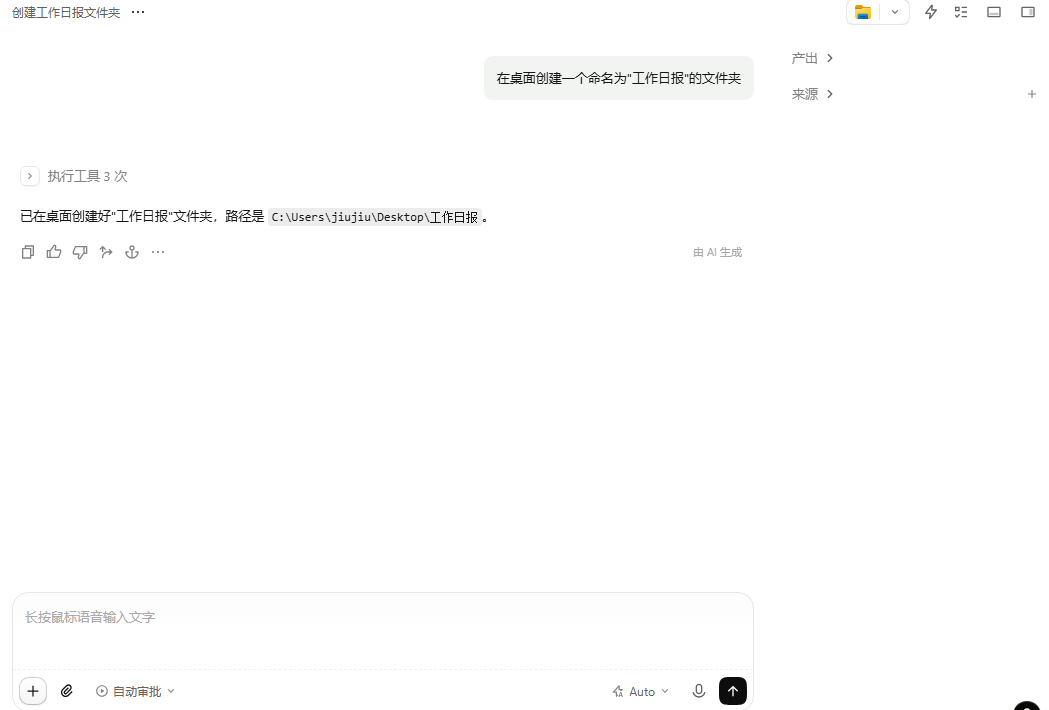
Create a folder named "Work Report" on the desktop.