StackFlow AI Platform
Devices & Quick Start
Models
Qwen3
DeepSeek-R1
AI Pyramid Applications
Module LLM Applications
CV Vision Application
Vision Language Model (VLM)
Large Language Model (LLM)
Voice Assistant
AI Pyramid EC Proxy Hardware Control
1. Introduction
The default AI Pyramid system image includes the EC Proxy embedded controller communication system, which is used to implement communication and management between the main system and the Embedded Controller (EC). EC Proxy provides a unified abstraction layer for the underlying hardware, encapsulating specific hardware implementation details and exposing standardized control interfaces to upper-layer systems. Peripheral functions on AI Pyramid such as RGB LEDs, cooling fans, power management, and buttons can all be controlled via EC Proxy.
After AI Pyramid powers on, the EC Proxy service is automatically enabled. Users can operate hardware resources through the ec_cli command-line tool without directly interacting with the underlying hardware.
┌─────────────────┐     Modbus RTU      ┌──────────────────┐      ZMQ RPC/PUB     ┌─────────────┐
│   Hardware EC   │ ◄─────────────────► │   EC Proxy       │ ◄──────────────────► │   Client    │
│   (STM32/MCU)   │   /dev/ttyS3        │   Server         │   IPC/TCP Sockets    │   (CLI/App) │
└─────────────────┘ 115200-921600bps └──────────────────┘ └─────────────┘2. Hardware Control
Enter ec_cli device to view hardware control–related commands.
root@m5stack-AI-Pyramid:~# ec_cli device
usage: ec_cli [options] ...
options:
  -r, --rgb                             Get or set RGB LED display mode
      --poweron_time                    Get or set the scheduled power-on time
      --poweroff_time                   Get or set the scheduled power-off time
      --rgb_size                        Get or set the number of RGB LEDs in the array
      --rgb_get_color                   Get the color value of a specific RGB LED
      --rgb_set_color                   Set color for a specific RGB LED, example: cli --rgb_set_color -d '{"rgb_index":0,"rgb_color":255}'
  -f, --fan                             Get or set the fan PWM duty cycle
  -F, --fanspeed                        Get the current fan rotation speed in RPM
      --pd_power_info                   Get the USB PD power delivery information
  -B, --board                           Get the board power consumption information
      --ip_eth0                         Get or set the IP address for Ethernet interface eth0
      --ip_eth1                         Get or set the IP address for Ethernet interface eth1
      --ip_wlan                         Get or set the IP address for wireless LAN interface
  -l, --lcd                             Get or set the LCD display mode
      --lcd_ram                         Set the LCD RAM buffer data directly
  -c, --vddcpu                          Get or set the CPU core voltage (VDD)
      --modbus_speed                    Get or set the Modbus communication baud rate
  -p, --ext_power                       Control the external power supply output
  -b, --board_power                     Control the main board power switch
      --pcie0                           Set the PCIe slot 0 switch on/off state
      --pcie1                           Set the PCIe slot 1 switch on/off state
      --gl3510_reset                    Reset the GL3510 USB hub controller
      --usbds1_big                      Set the high-power mode for USB downstream port 1
      --usbds2_big                      Set the high-power mode for USB downstream port 2
      --usbds1                          Set the switch on/off state for USB downstream port 1
      --usbds2                          Set the switch on/off state for USB downstream port 2
      --usbds3                          Set the switch on/off state for USB downstream port 3
      --hdmi_loop_en                    Switch HDMI OUT port input source between IN and AX8850
      --grove_uart                      Set the switch on/off state for Grove UART interface
      --grove_iic                       Set the switch on/off state for Grove I2C interface
      --flash_switch                    Save switch configuration to flash memory (stores coil registers 4-14)
      --flash_value                     Save value configuration to flash memory (stores holding registers 1, 2, 11, 12, 14, 16-21)
      --poweroff                        Trigger the system power-off sequence
      --lcd_brightness                  Get or set the LCD backlight brightness level
  -P, --lcd_putc                        Output a character or string to the LCD display
      --i2c_set_reg                     Write a value to an I2C device register
      --i2c_get_reg                     Read a value from an I2C device register
      --ec_button_head_event            Get or set the event handler for EC head button press
      --soc_button_head_event           Get or set the event handler for SoC head button press
      --ec_button_lcd_event             Get or set the event handler for EC LCD button press
      --fun_auto                        Get or set the automatic control mode for the proxy service
      --ec_modbus_set_bit               Set a specific bit in the EC Modbus coil register
      --ec_modbus_get_bit               Get a specific bit value from the EC Modbus coil register
      --ec_modbus_input_bits            Read the EC Modbus discrete input bits status
      --ec_modbus_input_registers       Read the EC Modbus input registers values
      --ec_modbus_set_hold_registers    Write values to the EC Modbus holding registers
      --ec_modbus_get_hold_registers    Read values from the EC Modbus holding registers
      --pcie0_exists                    Check if a PCIe device is present in slot 0
      --pcie1_exists                    Check if a PCIe device is present in slot 1
      --V3_3_good                       Check if the 3.3V power rail is within normal operating range
      --V1_8_good                       Check if the 1.8V power rail is within normal operating range
      --head_button                     Get the current state of the head button (pressed/released)
      --lcd_button                      Get the current state of the LCD button (pressed/released)
      --version                         Get the EC firmware version information
  -d, --data                            call param (string [=])
  -D, --DataRaw                         call param raw (string [=])
-?, --help print this messageRGB LED Control
Configure the RGB LED operating mode:
ec_cli device --rgb -d 4| RGB LED Mode | Description |
|---|---|
| 0 | Controlled via rgb_set_color |
| 1 | Color gradient |
| 2 | Breathing effect |
| 3 | Flowing light effect |
| 4 | Dispersed light effect |
| 5 | Aggregated light effect |
Use the rgb_set_color command to configure the color of a single RGB LED. This command is only valid in mode 0. Note: the current interface does not support setting a range of LEDs at once. The rgb_color parameter uses a decimal RGB888 encoding (e.g. 0x00FF00 == 65280).
ec_cli device --rgb_set_color -d '{"rgb_index":0,"rgb_color": 65280}'Fan Control
Set the fan PWM duty cycle to 80%:
ec_cli device --fan -d 80{
"created": 1769747093,
"data": "ok",
"object": "",
"request_id": "",
"work_id": "fun_set_pwm"
}Read the fan speed in RPM:
ec_cli device --fanspeed{
"created": 1769753372,
"data": 9060,
"object": "",
"request_id": "",
"work_id": "get_input_registers"
}Network Information
ec_cli device --ip_eth0
ec_cli device --ip_eth1
ec_cli device --ip_wlanPD Power Information
ec_cli device --pd_power_info{
"created": 1769753175,
"data": { "voltage": "20 V", "current": "1.25 A" },
"object": "",
"request_id": "",
"work_id": "pd_info"
}Power Management
View the current device power consumption information:
ec_cli device --board{
"created": 1769756427,
"data": {
"pcie0_mv": 3352,
"pcie0_ma": 0,
"pcie1_mv": 3328,
"pcie1_ma": 0,
"usb1_mv": 5040,
"usb1_ma": 0,
"usb2_mv": 5040,
"usb2_ma": 0,
"INVDD_mv": 20112,
"INVDD_ma": 292,
"EXTVDD_mv": 20112,
"EXTVDD_ma": 28
},
"object": "",
"request_id": "",
"work_id": "board_get_power_info"
}USB Power Output
Enable USB port power output. The internal USB 3.0 #4 port is always on by default.
ec_cli device --usbds1 -d 1
ec_cli device --usbds2 -d 1
ec_cli device --usbds3 -d 1Disable USB port power output:
ec_cli device --usbds1 -d 0
ec_cli device --usbds2 -d 0
ec_cli device --usbds3 -d 0Enable enhanced USB power output. The default output capability is up to 400mA, and up to 800mA after enhancement. Currently, only USB #1 / #2 ports support power enhancement.
ec_cli device --usbds1_big -d 1
ec_cli device --usbds2_big -d 1OLED
Configure the OLED display mode:
ec_cli device --lcd -d 4| OLED Mode | Description |
|---|---|
| 0 | M5Stack characters |
| 1 | Interface voltage display, refresh every 3s |
| 2 | IP address display, refresh every 3s |
| 3 | ARM mapping |
| 4 | Text display mode, controlled via lcd_putc |
Use the lcd_putc command to print characters to the OLED screen. This command is only valid in mode 4.
ec_cli device --lcd_putc -d "Hello World!"Clear the screen by writing blank characters:
ec_cli device --lcd_putc -d " "3. Status Monitoring
Enter ec_cli echo to view status monitoring–related commands. The current version only supports reading the top button status.
root@m5stack-AI-Pyramid:~# ec_cli echo
usage: ec_cli [options] ...
options:
  -b, --button    button event
-?, --help print this messageec_cli echo --buttonPress the top button:
{ "created":1769747540,"data":{"code":0,"vale":204},"object":"","request_id":"","work_id":"buttons_thread" }
{ "created":1769747540,"data":{"code":1,"vale":204},"object":"","request_id":"","work_id":"buttons_thread" }
{ "created":1769747540,"data":{"code":0,"vale":204},"object":"","request_id":"","work_id":"buttons_thread" }
{ "created":1769747540,"data":{"code":1,"vale":204},"object":"","request_id":"","work_id":"buttons_thread" }4. Core-Config
In addition to using the command line, you can also use Core-Config to open a GUI for configuration.
core-config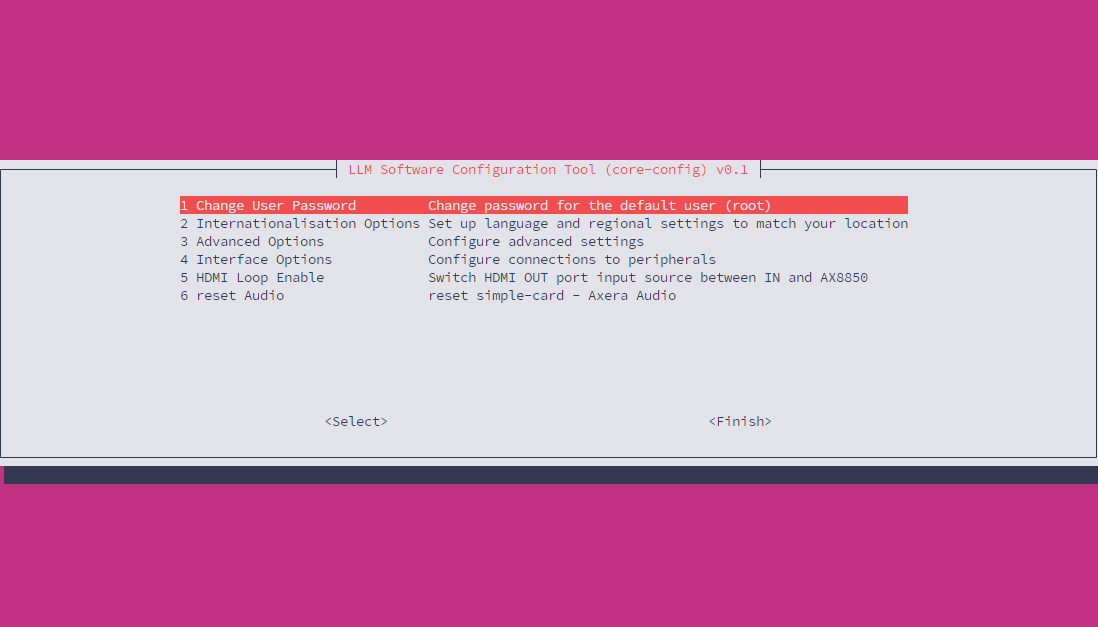
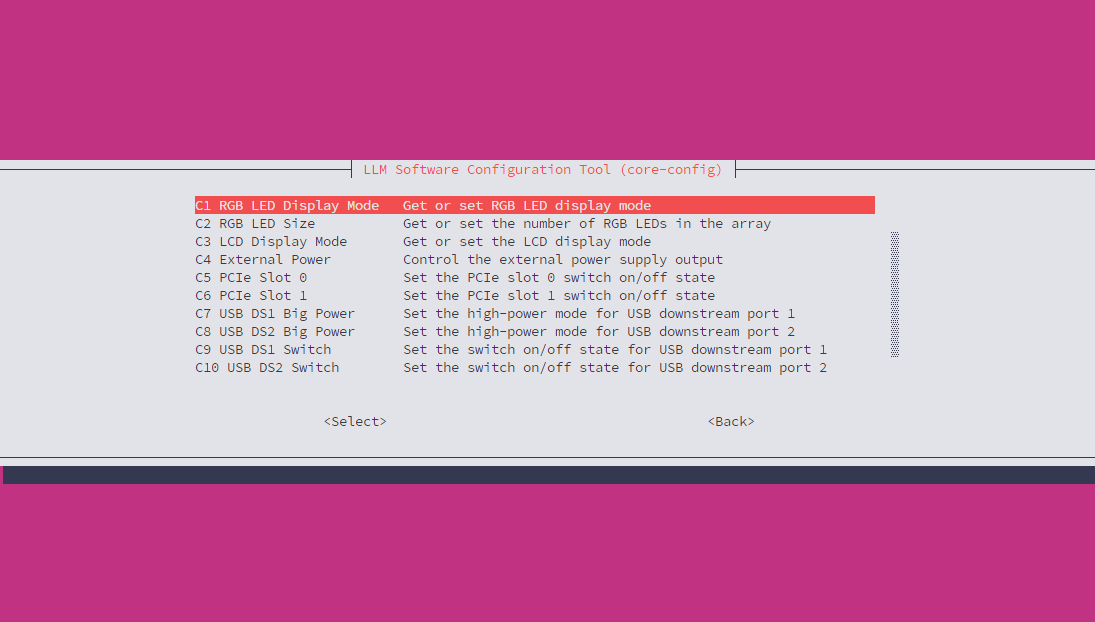
The Interface Option section contains commonly used hardware control options, such as USB power output and fan speed. The configuration options are consistent with the functionality provided by the ec_cli command-line tool.
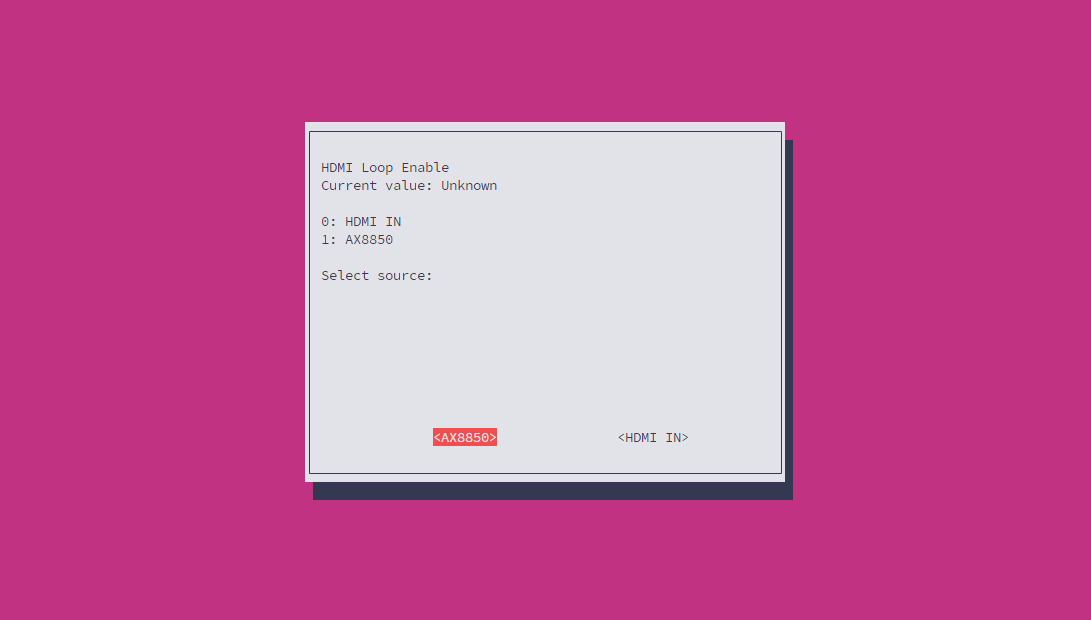
Configure Display Output
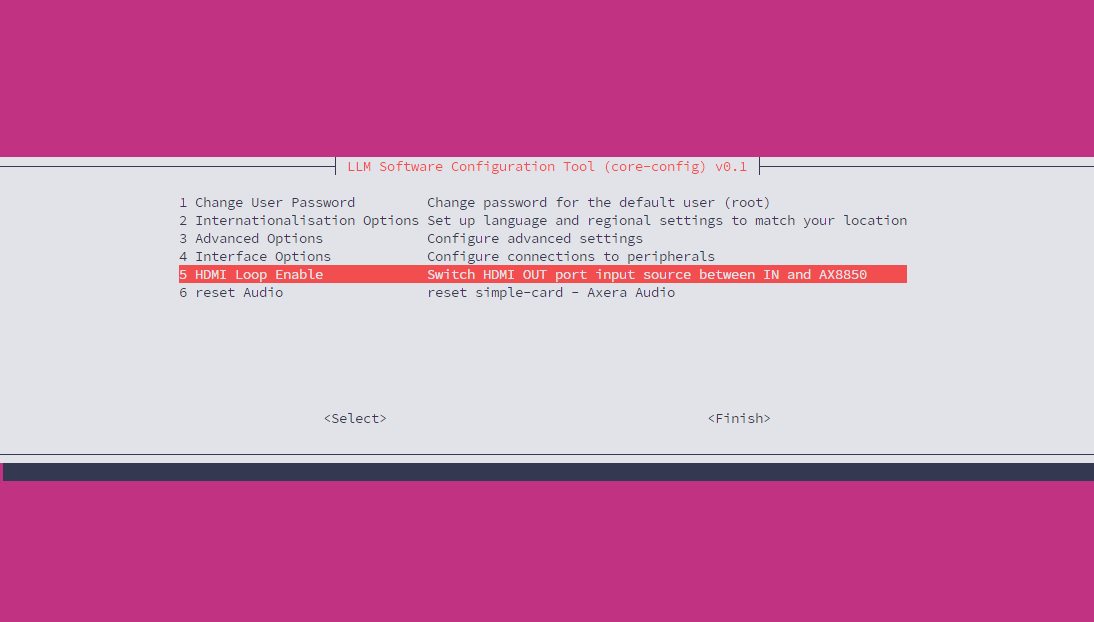
This configuration applies to AI Pyramid-Pro. It allows you to configure the Display output signal source to come from the Display Input interface or to use the AX8850 internal default output directly.
Reset Audio