Product Guide
Linux PC
AI Accelerator Card
LLM-8850 Card
Large Language Models
AI & Agent
Real-Time AI Voice Assistant
XiaoZhi Voice Assistant
AtomS3R-M12 Volcengine Kit
Offline Voice Recognition
Industrial Control
IoT Measuring Instruments
Air Quality
PowerHub
Module13.2 PPS
VAMeter
T-Lite
Input & Output Devices
Ethernet Camera
PoECAM
Wi-Fi Camera
Unit CamS3/-5MP
AI Camera
LoRa & LoRaWAN
Motor Control
Restore Factory Firmware
DIP Switch Usage Guide
LLM-8850 Card Windows Environment Configuration
Windows Version Requirements
| Windows | Version |
|---|---|
| 10 | 22H2 |
| 11 | >= 23H2 |
Press
Win+R, enterwinverto check the current Windows version information.Only Windows 10 64-bit and Windows 11 64-bit operating systems are supported.
Press
Win+Ito open Settings > Update & Security > Windows Update, and update Windows automatically. For Windows 10, it is recommended to use the Microsoft Update Assistant to update to version 22H2.Disable system sleep: Press
Win+Ito open Settings > System > Power & Sleep, and set Sleep toNever.
Environment Preparation
It is recommended to disable security protection software to avoid false positives.
Download the Visual Studio 2022 Runtime Library VC_redist.x64.exe (Microsoft download link) and install VC_redist.x64.exe with administrator privileges.
Power off and disconnect the power supply before installing the device onto the motherboard. Hot-plugging is strictly prohibited.
After booting, press
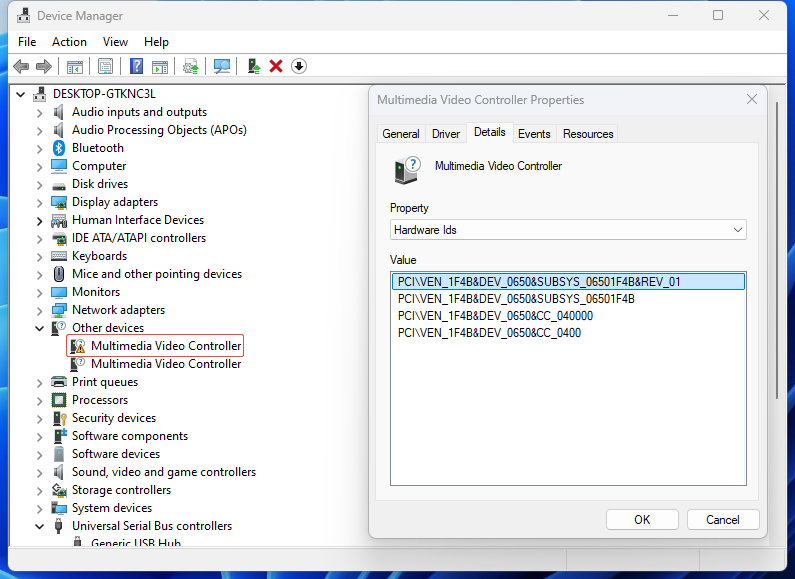
Win+R, enterdevmgmt.mscto open Device Manager. An unknown multimedia video controller will appear under Other devices. In the device properties, you can confirm that the VENDOR is 1F4B.
Driver Installation
The Windows release package
axcl_win64_setup_Vx.x.x_yyyymmdd_NOxxxx.exewill automatically install the driver, dynamic link libraries (including import libraries), executable programs (such as axcl-smi.exe), and sample source code. Run the release package with administrator privileges and follow the wizard to complete the installation. Click to downloadClick Install.
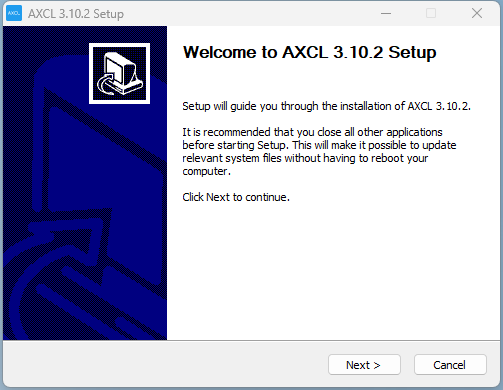
- It is recommended to select all components for installation.
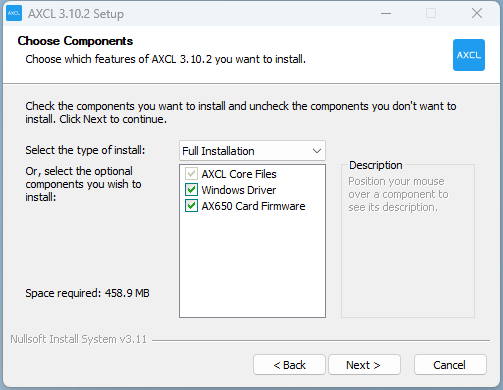
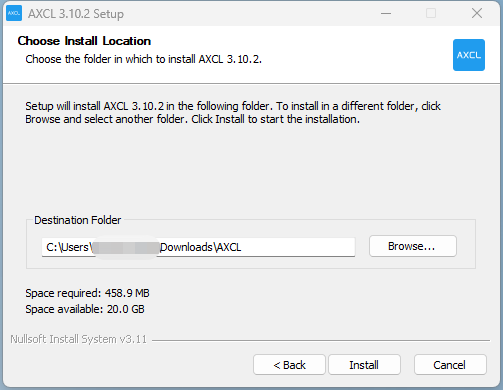
- Pay attention to the installation path selection. This directory contains executable programs, the uninstaller, header files, and dynamic libraries.
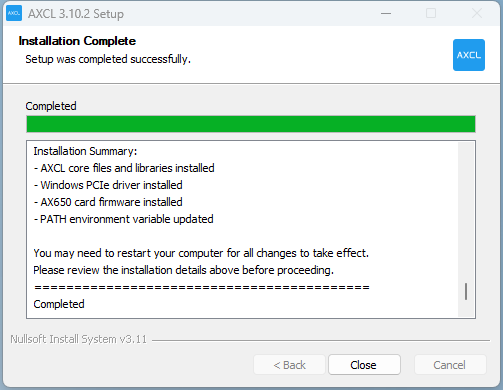
- Wait for the installation to complete and restart the computer.
- After restarting, press
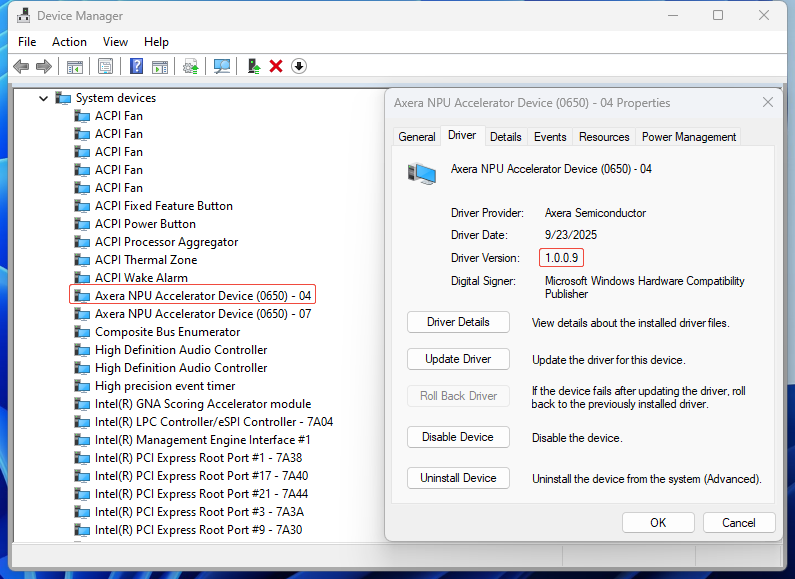
Win+R, enterdevmgmt.mscto open Device Manager. Under System devices, you will find the Axera NPU Accelerator Device, as shown below.
- Navigate to the installation path
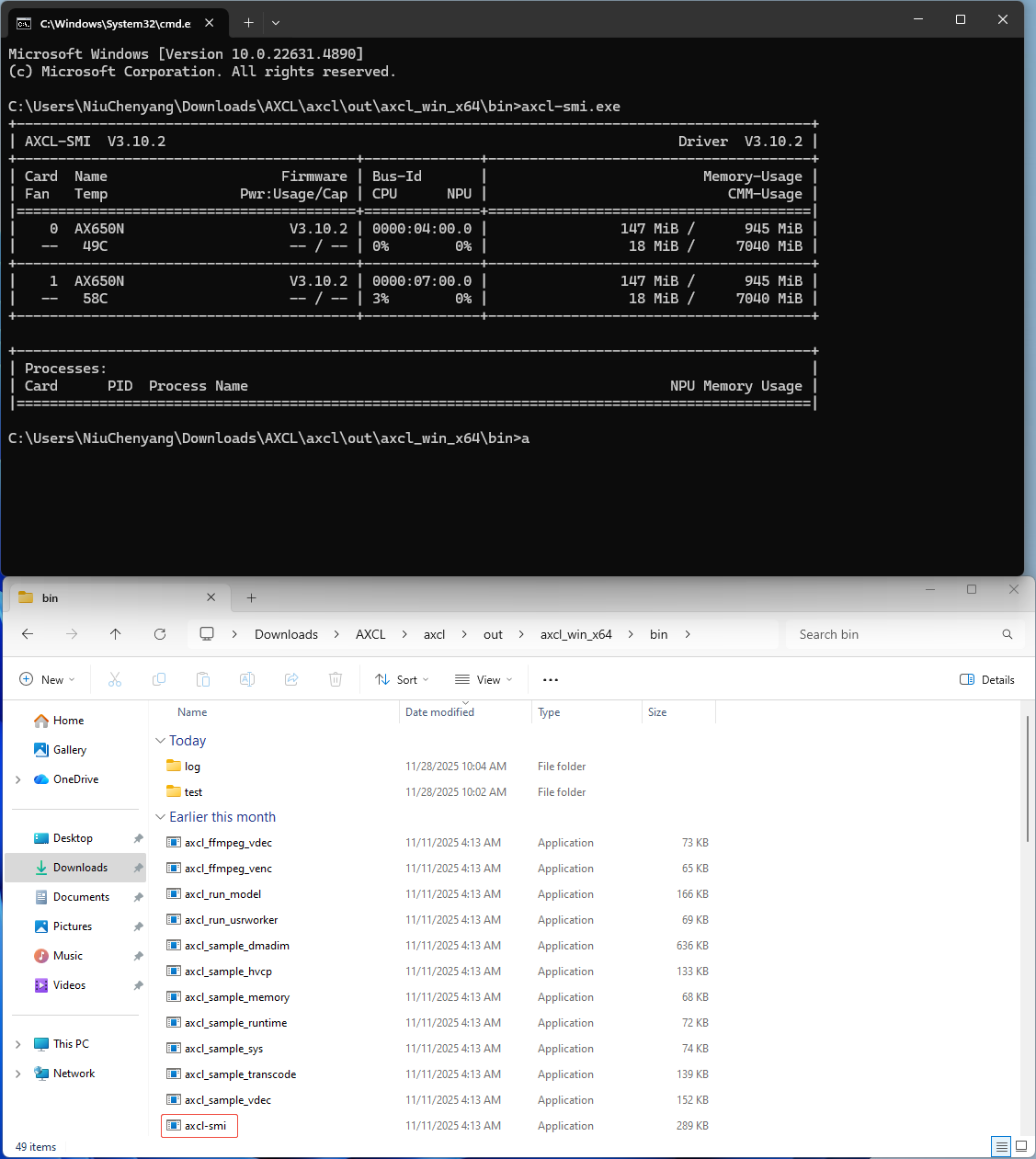
AXCL\axcl\out\axcl_win_x64\bin. In Windows Terminal, executeaxcl-smi.exe. The output should appear as follows:
Driver Uninstallation
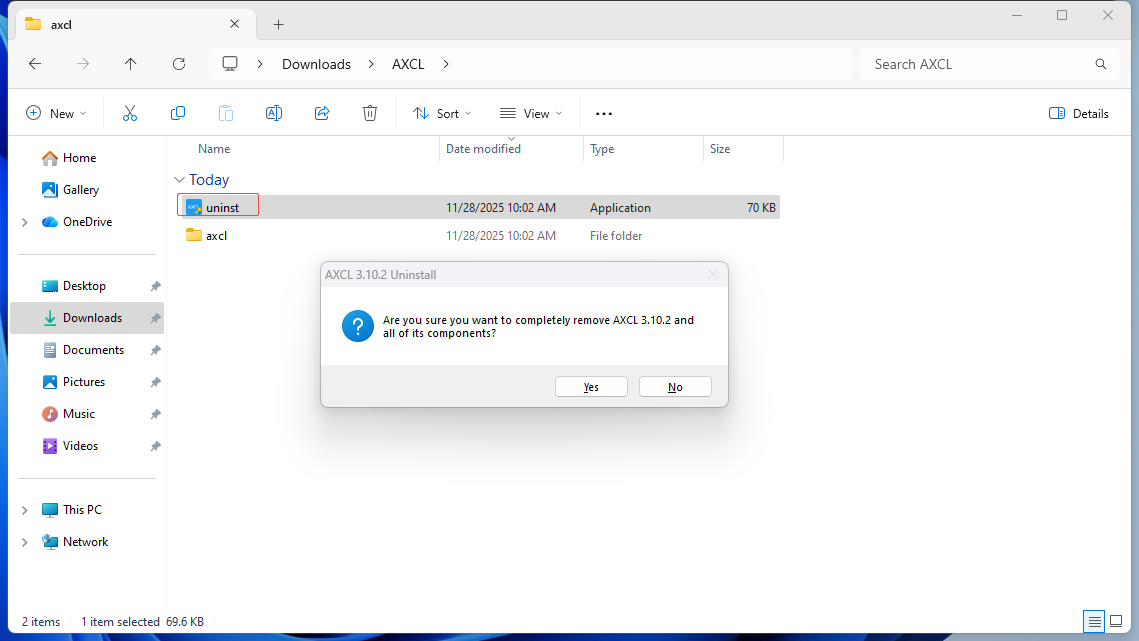
- Navigate to the installation path AXCL and run
uninst.exeto uninstall.
Program Compilation
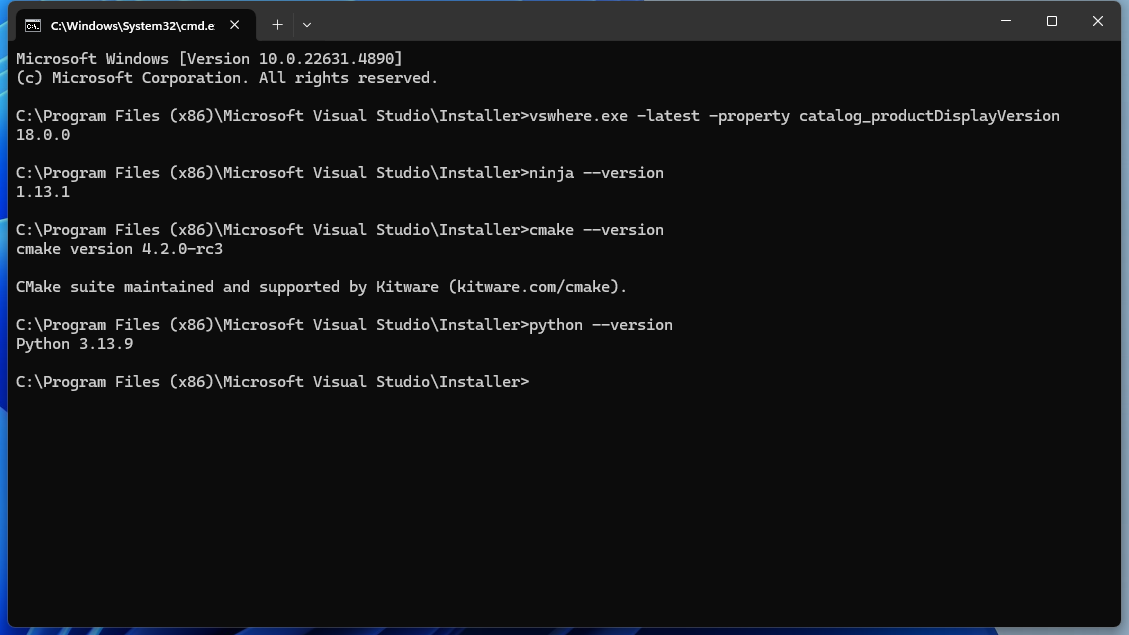
- Visual Studio Community 2026, refer to the official documentation. Required workload: Desktop development with C++.
- CMake, version higher than 3.20.
- ninja, recommended v1.31.1. Add the path of ninja.exe to the system environment variable Path.
- Python3 can be installed via conda.
After the environment is set up, it should look like the following:
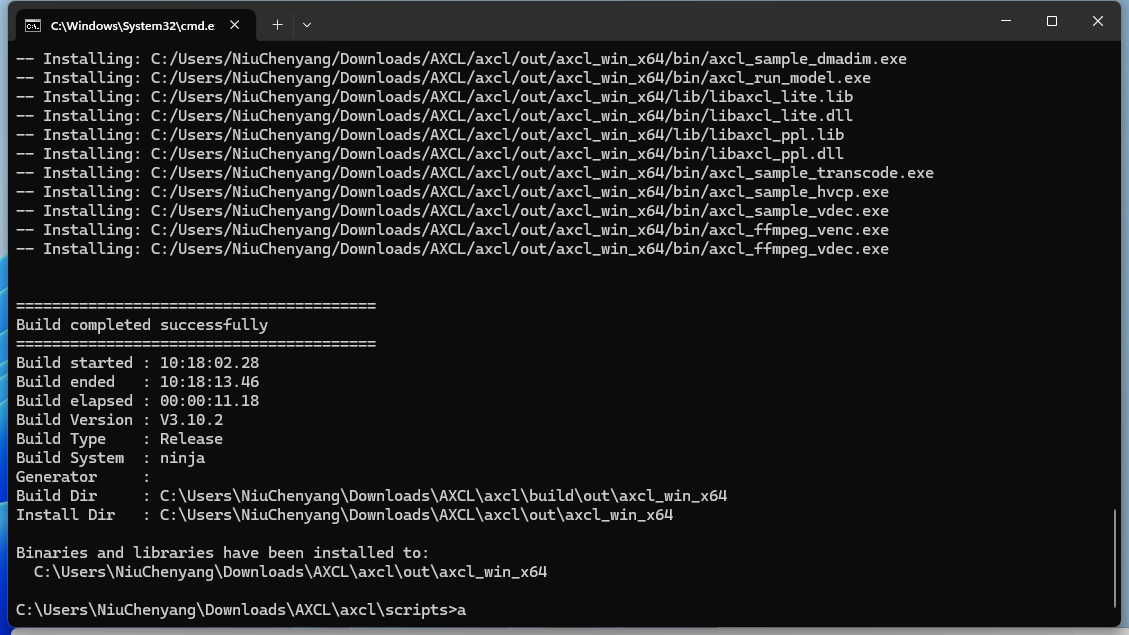
Navigate to the installation path AXCL\axcl\scripts and execute build_win64.cmd to compile.
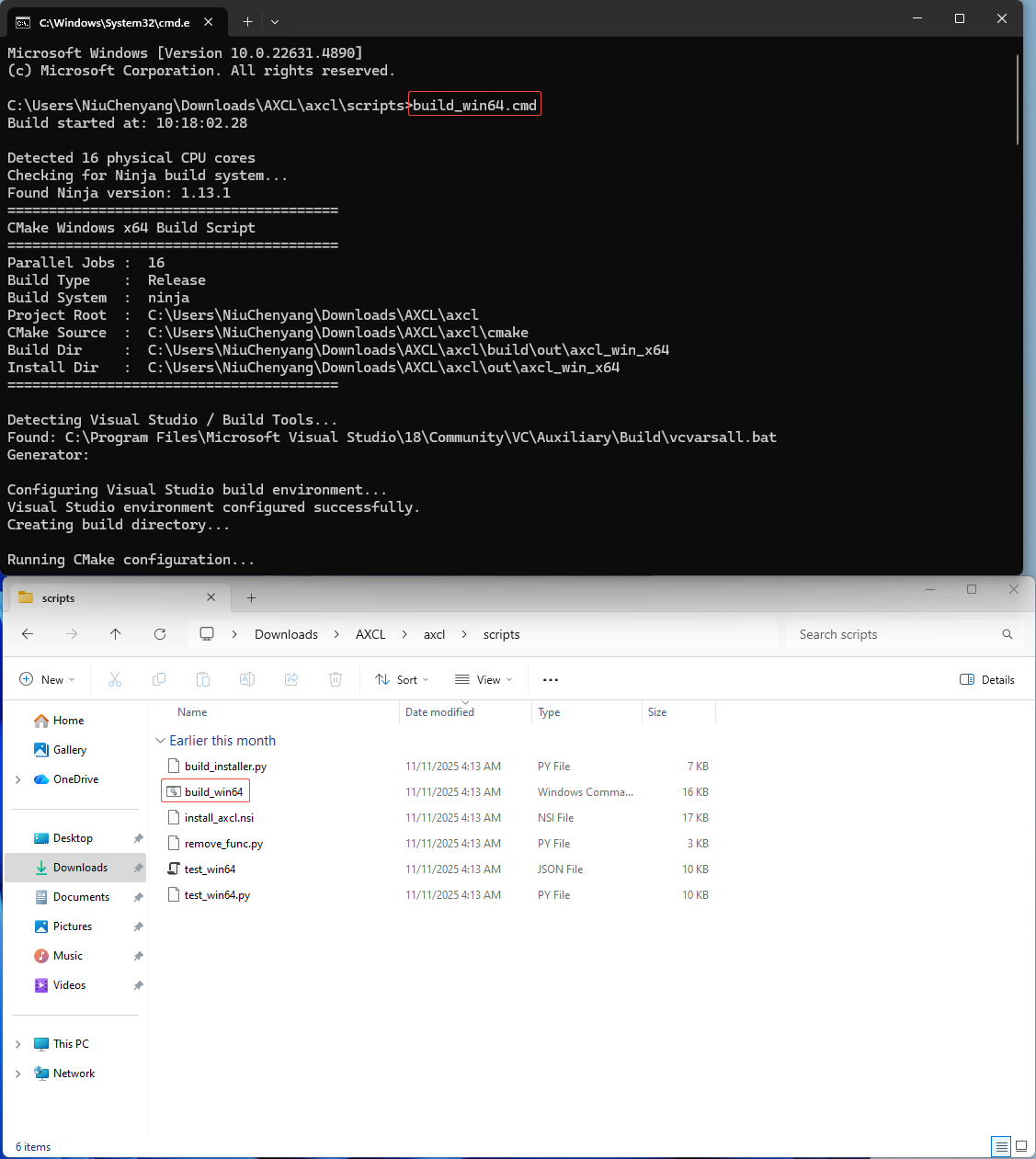
A successful build is shown below:
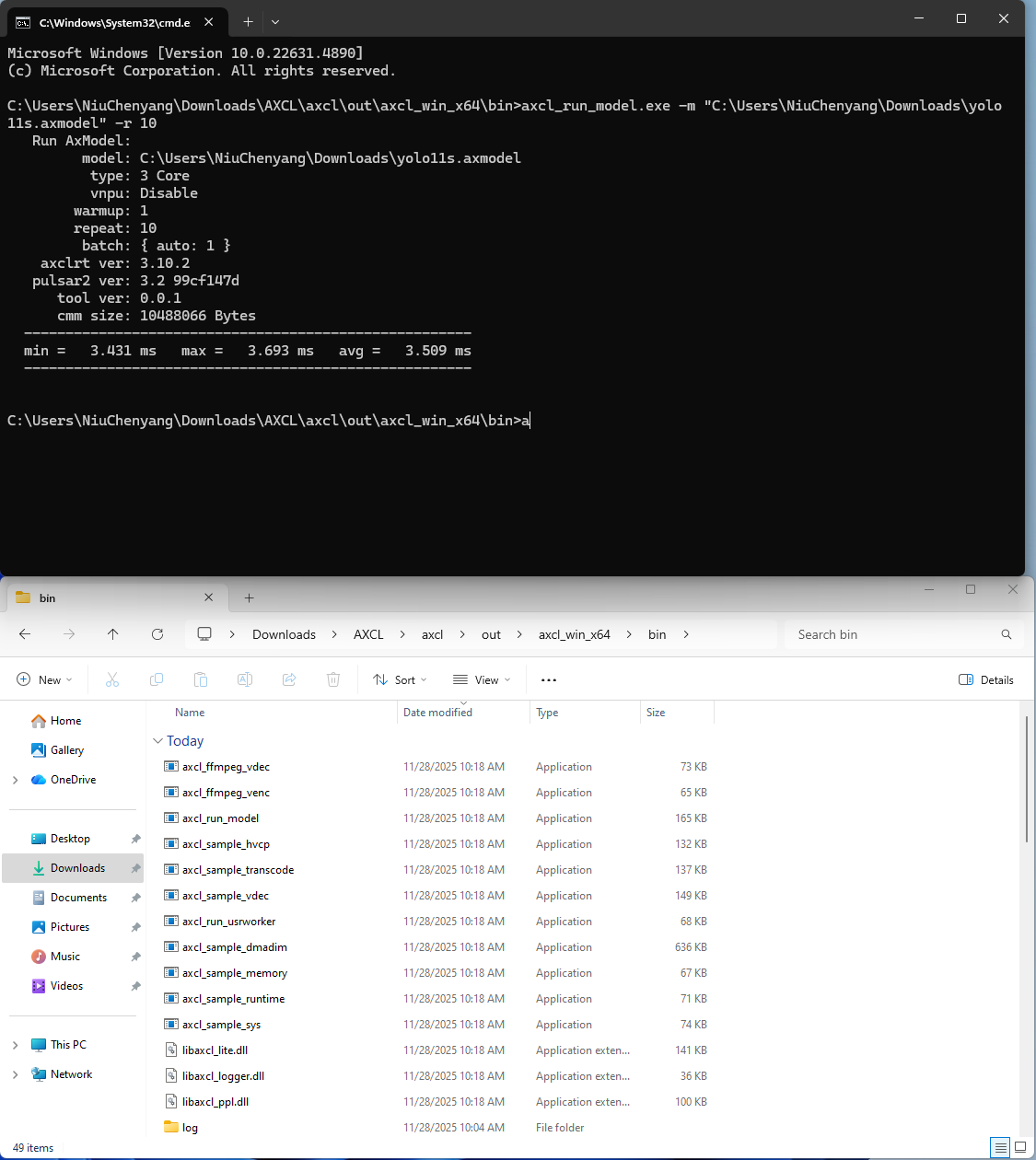
Navigate to the build output directory and execute axcl_run_model.exe -m yolo11s.axmodel -r 10. Please replace it with the actual model file path. Precompiled binaries and model download
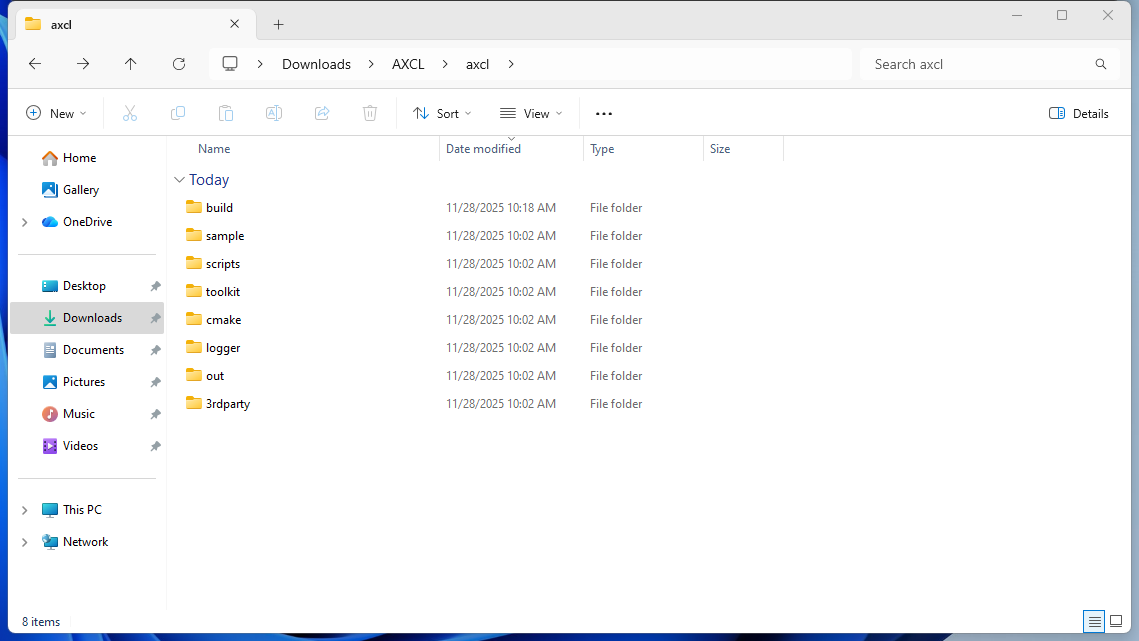
This directory contains third-party libraries.
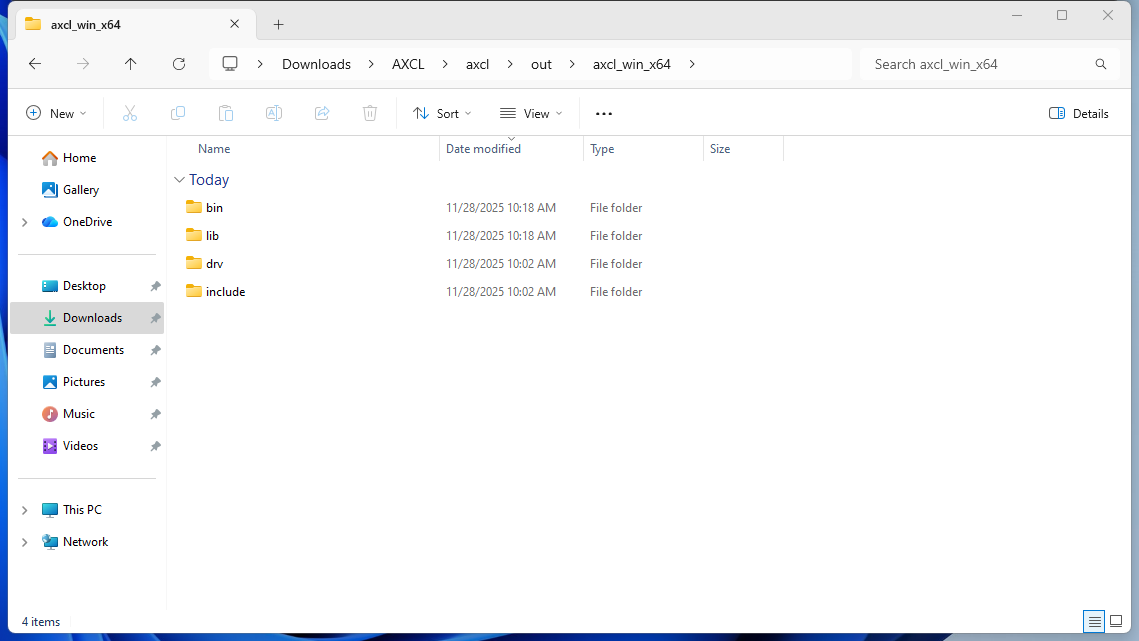
This directory contains axcl-related header files and dynamic libraries.
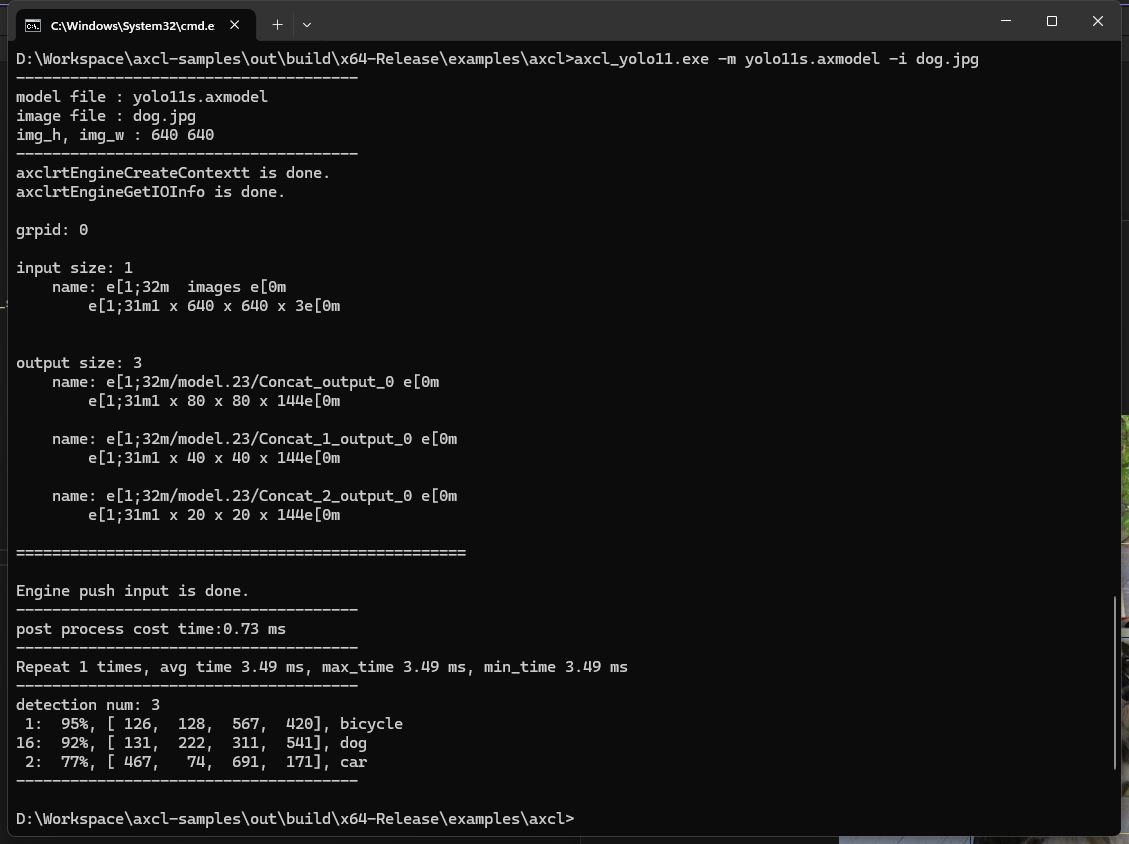
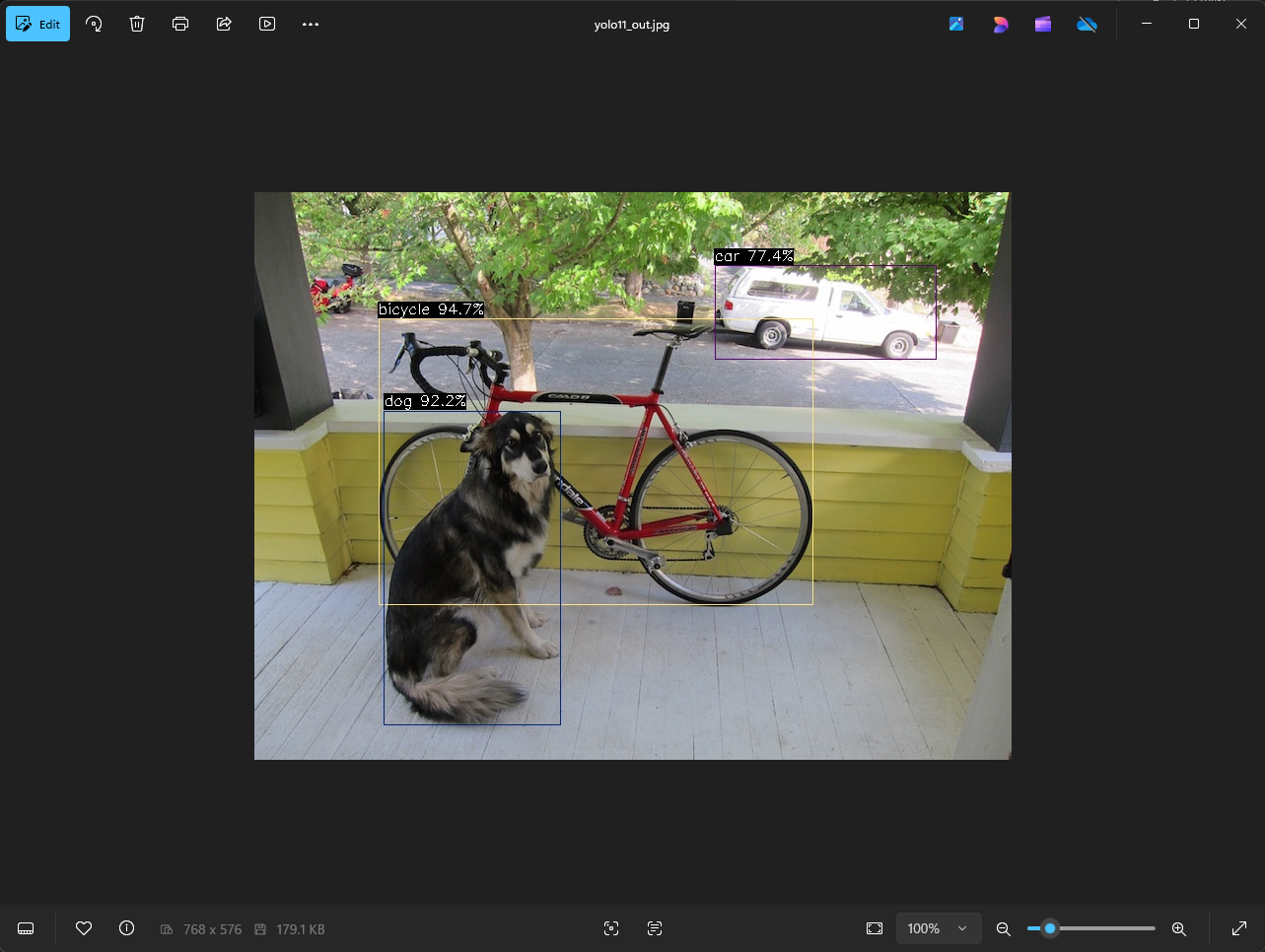
Below is a demonstration of axcl-sample. Precompiled binaries and model download