

Arduino Quick Start
2. Devices & Examples
3. M5Unified
4. M5GFX
5. Extensions
Unit
Module
Atomic
Tab5
IoT
Accessories
Compiling and Flashing StickC-Plus SE Arduino Examples
1. Preparation
- 1. Arduino IDE installation: Follow the Arduino IDE Installation Guide to install the IDE.
- 2. Board manager installation: Follow the Basic Environment Setup Guide to install the M5Stack board package and select the
M5StickCPlusboard.
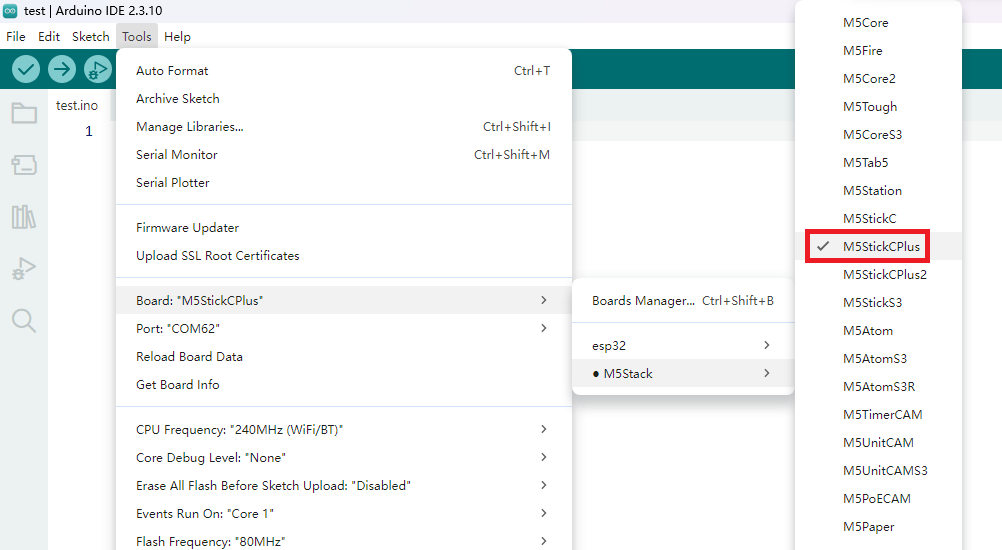
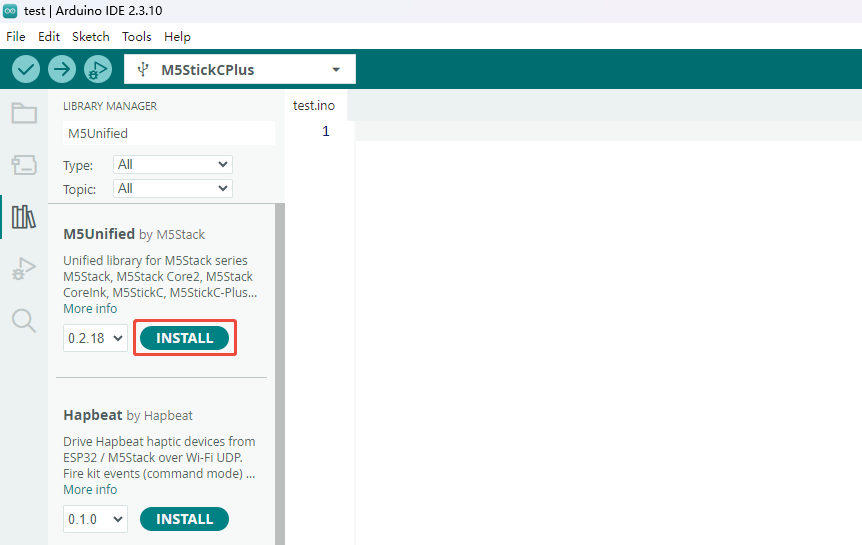
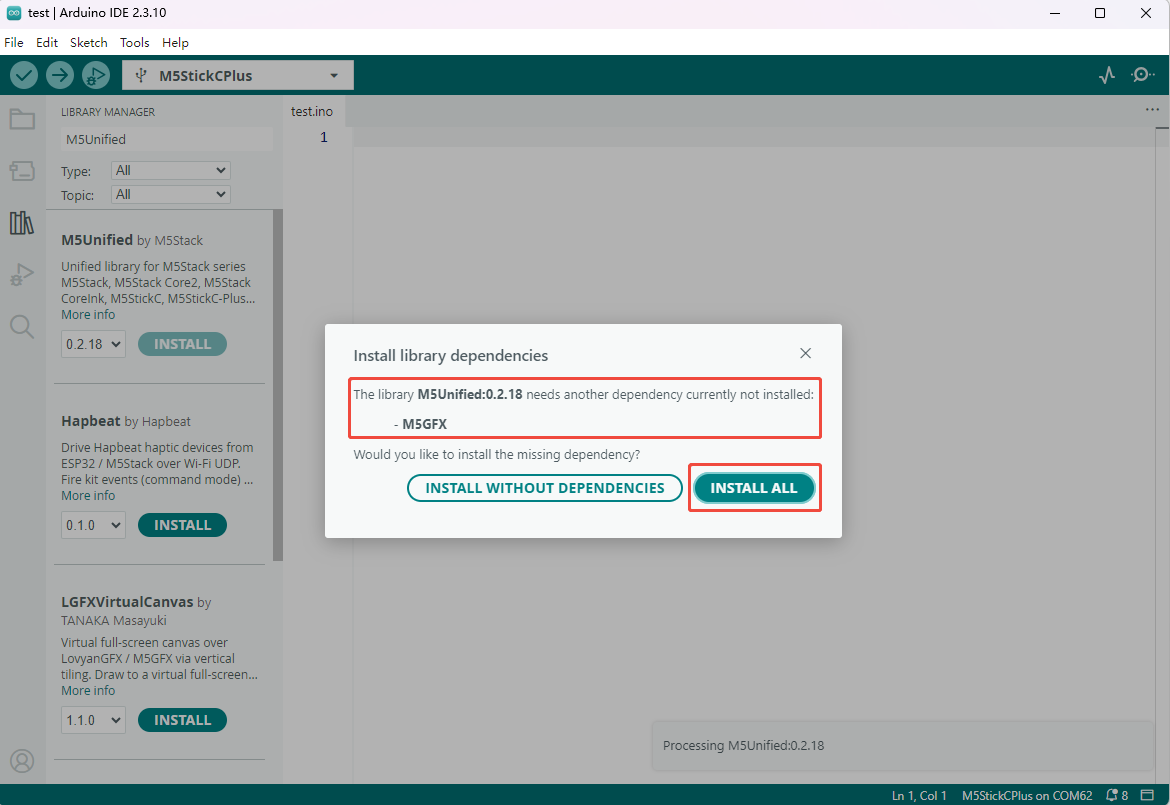
- 3. Dependency installation: Follow the Library Manager Installation Guide to install the
M5UnifiedandM5GFXdriver libraries, along with all prompted dependencies.
2. USB Driver Installation
- Select and download the driver file matching your operating system from the list below, then extract it. You can also visit the FTDI Chip official website to get additional FTDI driver versions.
| Driver name | Download link |
|---|---|
| Windows_Desktop_x64 | Download |
| Windows_Desktop_x86_32 | Download |
| Windows_Desktop_ARM | Download |
| MacOS_Intel | Download |
| MacOS_ARM64 | Download |
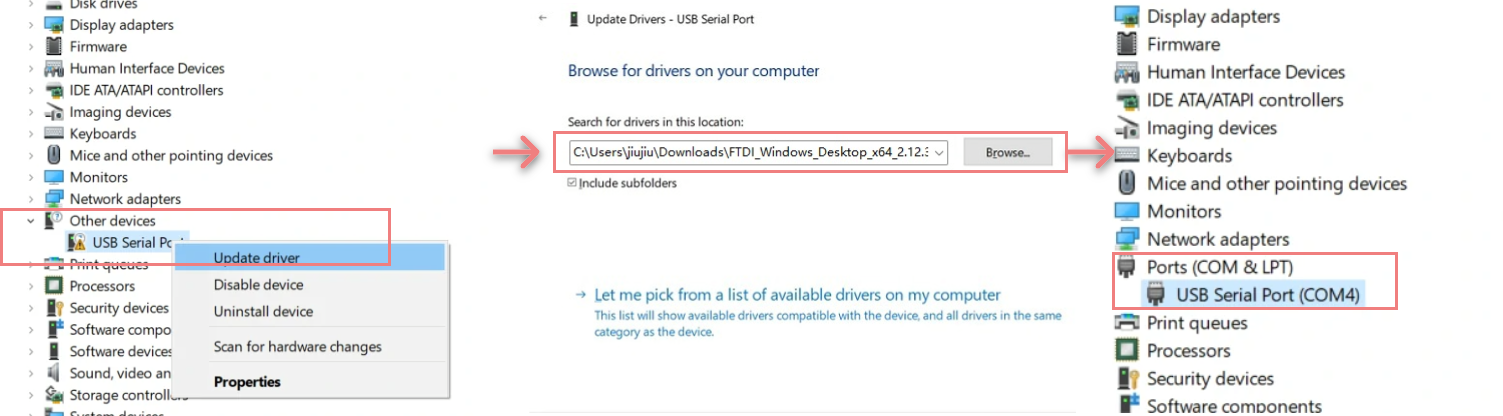
- Connect the device to your PC, open Device Manager, and install the FTDI driver (the screenshot below uses Windows 10 as an example). (Note: On some systems, you may need to install the driver twice for it to take effect. The unrecognized device is usually named
M5StackorUSB Serial.)
macOS
Before installation, macOS users should select
System Preferences -> Security & Privacy -> General -> Allow apps downloaded from -> App Store and identified developers.3. Port Selection
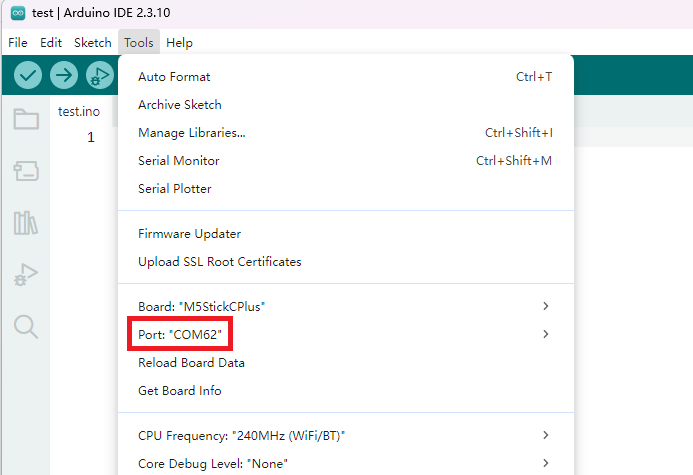
Connect the device to the computer with a USB cable. After the driver is installed, select the corresponding device port in Arduino IDE.
4. Program Compile & Upload
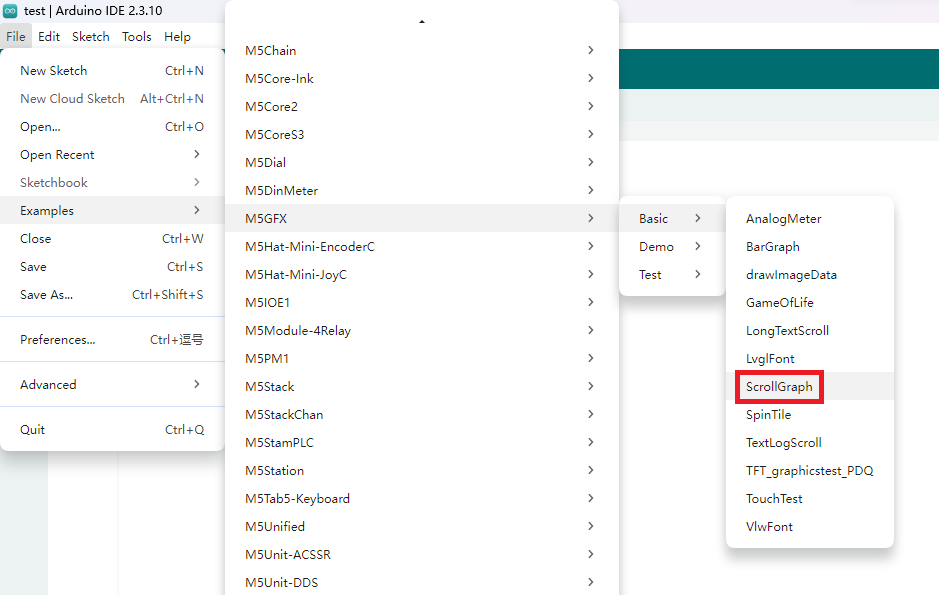
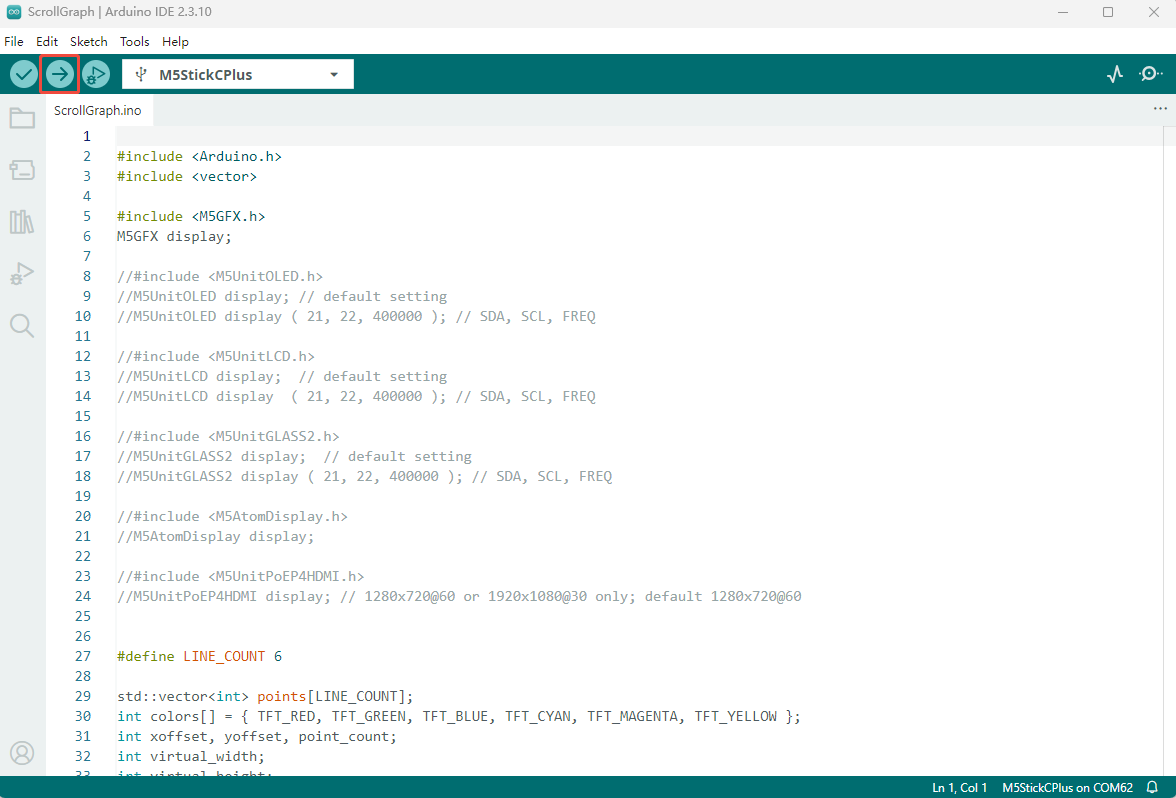
Open the ScrollGraph example from the driver library and click Upload. Arduino IDE will compile and flash the program automatically.
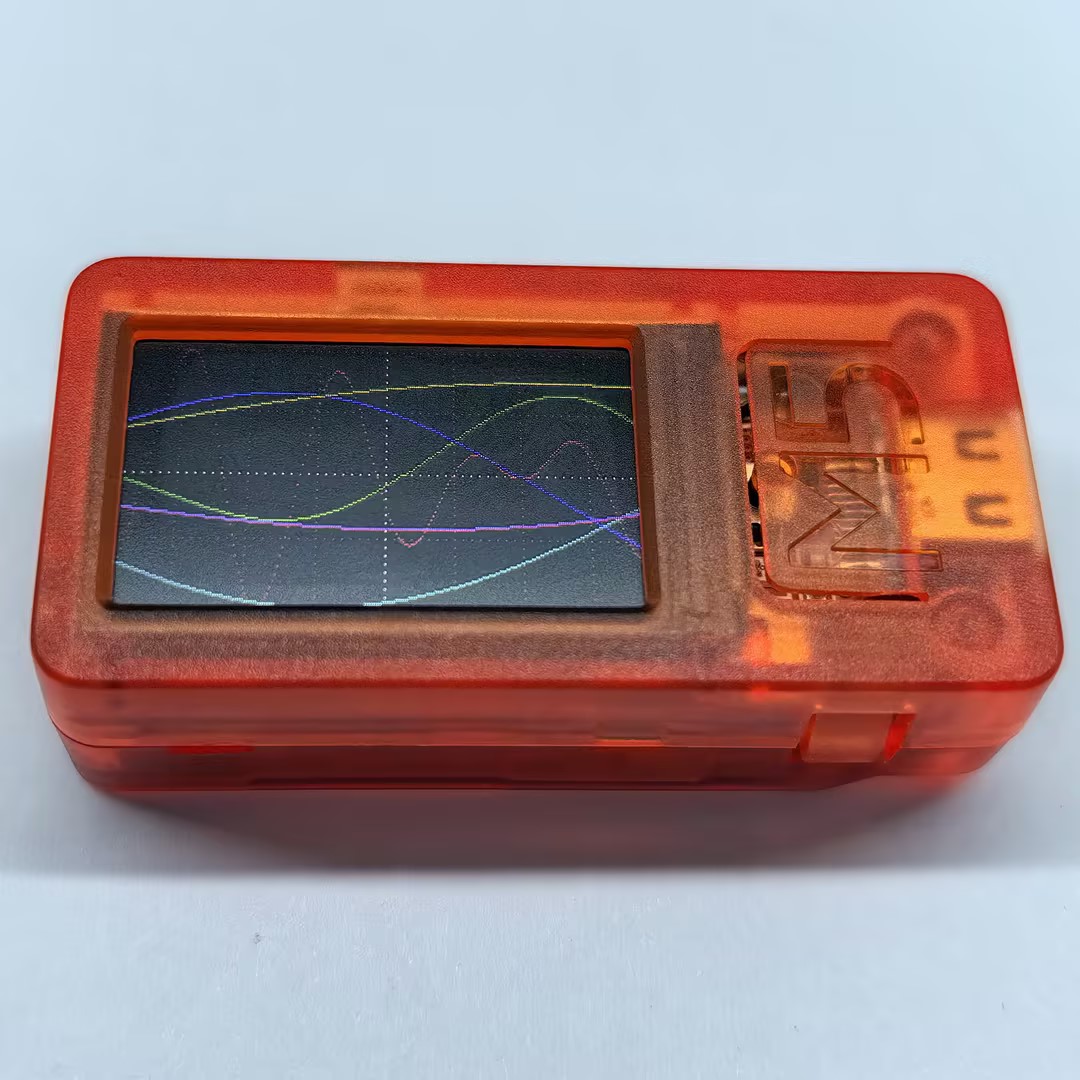
The display output is shown below:
5. Related Resources
Page Tools