

Arduino入門
2. デバイス&サンプル
3. M5Unified
4. M5GFX
5. 拡張モジュール&サンプル
Unit
Module
Atomic
Tab5
IoT
アクセサリー
Unit Neco Arduino チュートリアル
1. 準備
- 環境設定:Arduino IDE 入門ガイドを参照して IDE をインストールし、使用する開発ボードに対応するボードパッケージと必要なドライバライブラリをインストールしてください。
- 使用するライブラリ:
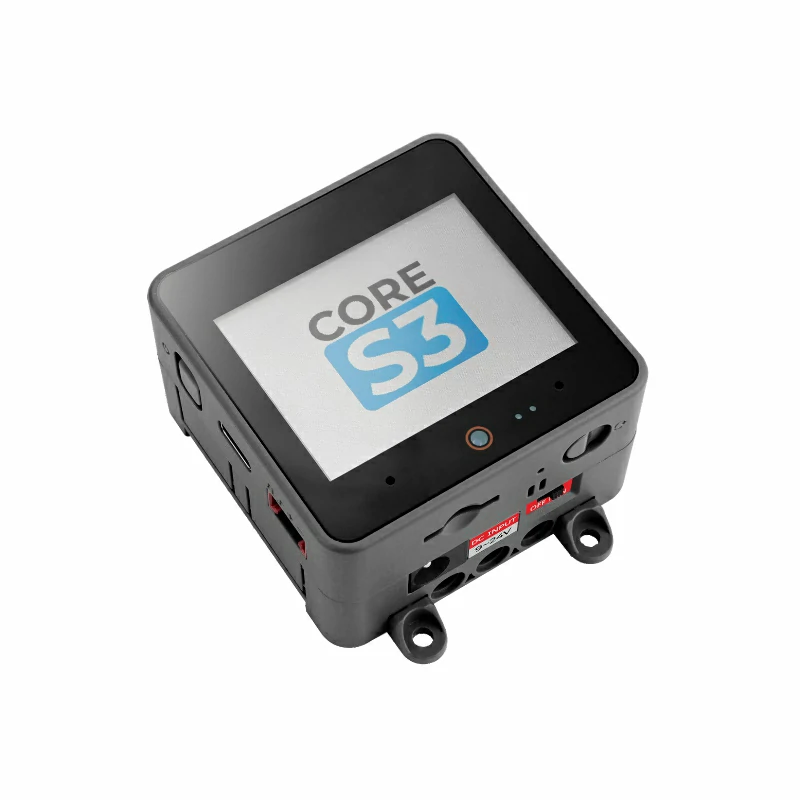
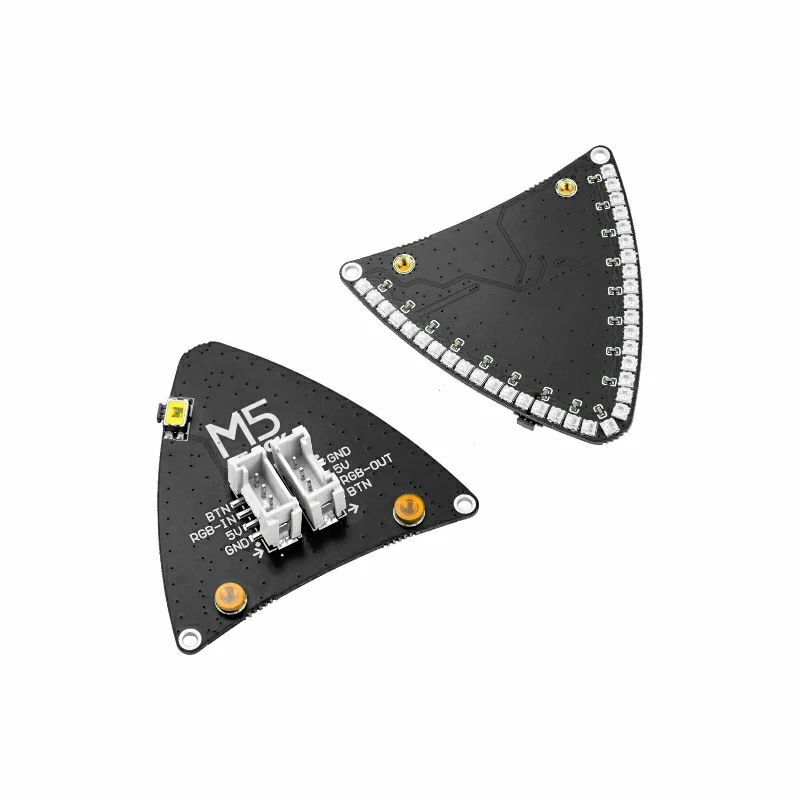
- 使用するハードウェア:
2. 注意事項
ピン互換性
ホストデバイスによってピン構成が異なるため、M5Stack はピン互換性表を提供しています。実際のピン接続を確認し、必要に応じてサンプルプログラムを変更してください。
3. サンプルプログラム
- 本チュートリアルでは、CoreS3 をホストデバイスとして Unit Neco と組み合わせます。Unit Neco は CoreS3 の Port B に接続し、DATA は
G9、BTN ボタンはG8を使用します。プログラムはINPUT_PULLUPでボタンを読み取り、押下時はピンが LOW になります。
cpp
1 2 3 4 5 6 7 8 9 10 11 12 13 14 15 16 17 18 19 20 21 22 23 24 25 26 27 28 29 30 31 32 33 34 35 36 37 38 39 40 41 42 43 44 45 46 47 48 49 50 51 52 53 54 55 56 57 58 59 60 61 62 63 64 65 66 67 68 69 70 71 72 73 74 75 76 77 78 79 80 81 82 83 84 85 86 87 88 89 90 91 92 93 94 95 96 97 98 99 100 101 102 103 104 105 106 107 108 109 110 111 112 113 114 115 116 117 118 119 120 121 122
#include <M5Unified.h>
#include <FastLED.h>

constexpr uint8_t LED_COUNT = 35;
constexpr uint8_t BRIGHTNESS = 20;
constexpr uint8_t DATA_PIN = 9;
constexpr uint16_t UI_BG = 0x1082;
constexpr uint16_t UI_PANEL = 0x2104;
constexpr uint16_t UI_HEADER = 0x0349;
constexpr uint16_t UI_MUTED = 0xBDF7;

CRGB pixels[LED_COUNT];
M5Canvas canvas(&M5.Display);
int button_pin = -1;
uint8_t color_index = 0;
bool last_button = false;

CRGB paletteColor(uint8_t index)
{
    const uint8_t r = (index == 0) ? 244 : (index == 1 ? 30 : 36);
    const uint8_t g = (index == 1) ? 180 : (index == 2 ? 210 : 36);
    const uint8_t b = (index == 2) ? 208 : (index == 0 ? 80 : 90);
    return CRGB(r, g, b);
}

CRGB paletteColor()
{
    return paletteColor(color_index);
}

uint16_t color565(const CRGB& color)
{
    return (static_cast<uint16_t>(color.r & 0xF8) << 8) |
           (static_cast<uint16_t>(color.g & 0xFC) << 3) | (color.b >> 3);
}

void showPixels()
{
    fill_solid(pixels, LED_COUNT, paletteColor());
    FastLED.show();
}

void drawColorSwatch(int16_t x, uint8_t index, const char* label)
{
    const bool selected = index == color_index;
    const uint16_t border = selected ? color565(paletteColor(index)) : UI_MUTED;
    canvas.fillRoundRect(x, 152, 92, 48, 5, UI_PANEL);
    canvas.drawRoundRect(x, 152, 92, 48, 5, border);
    canvas.fillCircle(x + 18, 176, 9, color565(paletteColor(index)));
    canvas.setFont(&fonts::Font2);
    canvas.setTextDatum(textdatum_t::middle_left);
    canvas.setTextColor(selected ? TFT_WHITE : UI_MUTED, UI_PANEL);
    canvas.drawString(label, x + 34, 176);
}

void drawStatus(bool pressed)
{
    char detail[24] = {};
    snprintf(detail, sizeof(detail), "COLOR %u  /  %u PIXELS",
             static_cast<unsigned>(color_index + 1), LED_COUNT);

    canvas.fillScreen(UI_BG);
    canvas.fillRect(0, 0, 320, 42, UI_HEADER);
    canvas.setFont(&fonts::Font4);
    canvas.setTextDatum(textdatum_t::middle_center);
    canvas.setTextColor(TFT_WHITE, UI_HEADER);
    canvas.drawString("UNIT NECO", 160, 16);
    canvas.setFont(&fonts::Font2);
    canvas.setTextColor(UI_MUTED, UI_HEADER);
    canvas.drawString("COLOR CONTROL  /  STATUS", 160, 33);

    canvas.fillRoundRect(12, 54, 296, 84, 6, UI_PANEL);
    canvas.drawRoundRect(12, 54, 296, 84, 6, color565(paletteColor()));
    canvas.fillCircle(52, 96, 25, color565(paletteColor()));
    canvas.setTextDatum(textdatum_t::middle_left);
    canvas.setTextColor(TFT_WHITE, UI_PANEL);
    canvas.drawString("CURRENT COLOR", 94, 78);
    canvas.setTextColor(UI_MUTED, UI_PANEL);
    canvas.drawString(detail, 94, 101);
    canvas.setTextColor(pressed ? TFT_ORANGE : TFT_GREEN, UI_PANEL);
    canvas.drawString(pressed ? "BUTTON DOWN" : "BUTTON READY", 94, 122);

    drawColorSwatch(12, 0, "PINK");
    drawColorSwatch(114, 1, "GREEN");
    drawColorSwatch(216, 2, "BLUE");

    canvas.fillRect(0, 214, 320, 26, UI_HEADER);
    canvas.setTextDatum(textdatum_t::middle_center);
    canvas.setTextColor(TFT_WHITE, UI_HEADER);
    canvas.drawString("PRESS BUTTON  |  COLOR CHANGE", 160, 227);
    canvas.pushSprite(0, 0);
}

void setup()
{
    M5.begin();
    Serial.begin(115200);
    canvas.setColorDepth(16);
    canvas.createSprite(320, 240);
    button_pin = M5.getPin(m5::pin_name_t::port_b_pin1);
    pinMode(button_pin, INPUT_PULLUP);
    FastLED.addLeds<WS2812B, DATA_PIN, GRB>(pixels, LED_COUNT)
        .setCorrection(TypicalLEDStrip);
    FastLED.setBrightness(BRIGHTNESS);
    showPixels();
    drawStatus(false);
}

void loop()
{
    const bool button = digitalRead(button_pin) == LOW;
    if (button && !last_button) {
        color_index = (color_index + 1) % 3;
        showPixels();
        Serial.printf("Color: %u\n", color_index + 1);
    }
    if (button != last_button) {
        drawStatus(button);
    }
    last_button = button;
    delay(10);
}4. プログラムのコンパイルと書き込み
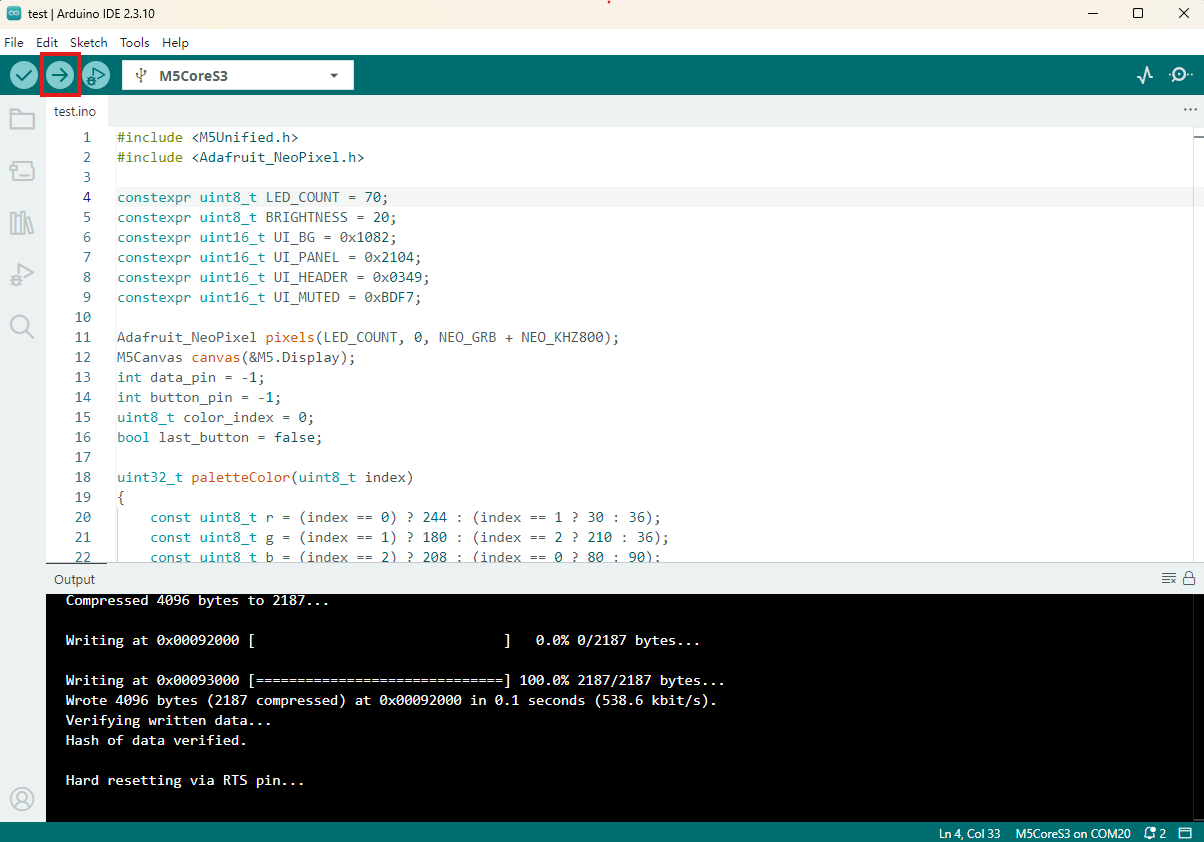
- 上記のサンプルプログラムをプロジェクトのコード欄にコピーして貼り付け、デバイスのポートを選択します(詳細はプログラムのコンパイルと書き込みを参照してください)。Arduino IDE 左上のコンパイルと書き込みボタンをクリックし、プログラムのコンパイルとデバイスへの書き込みが完了するまで待ちます。
5. RGB ライティング効果
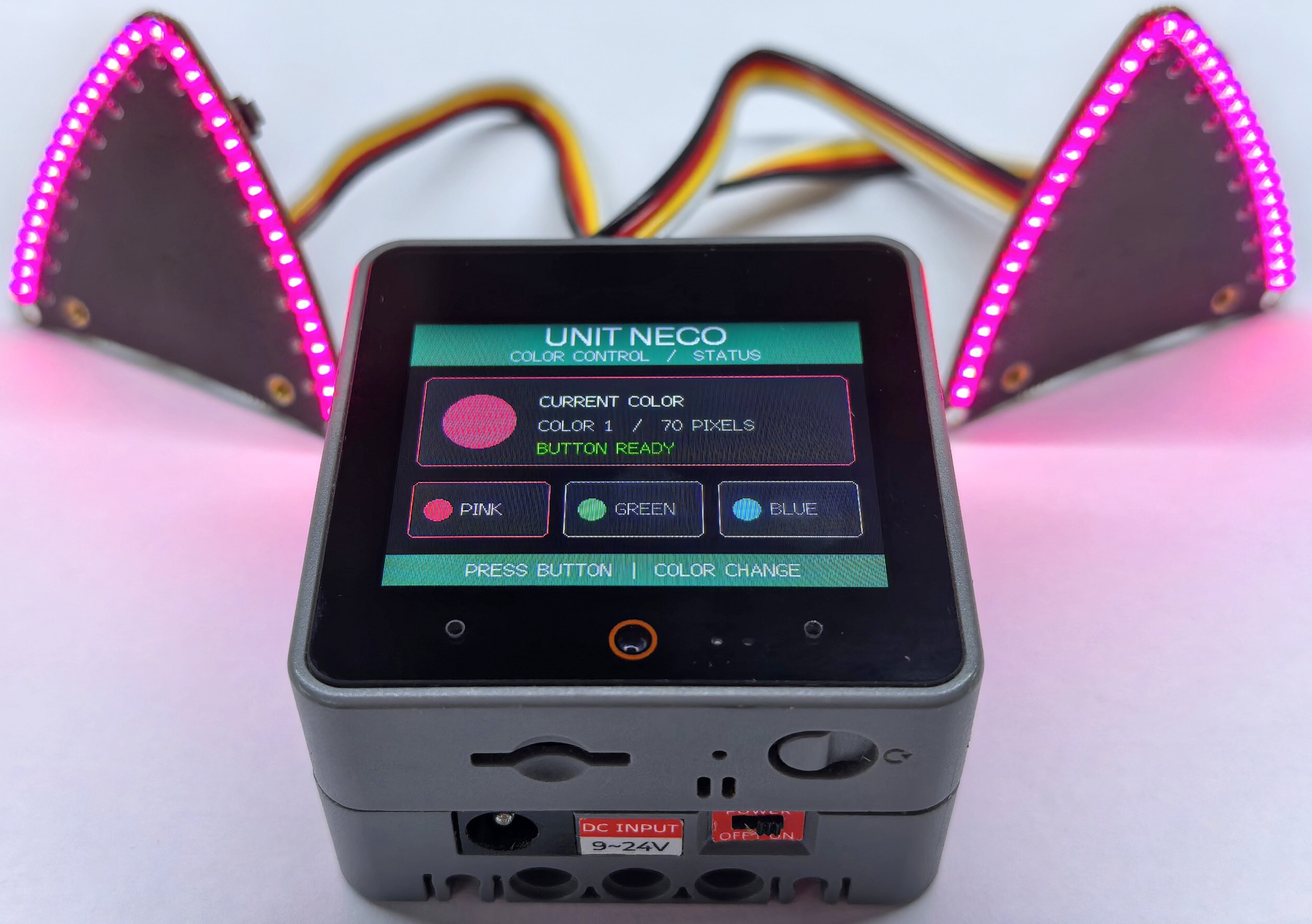
- 本例では Unit Neco を 1 台接続します。プログラムを実行すると、低輝度で 35 個の LED が点灯します。Neco のボタンを押すたびに色が切り替わり、ホストディスプレイにボタンの状態と色番号が表示されます。Unit Neco を 2 台カスケード接続する場合は、
LED_COUNTを 70 に設定してください。LED を全点灯のまま長時間使用すると過熱する恐れがあります。
Page Tools