

Arduino Quick Start
2. Devices & Examples
3. M5Unified
4. M5GFX
5. Extensions
Unit
Module
Atomic
Tab5
IoT
Accessories
Unit BMM350 Arduino Tutorial
1. Preparations
- Environment Setup: Refer to the Arduino IDE Getting Started Guide to complete the IDE installation, and install the corresponding board manager and required driver libraries according to the development board you are using.
- Driver Libraries Used:
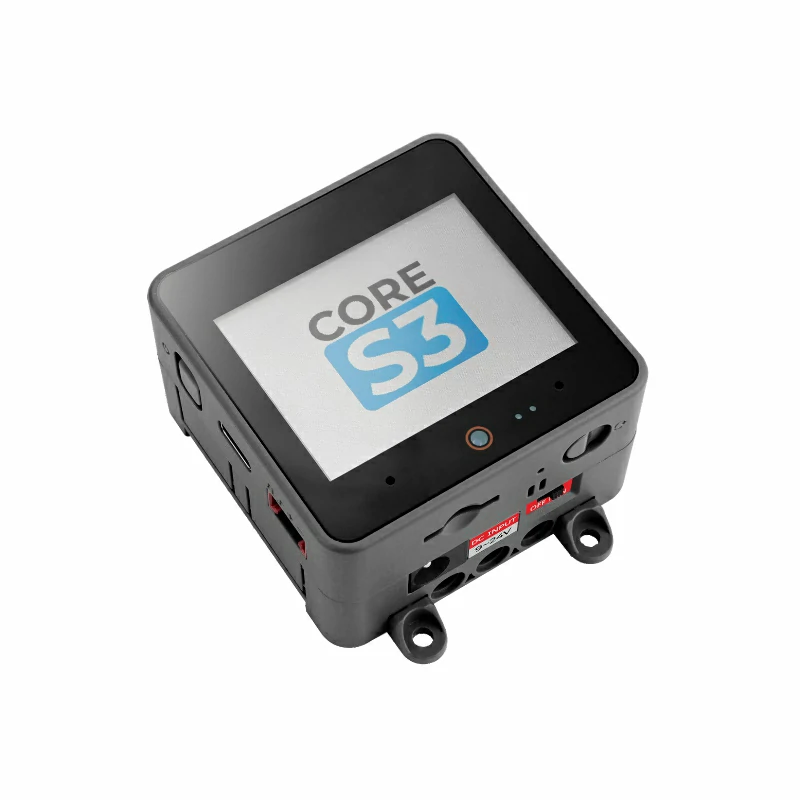
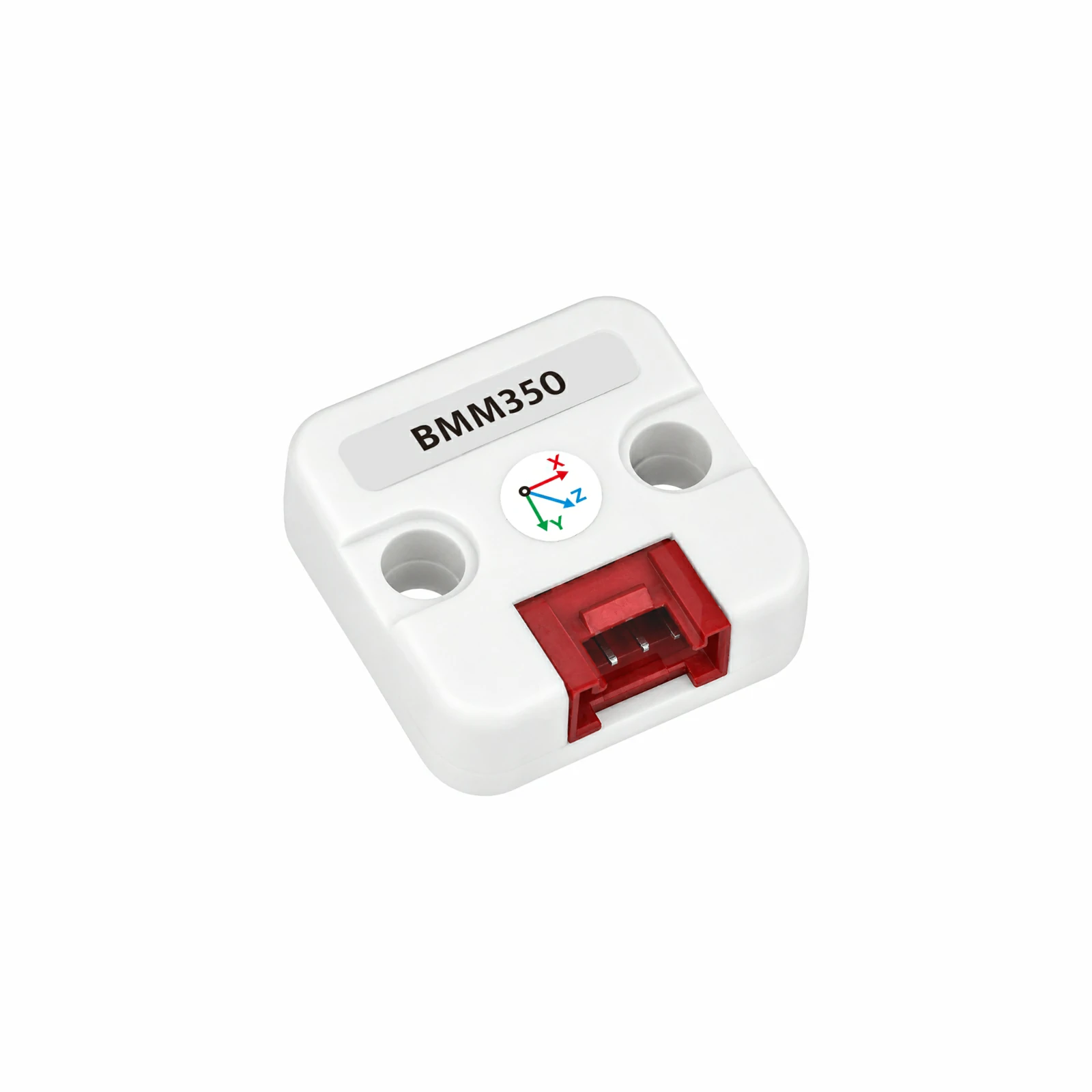
- Hardware Products Used:
2. Example Program
- This tutorial uses a CoreS3 as the main controller with a Unit BMM350. The Unit BMM350 communicates over I2C at address
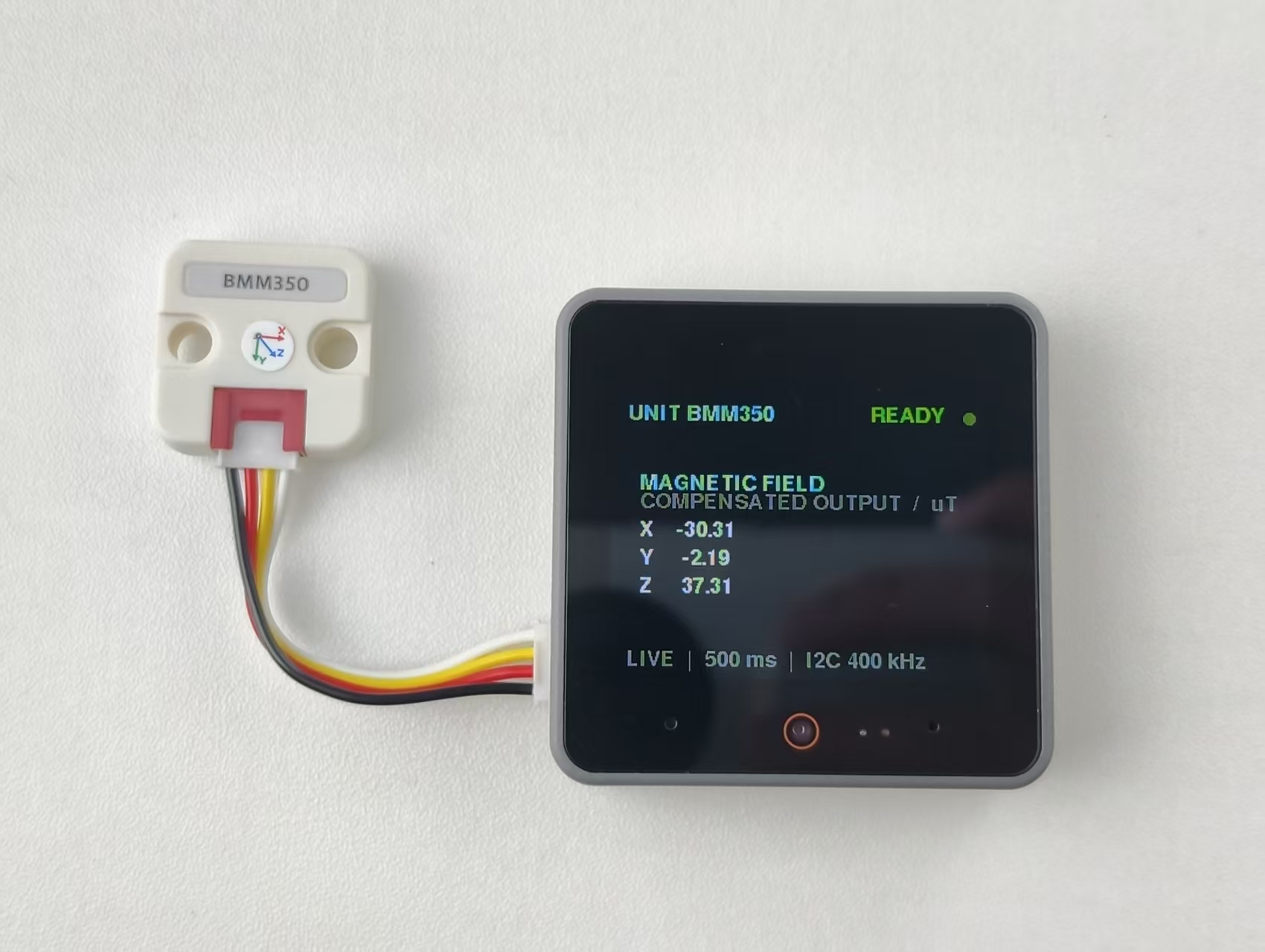
0x14. After connecting the device, the corresponding pins areG2 (SDA)andG1 (SCL). The example program reads the BMM350's three-axis magnetic field data every 500 ms, displays the X, Y, and Z magnetic field values on the CoreS3 screen as a dashboard, and outputs the same data through the serial port.
cpp
1 2 3 4 5 6 7 8 9 10 11 12 13 14 15 16 17 18 19 20 21 22 23 24 25 26 27 28 29 30 31 32 33 34 35 36 37 38 39 40 41 42 43 44 45 46 47 48 49 50 51 52 53 54 55 56 57 58 59 60 61 62 63 64 65 66 67 68 69 70 71 72 73 74 75 76 77 78 79 80 81 82 83 84 85 86 87 88 89 90 91 92 93 94 95 96 97 98 99 100 101 102 103 104 105 106 107 108 109 110 111 112 113 114 115 116 117 118 119 120 121 122 123 124 125 126 127 128
#include <M5Unified.h>
#include <M5UnitUnified.h>
#include <M5UnitUnifiedIMU.h>

m5::unit::UnitUnified units;
m5::unit::UnitBMM350 bmm350{0x14};
m5::imu::imu_convert_param_t convert_param{};

constexpr uint16_t COLOR_BG     = TFT_BLACK;
constexpr uint16_t COLOR_CARD   = TFT_BLACK;
constexpr uint16_t COLOR_BORDER = TFT_BLACK;
constexpr uint16_t COLOR_ACCENT = TFT_CYAN;
constexpr uint16_t COLOR_MUTED  = TFT_DARKGREY;
constexpr uint16_t COLOR_GOOD   = 0x5CE0;

void drawHeader(bool connected) {
    M5.Display.fillScreen(COLOR_BG);
    M5.Display.setTextSize(1);
    M5.Display.setTextColor(TFT_CYAN, COLOR_CARD);
    M5.Display.setCursor(12, 8);
    M5.Display.print("UNIT BMM350");
    M5.Display.setTextSize(1);
    M5.Display.setTextColor(connected ? TFT_GREEN : TFT_ORANGE, COLOR_CARD);
    M5.Display.setCursor(220, 8);
    M5.Display.print(connected ? "READY" : "WAIT");
    M5.Display.fillCircle(304, 18, 5, connected ? COLOR_GOOD : TFT_ORANGE);
}

void drawStatus(const char* message, uint16_t color) {
    M5.Display.fillScreen(COLOR_BG);
    drawHeader(false);
    M5.Display.setTextSize(1);
    M5.Display.setTextColor(color, COLOR_BG);
    M5.Display.setCursor(12, 76);
    M5.Display.print(message);
    M5.Display.setTextSize(1);
    M5.Display.setTextColor(COLOR_MUTED, COLOR_BG);
    M5.Display.setCursor(12, 112);
    M5.Display.print("I2C bus / sensor status");
}

void drawData(float mx, float my, float mz) {
    M5.Display.startWrite();
    // Clear the block so old values do not leave ghosts.
    M5.Display.fillRect(0, 56, 320, 120, TFT_BLACK);
    M5.Display.setTextSize(1);
    M5.Display.setTextColor(COLOR_ACCENT, COLOR_CARD);
    M5.Display.setCursor(22, 68);
    M5.Display.print("MAGNETIC FIELD");
    M5.Display.setTextColor(COLOR_MUTED, COLOR_CARD);
    M5.Display.setCursor(22, 84);
    M5.Display.print("COMPENSATED OUTPUT  /  uT");
    M5.Display.setTextColor(TFT_WHITE, COLOR_CARD);
    M5.Display.setTextSize(1);
    M5.Display.setCursor(22, 108);
    M5.Display.printf("X  % 8.2f   ", mx);
    M5.Display.setCursor(22, 132);
    M5.Display.printf("Y  % 8.2f   ", my);
    M5.Display.setCursor(22, 156);
    M5.Display.printf("Z  % 8.2f   ", mz);
    M5.Display.setTextSize(1);
    M5.Display.setTextColor(COLOR_MUTED, COLOR_BG);
    M5.Display.setCursor(12, 218);
    M5.Display.print("LIVE  |  500 ms  |  I2C 400 kHz");
    M5.Display.endWrite();
}

void setup() {
    Serial.begin(115200);
    const uint32_t serial_start = millis();
    while (!Serial && millis() - serial_start < 3000) {
        delay(10);
    }
    Serial.println("Starting Unit BMM350...");

    auto config = M5.config();
    M5.begin(config);
    M5.Display.setFont(&fonts::FreeSansBold9pt7b);
    M5.Display.setTextSize(1);
    M5.Display.setRotation(1);
    M5.Display.setTextWrap(false, false);
    drawStatus("Initializing...", COLOR_ACCENT);

    auto cfg = bmm350.component_config();
    cfg.clock = 400000;
    bmm350.component_config(cfg);

    if (!M5.Ex_I2C.begin() || !units.add(bmm350, M5.Ex_I2C) || !units.begin()) {
        while (true) {
            Serial.println("Unit BMM350 not found. Check wiring or I2C address.");
            drawStatus("Sensor not found", TFT_ORANGE);
            delay(1000);
        }
    }

    bmm350.imuConvertParam(convert_param);
    Serial.println("Unit BMM350 ready, address: 0x14");
    drawHeader(true);
}

void loop() {
    M5.update();
    units.update();

    static uint32_t last_output = 0;
    if (millis() - last_output < 500) {
        return;
    }
    last_output = millis();

    m5::imu::imu_raw_data_t raw{};
    static bool waiting_shown = false;
    if (m5::imu::any(bmm350.readImuRaw(raw))) {
        waiting_shown = false;
        const float mx = raw.mag[0] * convert_param.mag_res;
        const float my = raw.mag[1] * convert_param.mag_res;
        const float mz = raw.mag[2] * convert_param.mag_res;
        Serial.printf("Magnetic field: X %.2f, Y %.2f, Z %.2f uT\n",
                      mx, my, mz);
        drawData(mx, my, mz);
    } else {
        if (!waiting_shown) {
            waiting_shown = true;
            Serial.println("Waiting for Unit BMM350 data...");
            drawStatus("Waiting for data...", COLOR_ACCENT);
        }
    }
}3. Compile and Upload
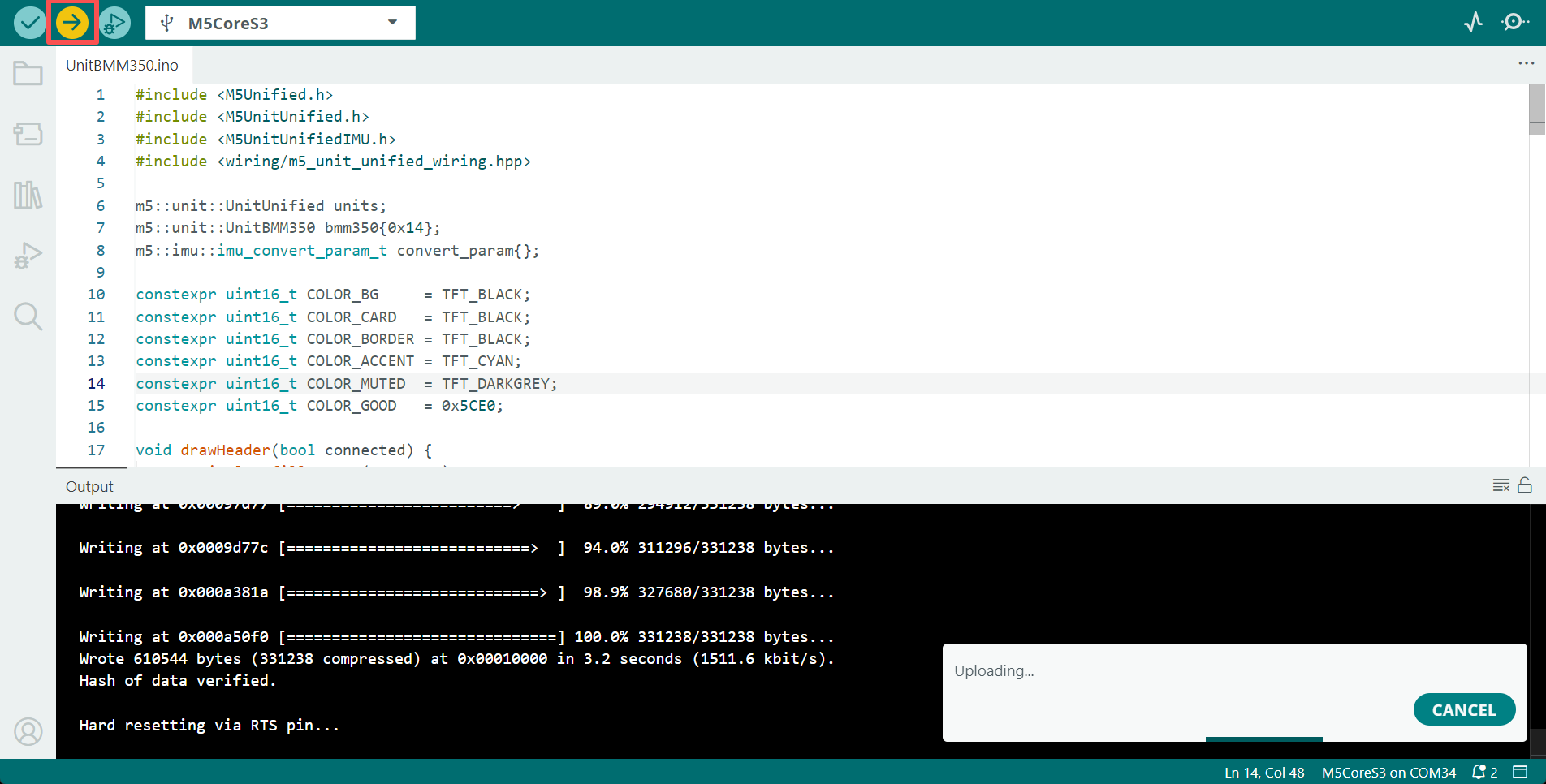
- Copy and paste the example code above into the project code area, select the device port (for details, refer to Compile and Upload the Program), click the compile and upload button in the upper-left corner of the Arduino IDE, and wait for the program to compile and upload to the device.
4. Magnetic Field Data Reading
- After the program starts, the screen refreshes the X, Y, and Z three-axis magnetic field data every 500 ms, and the serial monitor outputs the corresponding values at the same time. Complete magnetometer calibration before using the heading function.
Page Tools